
Login to Automatics Properties Tool
Login Page

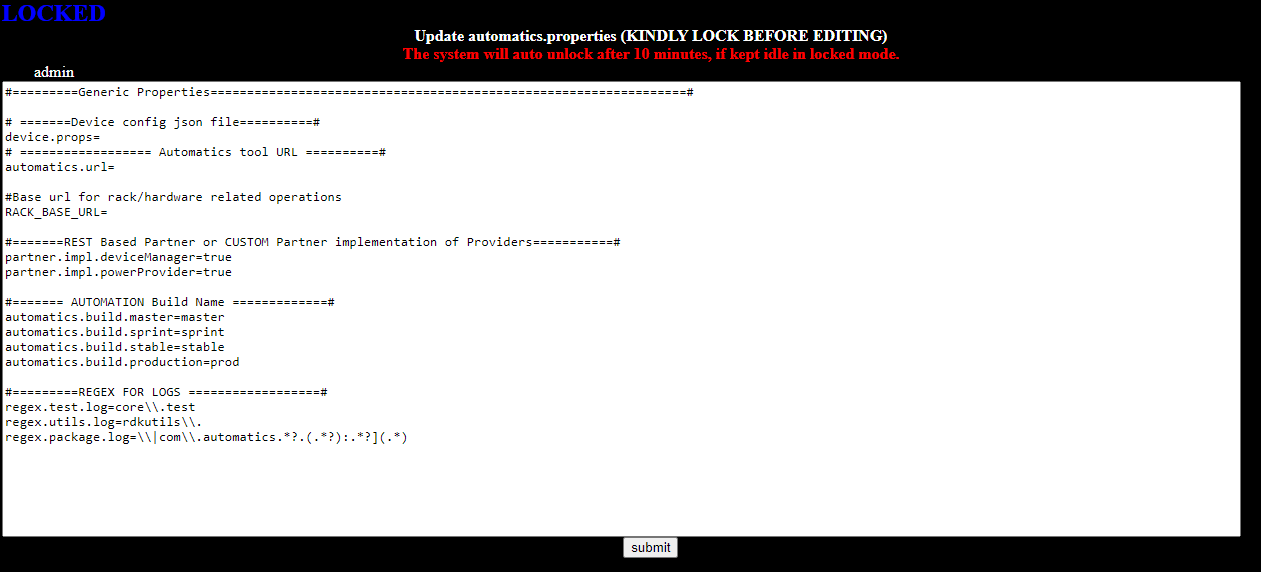
By default Automatics Properties page will be displayed after login. User can choose the file option in login page to navigate between Automatics Properties and Device Properties. Following are the default properties for automatics.properties file.
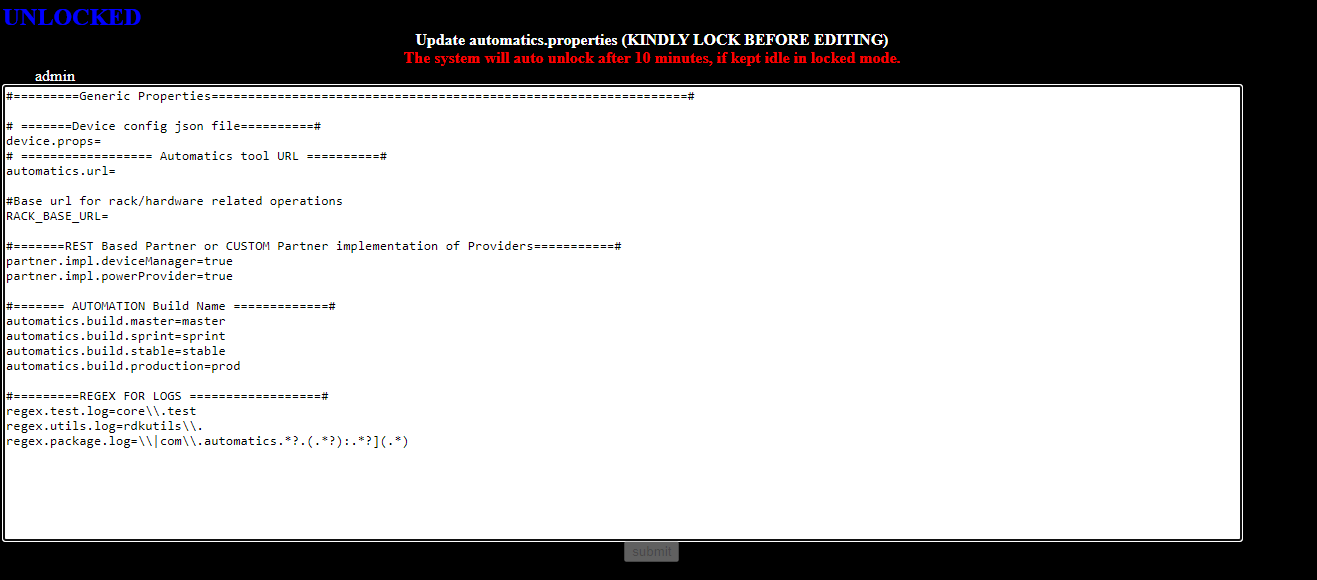
Edit Automatics Properties
To edit, the properties, click on 'UNLOCKED' link on left top side of page. This will allow only one person to update the document at a time. We will get pop message, "Successfully Locked".
Now user can edit the values and finally click on 'Submit' button to save the values. On submit, the application will save the values and logout and display message "Updated Successfully".
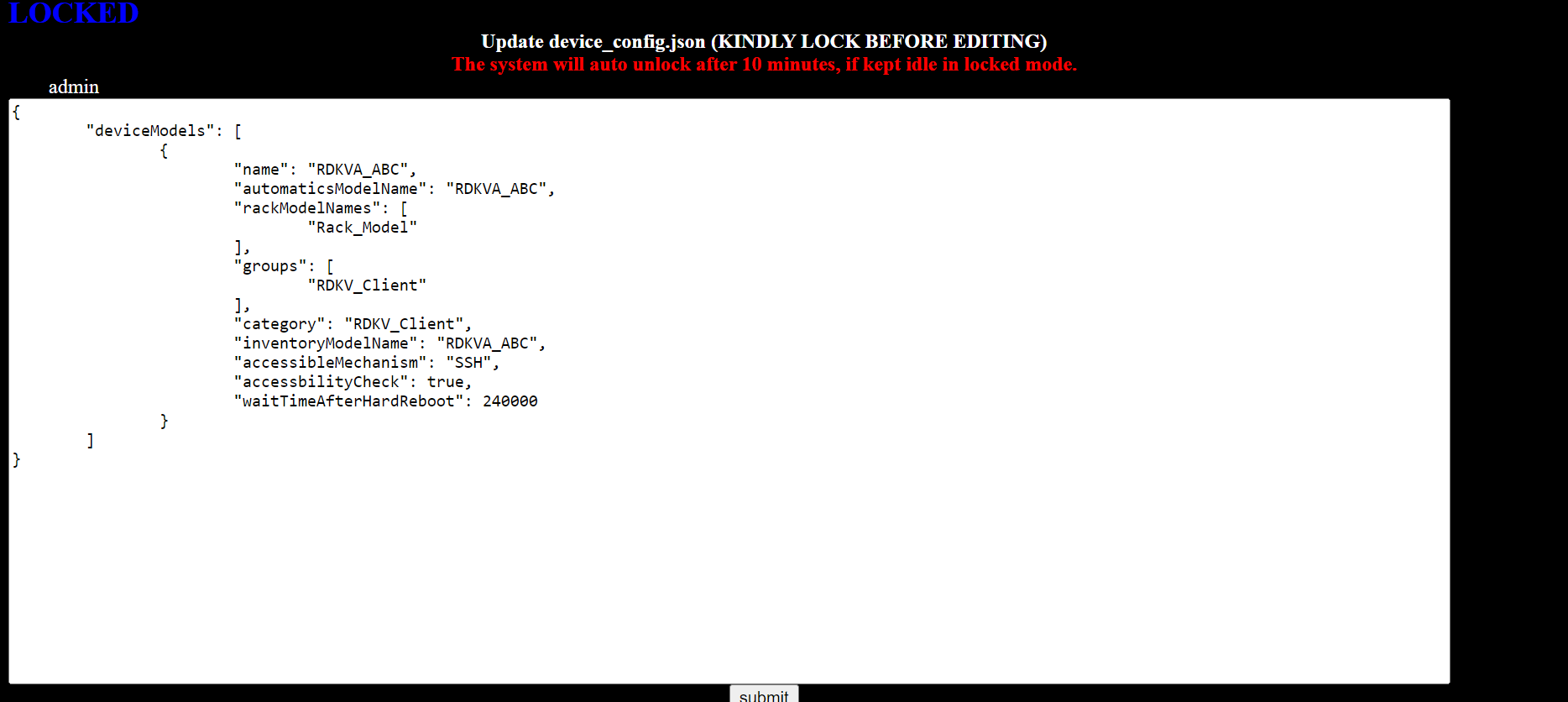
Edit Device Properties
To edit, the device properties, click on 'UNLOCKED' link on left top side of page. This will allow only one person to update the document at a time. We will get pop message, "Successfully Locked". Now user can edit the values and finally click on 'Submit' button to save the values. On submit, the application will save the values and logout and display message "Updated Successfully".
Automatics properties file
- Launch {protocol}//{host:port}/AutomaticsProps/automatics/props.
- Login page will be displayed. Enter the credentials, choose 'Automatics Properties' for File option and click login.
- User will be redirected to automatics properties page where it contains all the Properties which can be changed based on the requirements.
- Automatics Core/Partner Implementation/Rest Implementation Projects will read configuration values from this file.
- To edit the values, please click on “unlocked” button. Update the values and click on submit. This will save the configuration values.
Device properties file
- Launch {protocol}//{host:port}/AutomaticsProps/automatics/props.
- Login page will be displayed. Enter the credentials, choose 'Device Configuration JSON' for File option and click login.
- User will be redirected to device configuration page where it contains all device configurations for each model.
- Automatics Core/Partner Implementation/Rest Implementation Projects will read configuration values from this file.
- To edit the values, please click on “unlocked” button. Update the values and click on submit. This will save the configuration values.