Welcome to the Automatics Jenkins Setup and Deployment Guide. This document will walk you through the steps to set up and deploy Automatics applications using Jenkins, ensuring a smooth and efficient process. Navigate through below stages to bring up Automatics Test System.
|

Deployment ApproachesDeployment Setup in 3 VMThe recommended approach to deploy Automatics for a stable test environment is using 3 VM setup. In this approach the automatics components are deployed among the VMs. Following diagram shows in which VM each component should be deployed.
Deployment Setup in single VMIn this approach all components that is shown in the above section will be deployed in single VM. |
Automatics Setup StepsNavigate through below stages to bring up Automatics Docker Containers.
Pre-requisitesBefore you begin, ensure you have the following installed in VMs:
Docker Setup StepsPlease follow below steps to setup docker in your VMs.
Create a new user group named "docker" and add the Jenkins user to this group:
Log out and log back in to re-evaluate group membership. On a virtual machine, you may need to restart it. On Linux, you can also run:
Verify Docker commands can be run without
Note: Ensure access to pull Docker base images like Tomcat and MySQL from Docker Hub. If access is not available, ensure these images are available locally on the Jenkins VM. Clone Automated Deployment RepositoryAfter the pre-requisites are done, clone the automated deployment repository in the VM where Jenkins is planned to setup. Automatics Automated build and deployment Repo Repo : https://code.rdkcentral.com/r/admin/repos/rdk/tools/automatics/dev-ops (Please open the above url in browser and git clone url is available in the page) Branch : rdk-next Sub folder :
Clone the repository https://code.rdkcentral.com/r/admin/repos/rdk/tools/automatics/dev-ops(Please open the above url in browser and git clone url is available in the page) and navigate to the
Setup Automatics Jenkins
During the installation, you will be prompted to specify whether you have a cloud-based Maven artifact repository. If you have cloud Maven artifact repository, enter ‘Y’ and provide the URL of the private cloud Maven artifact repository along with the username and password. If you do not have a cloud Maven artifact repository and want to configure a local Maven repository instead, enter ‘N’. In this case, the .m2 folder will be used by default as the local Maven repository inside the Docker container.
Below set of jobs will be created after successful setup of Jenkins.
Execute Automatics Build JobFirst execute Automatics_Build_Job. This will build the source code of Automatics tools and services and generate war or jar files.
Populate the parameters as shown in the sample images.
Execute Automatics Deployment JobNext, execute Automatics_Deployment_Job. This will create docker files and deploy dockers on the destination VMs. After this execution, Automatics tools should be up and running. While running this job,
|


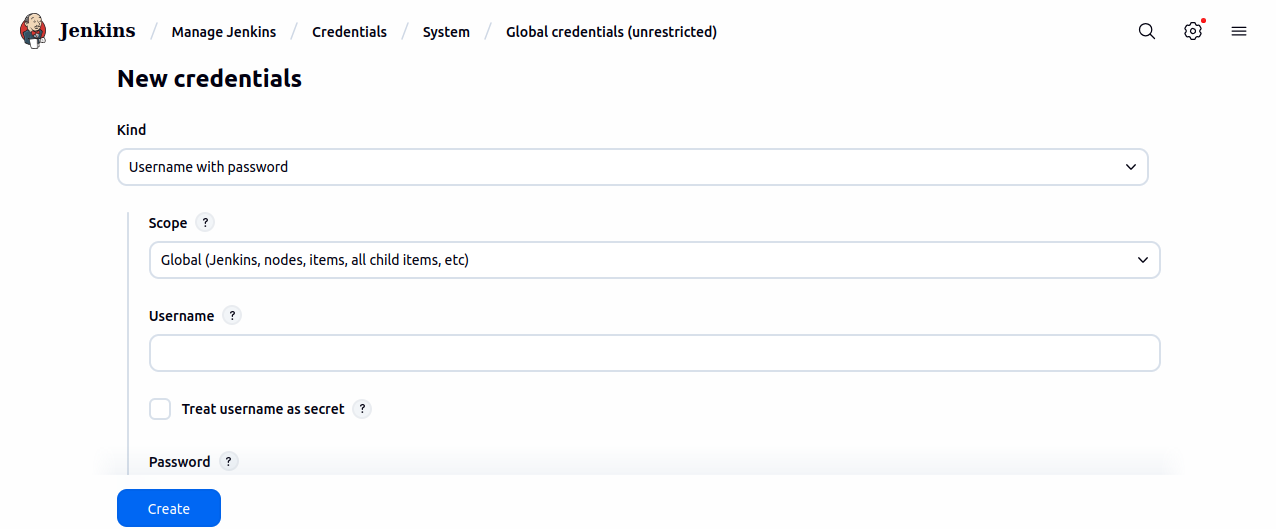


After successful docker deployment, please follow below manual configurations in Jenkins and Automatics tools. Jenkins Job ConfigurationConfigure the jenkins jobs with below mentioned details
Run Jenkins JobsAfter completing the above set of configuration execute Jenkins Jobs in below order.
Configure Devices in Device ManagerConfigure devices in device manager
Configurations in Automatics OrchestrationSystem ConfigurationThe below mandatory system configurations needs to be done in Automatics orchestration for running a first dummy Test execution and result verification from automatics. Please follow Automatics Orchestration Setup#Configuration to configure required configs System Config page of Automatics Properties to make use of features like scriptless automation, review management etc All the URLs and DB credentials used for the deployment can be found as a YAML file in "archived artifacts" of Automatics Deployment Job execution DeploymentJob
Configure Automatics PropertiesAll the mandatory properties mentioned in the document Automatics Properties should be configured in automatics properties for the successful execution of a test case. Restart Debugger ServiceAfter all configuration are done, please login to the VM where debugger service is running and restart the debugger docker container.
|
RDKB, RDKV 1.0 Scripts
RDKB , RDKV 3.0 Scripts
|
To validate that system setup is complete and good for execution. Please execute a simple test case as mentioned below and verify the steps.
|
Important Points to NoteNew Features in Release 33
Simplified Container Management
Upgrading from Older VersionsFor users upgrading from older versions of Automatics using the latest scripts, please note the following one-time activities:
Upgrading Automatics Applications Post-ReleaseTo upgrade Automatics applications after a release using the latest automated deployment scripts:
|