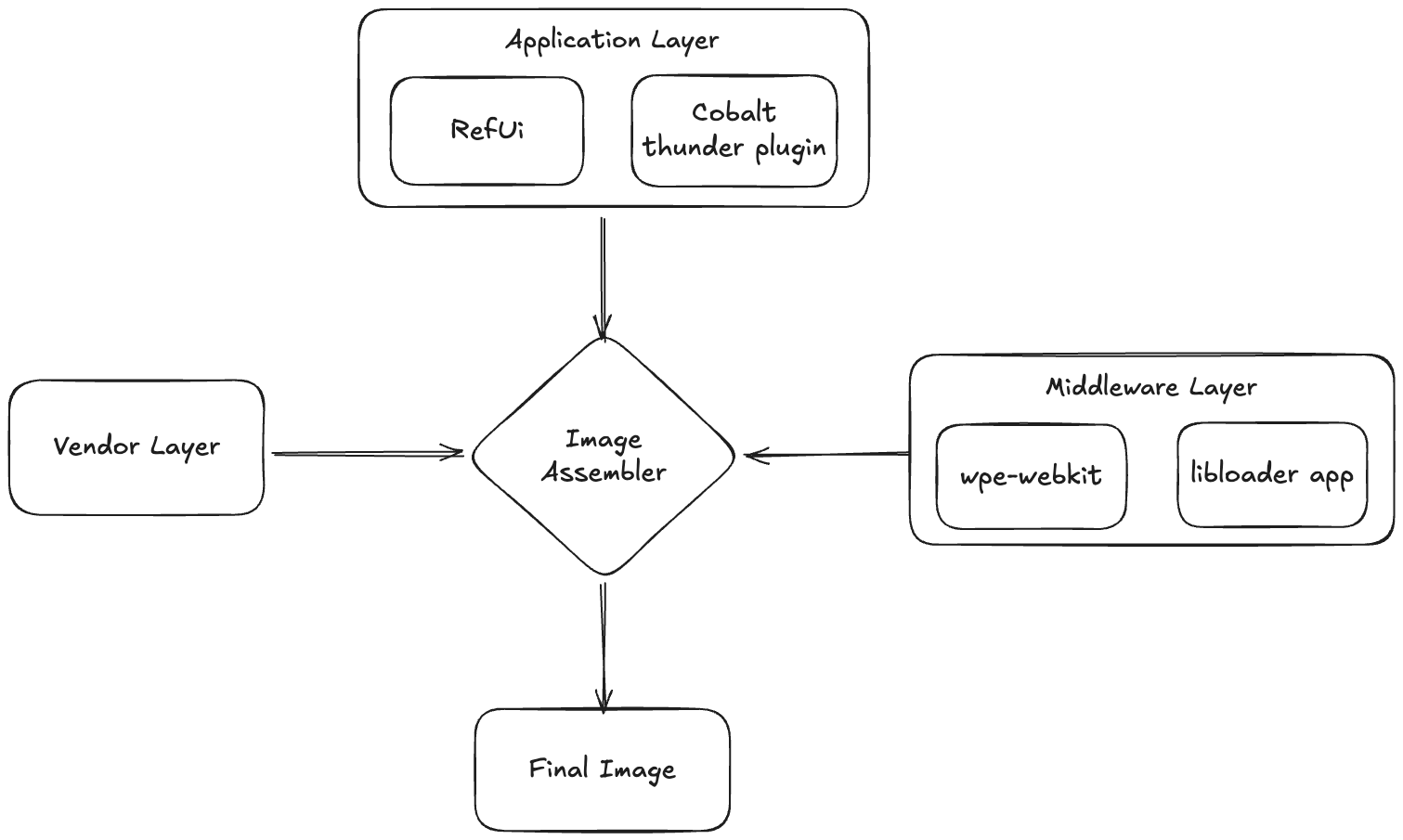
In the context of this document, factory applications refer to the core set of applications that are pre-integrated into an RDK 8 image and work together to deliver the Reference User Interface (UI) shown on device boot.
The factory apps include:
Together, these components form the default user experience that is displayed immediately after an RDK 8 image boots.
At the time of writing this document, work is still in progress to open up and make the pre-built BOLT applications available to the wider RDK community. Due to legal constraints, RDK-M is currently unable to share or distribute pre-built signed bolt binaries to the community.
Implication for the RDK CommunityUntil the legal considerations are resolved:
|
**This limitation is temporary and will be revisited once the legal situation around sharing signed BOLT applications is clarified.**
In RDK 8, factory applications are treated as external, deploy‑time components rather than being tightly coupled to the core RDK stack.
RDK8 introduced major architectural changes:
This means that native browser, runtimes, and applications are no longer embedded during the image build.
However, when the device boots for the first time, the Factory App / Reference UI must already be present on the platform so the user has a default, pre‑installed application available at startup.
Factory applications can be deployed to the device using one of the following approaches:
Pre-installed during image build
Factory apps can be integrated directly into the final RDK 8 image during the Image Assembler stage.
Sideloaded on first boot
Factory apps can be sideloaded onto the device during the initial boot-up process, after which the device is restarted to apply the changes.
Both approaches result in the factory applications being available for delivering the Reference UI experience.
To pre-install factory applications and make them part of the final RDK 8 image, the BOLT-based factory apps must be built, signed, and integrated during the image build process.
To simplify the process of generating factory applications, a script has been created to assist developers with the complete workflow. The script automates the following tasks:
By using this script, developers can avoid following the detailed and manual steps described in the below sections. Script Location and UsageThe script, along with instructions on how to run it, can be found at https://github.com/rdkcentral/bolt-pkg-build-scripts This approach is recommended for faster setup and to reduce manual errors during factory app generation. |
The overall flow is outlined below.
All factory applications must be built locally by the integrator.
Build the following components:
Base application
→ Build instructions: Build Base Bolt Package
WPE (WebKit runtime)
→ Build instructions: Build Wpe Bolt Package
Reference UI (RefUI)
→ Build instructions: Build Refui Bolt Package
Each of these components is packaged as a BOLT application.
Create a factory apps JSON file that describes the applications to be pre-installed.
The JSON file must include:
File system location of each BOLT package
Corresponding SHA-256 checksum for integrity verification
JSON template: <link here>
local.confUpdate the path to the factory apps JSON file in your local build configuration:
FACTORY_APPS_JSON_FILE variable in local.conf to point to the locally created JSON file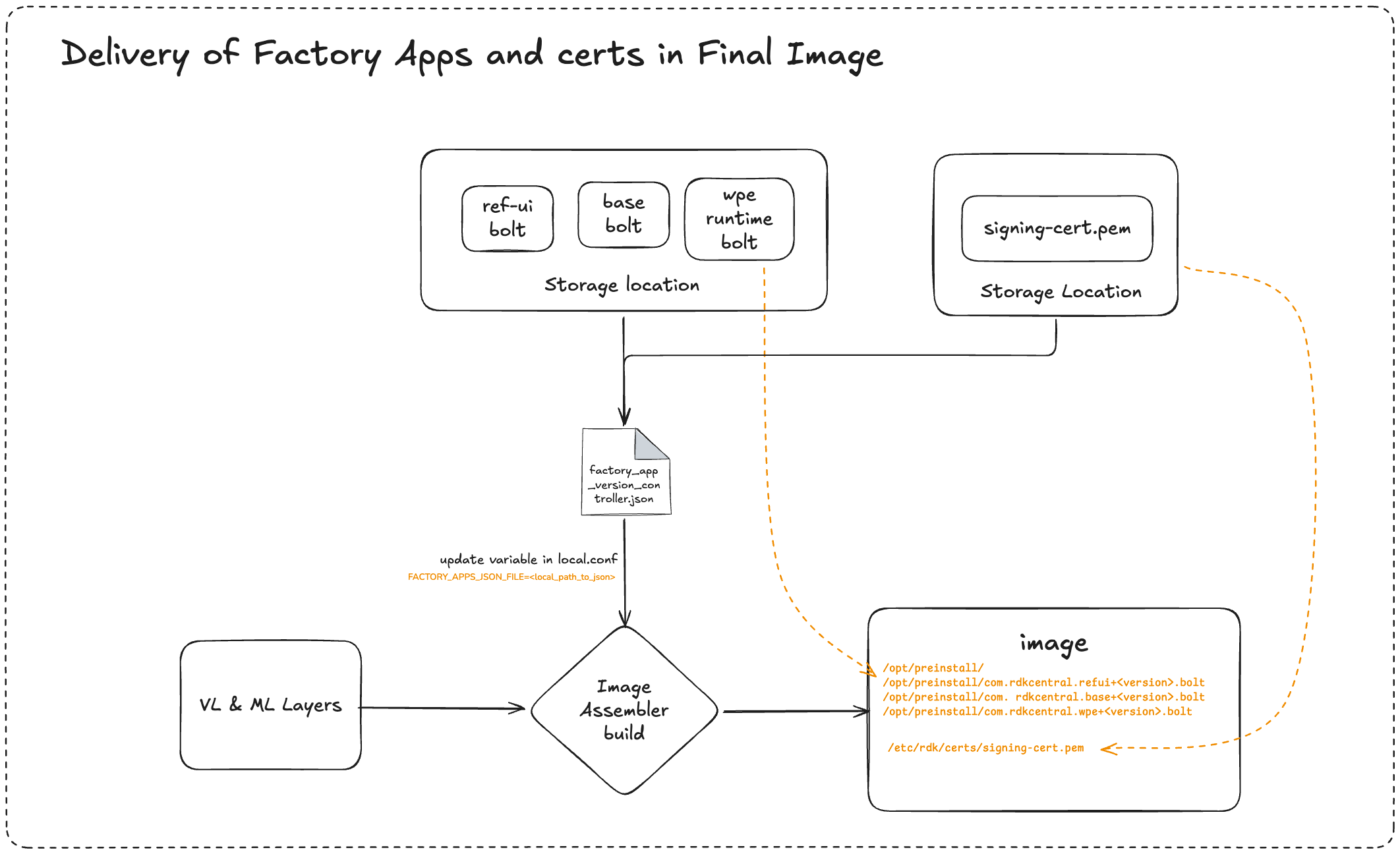
For a deeper understanding of how the Factory Apps Installer works internally, please refer to the documentation linked below: Factory Apps Installer for RDK-8 This resource provides an in‑depth explanation of the installer workflow and architecture. |
Factory applications can also be sideloaded onto the device after the initial boot instead of being pre-installed as part of the image build.
In this approach, once the device completes its first boot and console access is available, the required BOLT applications can be copied to the device and installed manually.
|
There are two supported ways to install factory apps after the initial boot:
curlThis method leverages the preinstall manager, which installs applications automatically during the next boot.
Steps:
Preinstall Path in the platform changes from platform to platform. It's based on the variable value set in rdke-common-config Refer: rdke-rdkm-config.inc#L46 |
On the next boot:
curl)This method installs factory apps directly using the package manager APIs.
curl command to install the BOLT applicationRegardless of the installation method used (pre-install during image build or sideloading on first boot), the public certificate required to verify the signed BOLT applications must be present on the device.
|
This section describes the steps required to build BOLT applications used as factory apps in RDK 8.
Note: The steps outlined below are accurate as of the time of writing this document. |
Repo: https://github.com/rdkcentral/meta-bolt-distro
git clone https://github.com/rdkcentral/meta-bolt-distro.git cd meta-bolt-distro git checkout <branch/revision/tag> source setup-environment # Create bolt-tools and hash it bitbake bolt-env && hash bolt # build base bolt package bolt make base |
Repo: https://github.com/rdkcentral/meta-bolt-wpe
git clone https://github.com/rdkcentral/meta-bolt-wpe.git cd meta-bolt-wpe git checkout <branch/revision/tag> source setup-environment # Create bolt-tools and hash it bitbake bolt-env && hash bolt #build wpe bolt package bolt make wpe |
Repo: https://github.com/rdkcentral/rdke-refui
You need to bolt-tools configured for packing bolt package for refui |
Steps: https://github.com/rdkcentral/rdke-refui/tree/develop/bolt
git clone https://github.com/rdkcentral/rdke-refui.git cd rdke-refui git checkout <branch/revision/tag> cd develop/bolt/ ./pack.sh cd packages bolt pack ../package-configs/com.rdkcentral.refui.json refui.tgz # You should have com.rdkcentral.refui+0.0.1.bolt created in the packages directory. |