

Page History
...
- After configuring the UspPa agent and connecting to the oktopus controller in the GUI the new device should appear under Devices with a status of ONLINE
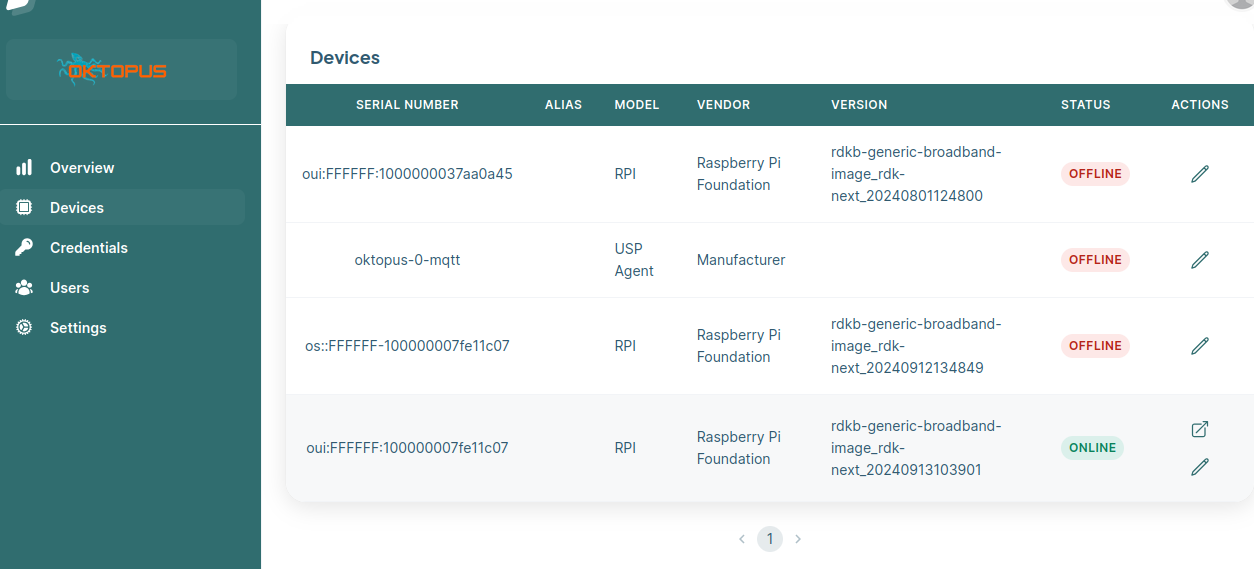
- A Device Model needs to be created. Double click on your device and in the main dashboard under Device Model click on Generate
- Once the Device Model is created you can test setting a parameter e.g. We can review the current Device.WiFi.SSID.1.SSID set on the device:
# /usr/bin/UspPa -c get "Device.WiFi.SSID.1.SSID"
Device.WiFi.SSID.1.SSID => RDK
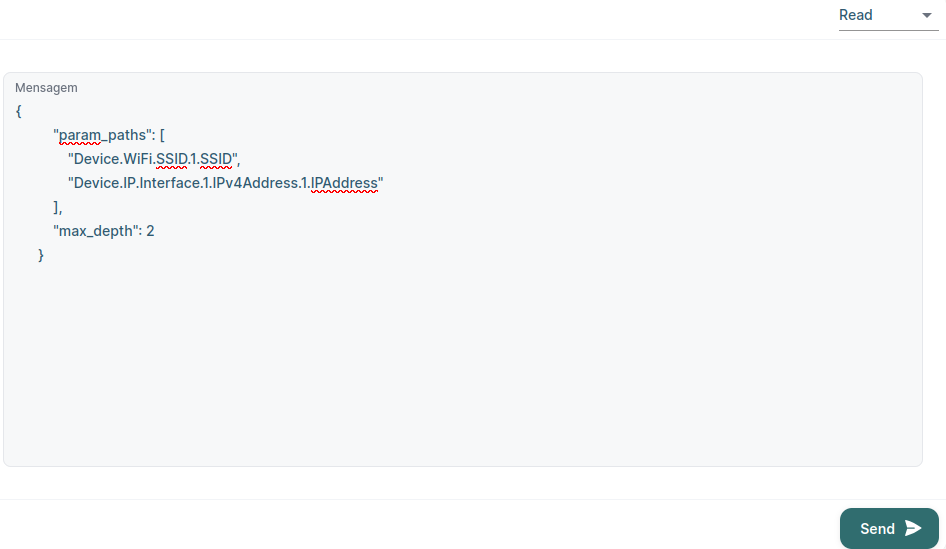
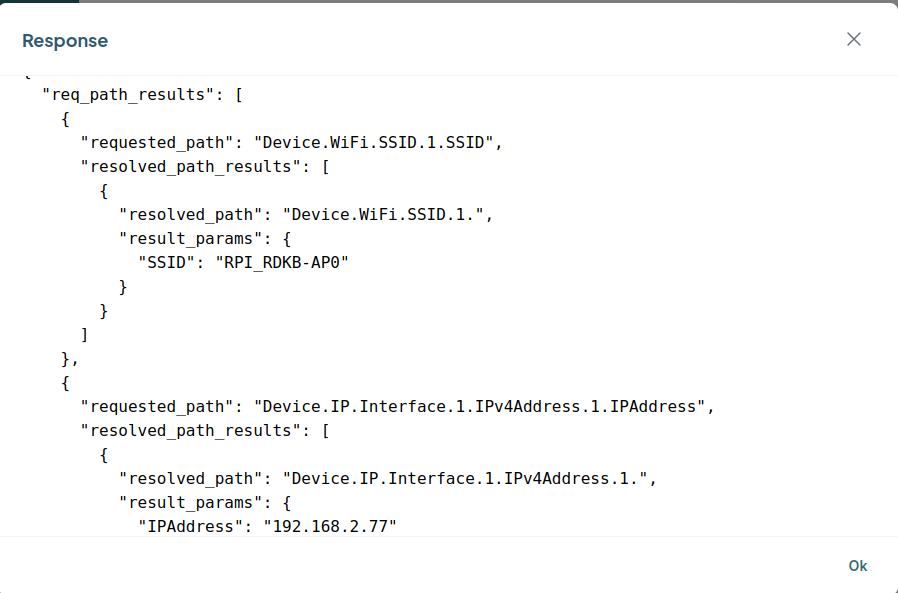
- Click on the Access the device and then go to Remote Messages page to perform get /set operations
- get Operation
- set OperationTo change this in the GUI under Devices → double click on your device then select Manage Object Structure and Parameters
- Search for your parameter(s) to change e.g. Device.WiFi.SSID.1.SSIDs then select Provision then select Set Value to the new setting e.g. Demo then Confirm then Save then OK
- Check the device and it should be updated
# /usr/bin/UspPa -c get "Device.WiFi.SSID.1.SSID"
Device.WiFi.SSID.1.SSID => Demo
| No Format |
|---|
##########################################################################################################
#
# This file contains a factory reset database in text format
#
# If no USP database exists when OB-USP-AGENT starts, then OB-USP-AGENT will create a database containing
# the parameters specified in a text file located by the '-r' option.
# Example:
#    obuspa -p -v 4 -r factory_reset_example.txt
#
|
Logs to see the response from Controller
...
Overview
Community Forums
Content Tools
Tasks