

Page History
| Table of Contents |
|---|
Automatics Login
User can login into Automatics through any one of the two authentication modes - Self-Authentication or LDAP Authentication.
...
User can also see the Execution Details of Last 4.
Manage User Group Access
For user to execute the test cases on the devices need to have permissions to access the device group. Admin user can map device groups to users so that only those users mapped to device group can execute tests on device.
- From Automatics UI, navigate to Settings -> User Management
- Click on User Group Module Access
- Select the User Group and click on Fetch Access Rights.
- Select the access right checkbox of the Module Name, you want to provide access.
- Click on Save.
Manage Scripts
To perform test execution, user needs to add test details to Automatics system. This can be done from Manage Scripts page.
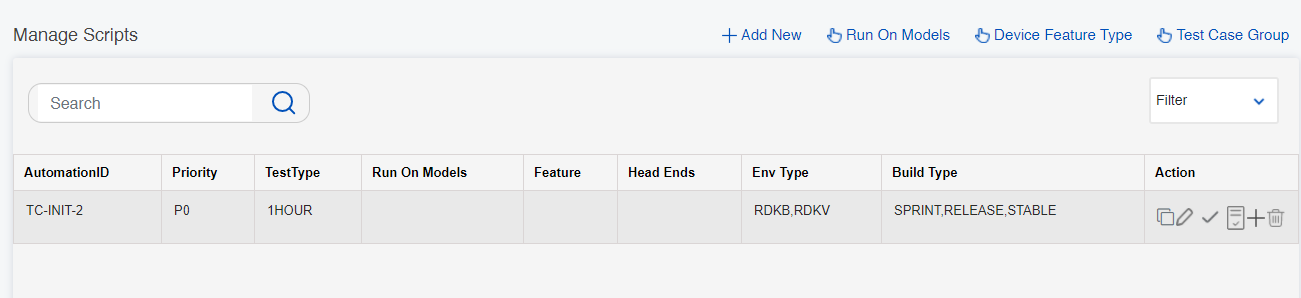
Add Script
Script Details
To add a new script, user can click on “Add New” link on the right top of page. Field “Automation Id” should be unique name that identifies an automated test. This id should match with the automation id in automated test case. Automatics considers RDK builds in any of the 3 categories ‘Sprint’, “Stable” and “Release”. A test case can be mapped to execute in any or all of the build types.
...
We can add test steps from here and to add new step click on “Add Row” button.
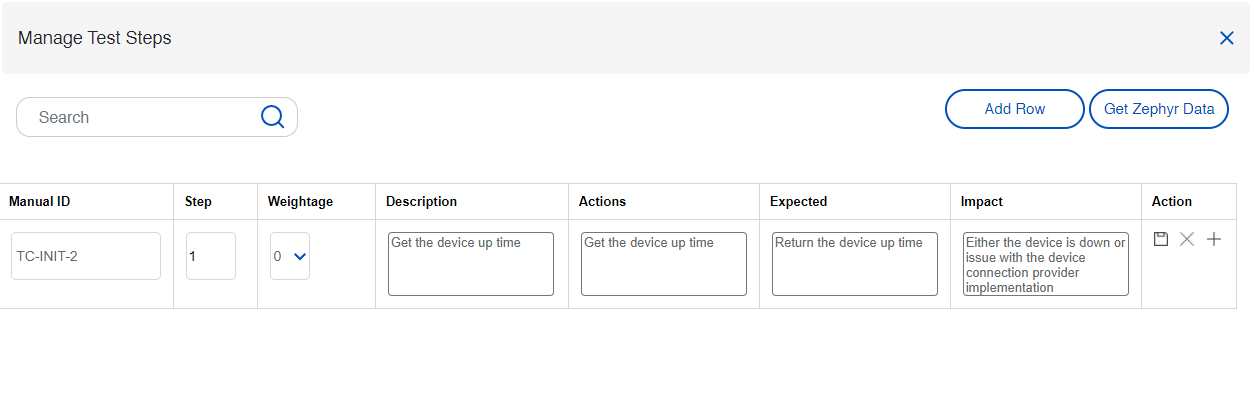
Enable Script
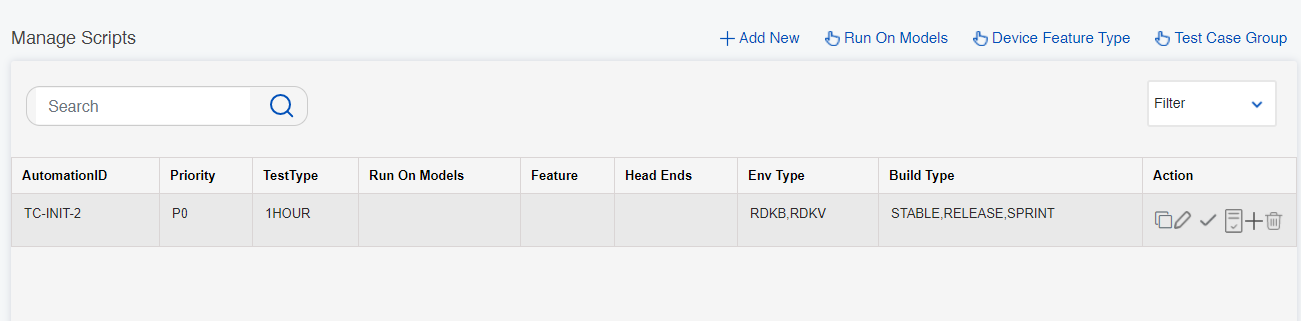
After adding test steps, the scripts should be enabled. Only enabled scripts will be considered for execution by Automatics.
...
Tick mark shows that the script is enabled.
Edit Script
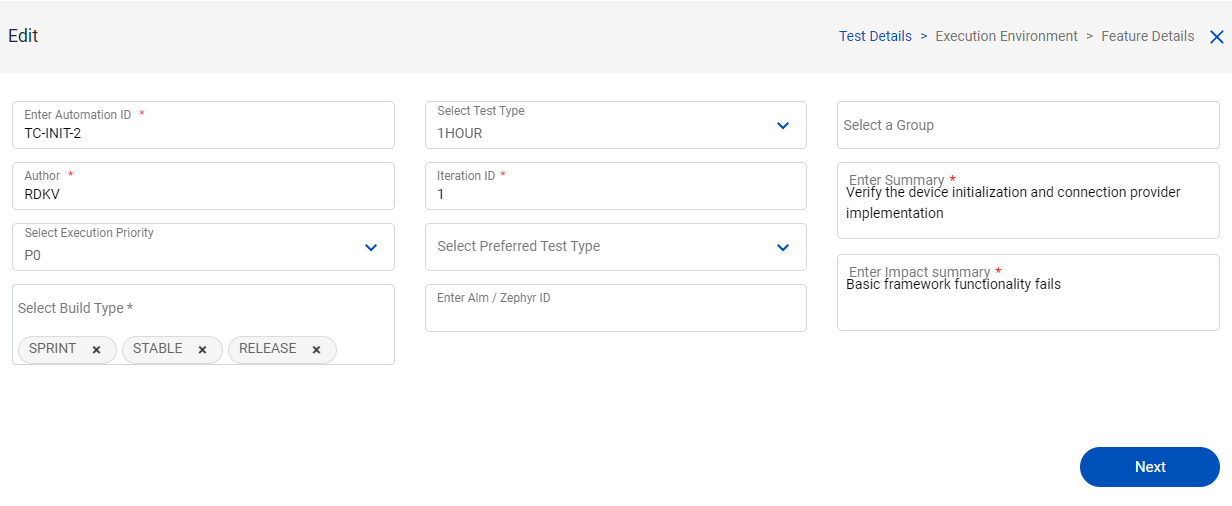
To edit the script details, click on 'Edit Option'.
...
User can edit the script details from here.
Update Step Details
To update the step details, click on 'Update Step Details' option.
...
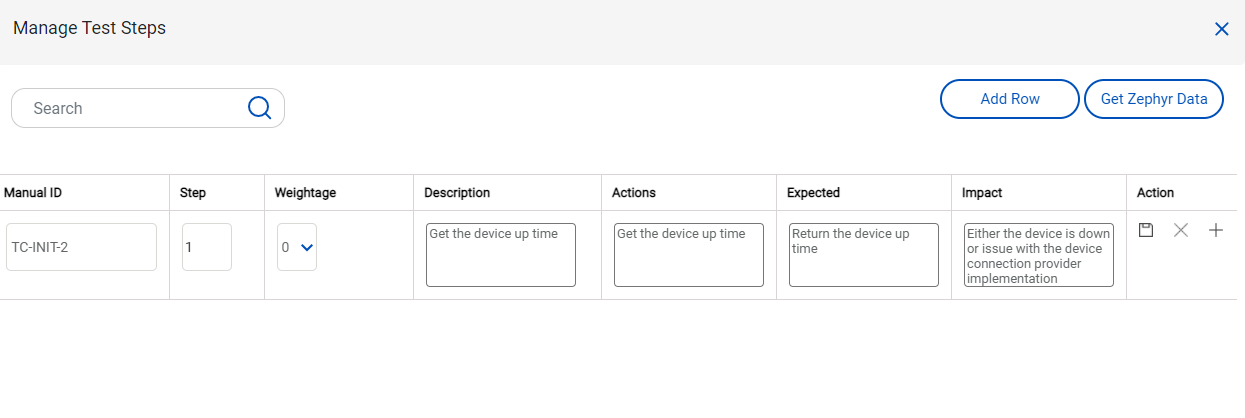
User can update the step details from below page.
Delete Script
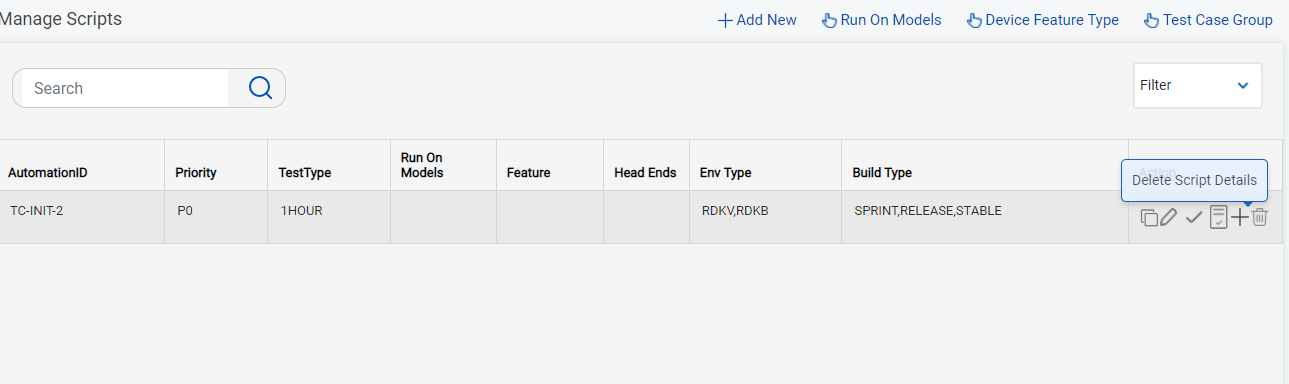
To delete script details and test steps configured, please click on 'Delete Script Details' option.
Add Script from Existing Copy
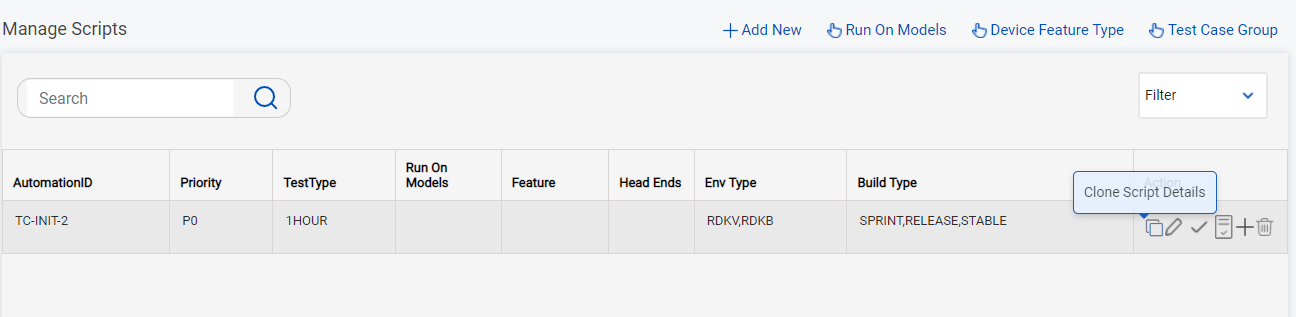
To reduce the effort for user to add new script details, user can clone existing test script and update required details as required.
Export Test Script and Steps to Excel sheet
An export feature is added to Automatics to help user to export the existing test script and its steps in bulk, which could be used to add the test cases to new or a different server of Automatics. The excel sheet with the test cases could be exported from Manage scripts page using Export/Import options menu. There is an option to export all Test cases or Filter the Test cases to be exported using the Filter option. Please see the below image for details
Import Test Script and Steps from Excel sheet
To reduce the effort for user to add new test script and its steps in bulk, user can import the existing excel sheet with required details. The template for the excel sheet to be used for importing the test case can be downloaded from Manage scripts page from Export/Import options menu. File picker from the Managed scripts page can be used to choose the excel sheet from the local PC and upload it to Automatics to import all the test cases and its steps in bulk
Run On Models
This page is used to save device models which will be used to test execution
Trigger Test Execution
User can trigger a test execution from “Trigger Execution Manually” page.
...
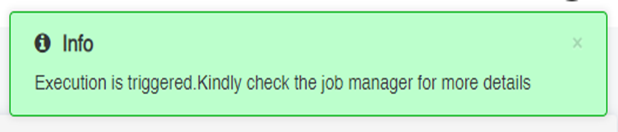
When execution is triggered successfully, below pop message will be displayed.
Job Manager
User can verify the status of the job executions from Job Manager page. Also, user can cancel or re-trigger a job, view child jobs, navigate to Jenkins executions are other features provided by Job Manager.
...
Action tab on the page supports features in the order as “Go To Jenkins Job”, “Re-trigger”, “View Execution Results”, “View Child Jobs” and “More Options”. User can cancel a job from “More Options”.
Reports
User will be to view and download the various reports of Build Execution Results, Device Usage, Script Health & Script Execution Time reports from the Reports section.
Execution Results
From execution results page, user can view the results of the triggered build executions. It shows the total count of test steps and its Pass, Fail, NT(Not Tested), NR(Not Run) and NA(Not Applicable) counts.
...
You can verify the required information from the Execution Result Details for that particular build.
Execution Results – TC
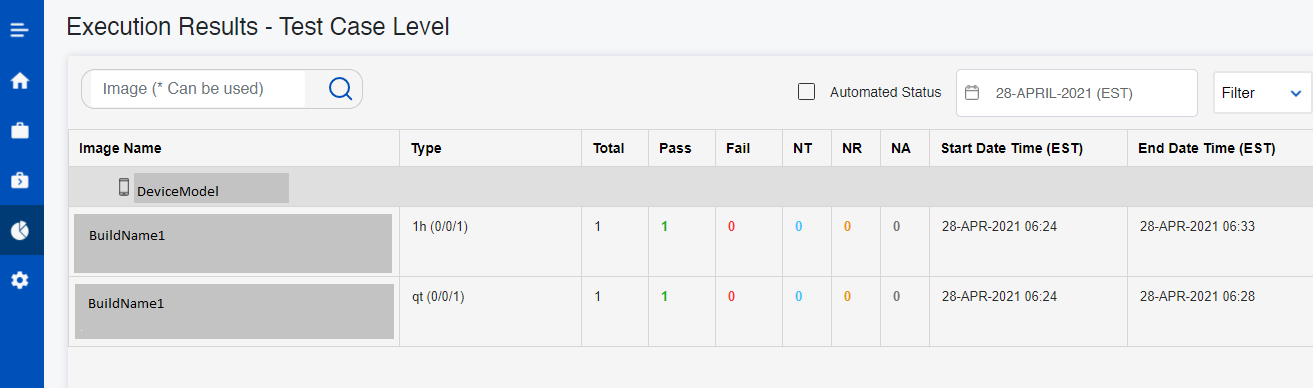
User can get an idea on the execution results from test case count via this page.
...
Following details will be displayed as shown below:
To download Test Case Level Execution Results
User can export test cases level execution results using 'Download Reports' button located in Execution Results – TC page.
...
Test cases results available in the tabular format will be exported to excel document.
Device Usage Report
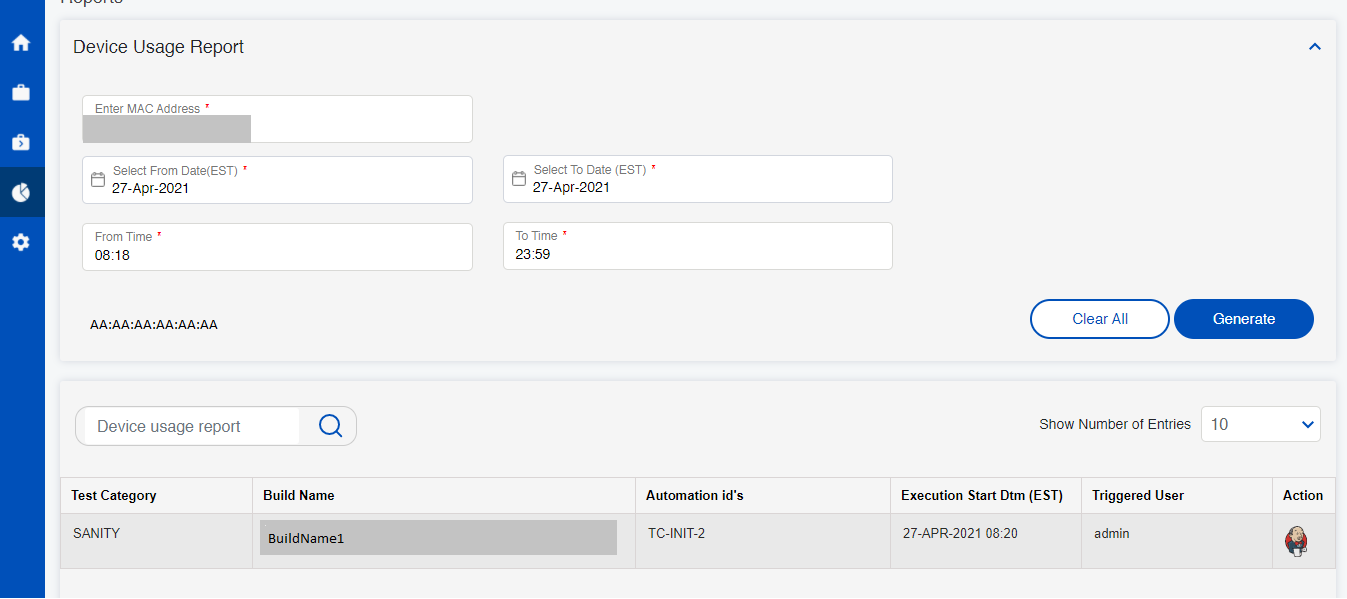
User will be able to generate the usage reports of a particular device within the required dates.
...
The following data/details of that particular device will be generated as shown below.
Script Health Report
User can generate the Health Report of the test scripts.
...
Also, by clicking on Download Report you can download the report to your local in order to see the data offline.
Script Execution Time Report
User can generate the Execution Time Report of the test scripts for the required dates.
...
Also, by clicking on Download Report you can download the report to your local in order to see the data offline.
RDK E2E Manager
RDK/CI portal sends execution requests to Automatics orchestration. Automatics based on filters configured decides if execution to be performed or not.
...
- E2E RDK Request
- E2E RDK Request Filter
E2E RDK Request
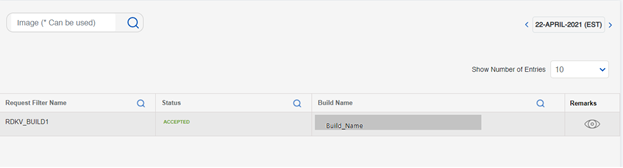
User will be able to see the incoming RDK Requests from the RDK Portal from this page.
...
If the request status is accepted, then execution will be triggered by Jenkins. Or else if the status is REJECTED, then no execution will be triggered.
E2E RDK Request Filter
User can configure RDK filters so that when request comes from RDK portal, Automatics can decide based on it, if execution should trigger or not.
...
Now, enter the required Settings details & Automation ID details of the filter and click on Save Results.
Configure Device Model
User needs to configure all device models that is going to execute from Automatics.
...
- Click on Add Device Name
- Enter the Device Name.
- Enter the Image Prefix Name. The build name prefix which will be unique to identify a device model. Automatics identify a device model from the build name.
- Select the device category.
- Check-in isClientDevice, if the device is a RDKV client device.
Configure Device Group
- From Automatics UI, navigate to Settings -> Device Groups
...
- Go to Settings -> Device Groups
- Click on Add New Device Group Name
- Enter the Device Group Name. Devices should be present in this Group Name.
Configure Job Settings
For each test type in Automatics, job will be created during test execution. The jobs are created based on job templates. For each test type, a job template need to be created.
...
Eg: AUTO_1HOUR_JOB. Quick Test is configured as parent of all other jobs. Child jobs are executed in the order of priority set for the job.
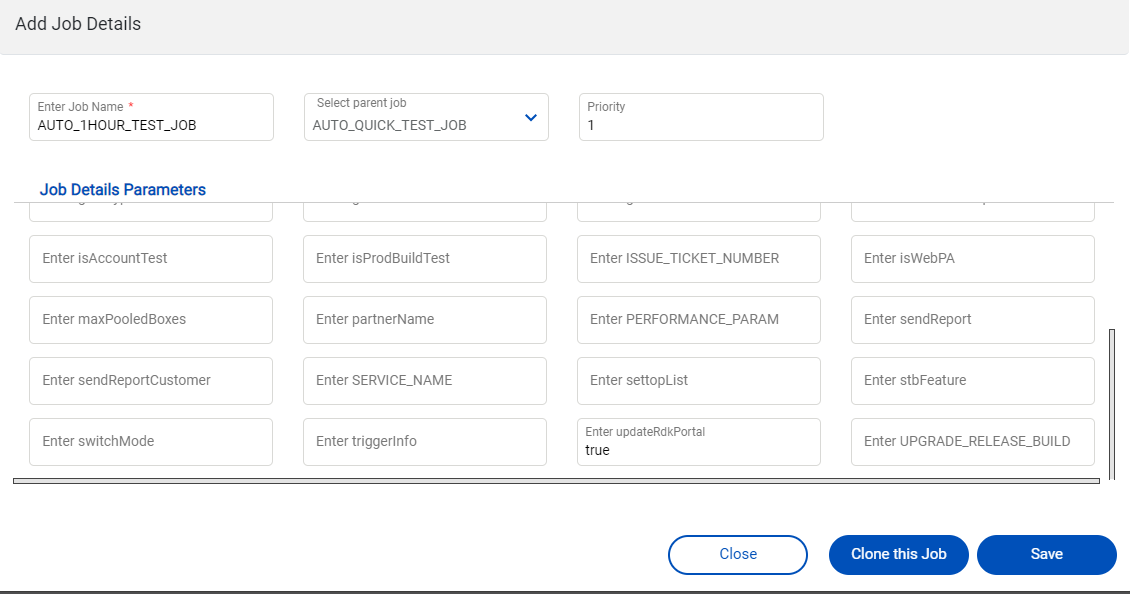
- Please update the default value for each field here.
- For CI integration, if results of test execution to be updated to CI portal, then set 'updateRdkPortal' to true here.
- Click on Save.
Email Server configuration - SMTP
Automatics orchestration has the functionality to send email notifications. For sending an email notification an SMTP server is required. One an SMTP server is available the below are the configuration which need to be configured for sending email notification's from Automatics Orchestration. The configuration can be added via "System Configuration" page under "Settings" menu
...
The above are the configurations which should be available in Automatics for sending emails.
Automatics 3.0
New Pages are added as a part of scriptless executions Details for the following pages is provided below
API Explorer
User can get to know the API's information such as API category, Class name, API name, Applicable for, description and parameter details.
Please refer Automatics 3.0 User Manual#APIExplorer for more details.
Build Test Utility
Build Test Utility is creating the set of steps frequently used in test cases which helps in reducing the user efforts while creating test cases.
Please refer Automatics 3.0 User Manual#BuildTestUtility for more details.
Test Constants
Tests Constants in automatics 3.0 is used to provide a feasible option for test developer to add a key value pair where the value can accessed any where in the test case by providing the key value.
Please refer Automatics 3.0 User Manual#TestConstants for more details on how to create and use test constants in test cases.
Build Test Case
Scriptless test cases can be build in Build test case page.
...
Overview
Community Forums
Content Tools
Tasks