

Page History
...
The Run On Models page is used to save device models which will be used for test execution. When we open the manage scripts page, over the top right we could see the Run On Models option, when we click it we will be redirected to Run On Models page. Please note that only Admin users will have access to this page.
Once we open this page we can see list of models and a button at the top right which is 'Add Device Name'.
Add Device Model
To add a new device, click on 'Add Device Name' button, Enter the device name, image name prefix, select the device category, choose whether the device is a client device or not and then click on save button.

Delete Device Model
To delete a device model, click on the 'Delete Device Model' button on the Actions column next to device which we wish to delete. A confirmation message will be displayed over the screen which shows the list of tables from which the device data will be deleted. Click on OK to confirm with deleting the device model. Once after clicking OK, the device model will be deleted. 
Test Group
User can create test groups and group the test scripts under a test group. This enables user to select test group for execution from Trigger Execution Manually page.
The UI provides support to add and delete test groups. Click on 'Test Case Group' link displayed in Manage Script page. This will launch the Test Case Group page from where user
can view, add new test group and delete test group.

Test Case Group Page

Add Test Group
To add new test group, click on 'Add Group Name' link. Enter group name and click on Save. On successful save, the newly saved test group will be displayed in main page.

Delete Test Group
To delete test group, click on Delete icon in main page.

Confirmation message will be asked before deleting the group. Click OK if you wish to delete test group or else click on Cancel if wish to Cancel deleting group.

Trigger Test Execution
User can trigger a test execution from “Trigger Execution Manually” page.
...
Eg: AUTO_1HOUR_JOB. Quick Test is configured as parent of all other jobs. Child jobs are executed in the order of priority set for the job.
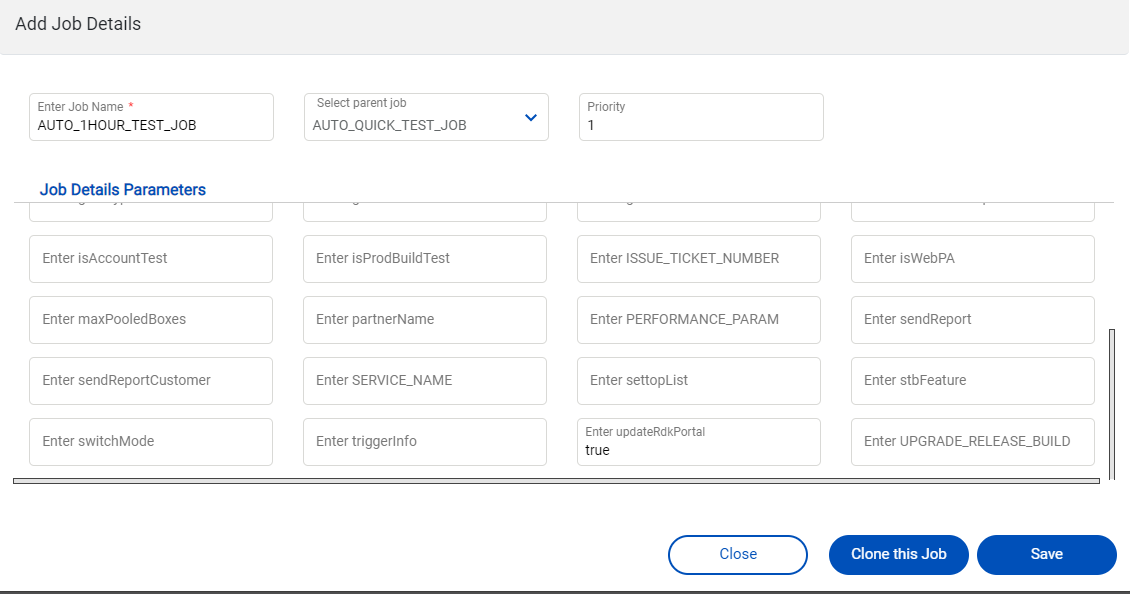
- Please update the default value for each field here.
- For CI integration, if results of test execution to be updated to CI portal, then set 'updateRdkPortal' to true here.
- Click on Save.
...
Overview
Community Forums
Content Tools
Tasks