

Page History

REFERENCE UI FOR DAC - DESIGN WIREFRAME
Version | 1.2 |
Date | 02/19/2026 |
Authors | Ramakrishna |
Scope
This document outlines the complete UI specification for the updated RDK Reference UI supporting DAC (Downloadable Application Container) applications. It provides a basic wireframe level design for restructuring the current Reference UI used in RDKM reference devices to accommodate the DAC (Downloadable Application Containers) based apps.
...
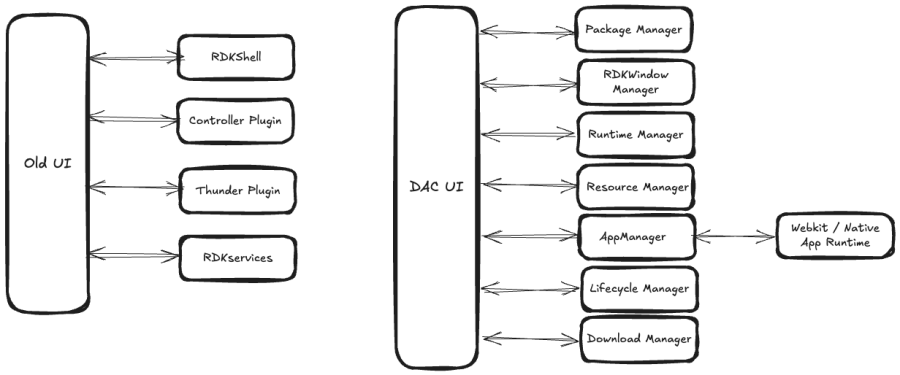
The previously used RDKShell for window management will be deprecated. All windowing responsibilities will now be managed by the Window Manager plugin.
Firebolt & Rialto Compatibility
All DAC applications will support Rialto and be Firebolt-compatible. Instead of using RDKServices calls to retrieve platform data, applications will now access these values through Firebolt Apis. This interaction will be mediated by the App Gateway entservice.
New App Launching Model
Previously, native apps were launched and controlled through Thunder plugins. Under the new architecture, each DAC app runtime will include its own launcher, embedded directly within the DAC bundle. This applies even to the webkit browser runtime (which will contain its own browser launcher). The App Manager EntService will use the launcher as the entry point for app startup /kill etc. whereas the Lifecycle Manager will handle the app lifecycle endtoend.
The diagram (mentioned below) illustrates the shift from the old UI architecture to the new AI 2.0 / DAC architecture. This is not a process flow diagram; rather, it provides a high-level conceptual mapping.
...
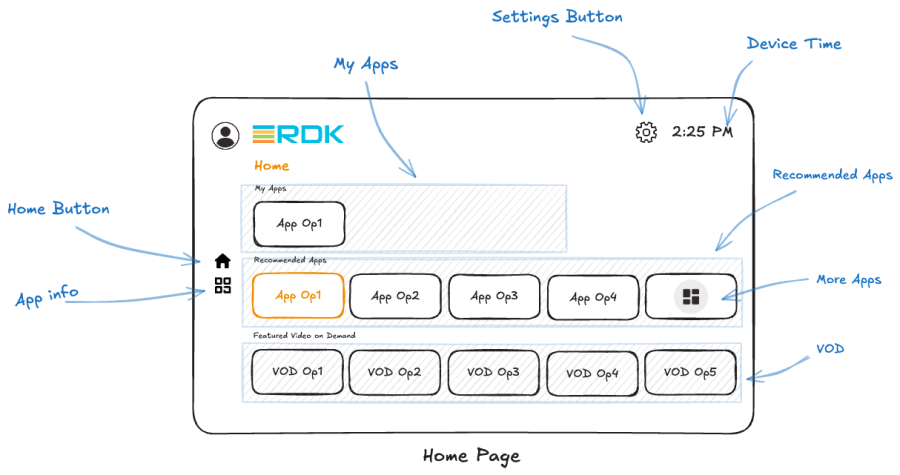
Default Home Page – A Look
...
Device Boot-up: Connection to App catalogue fails
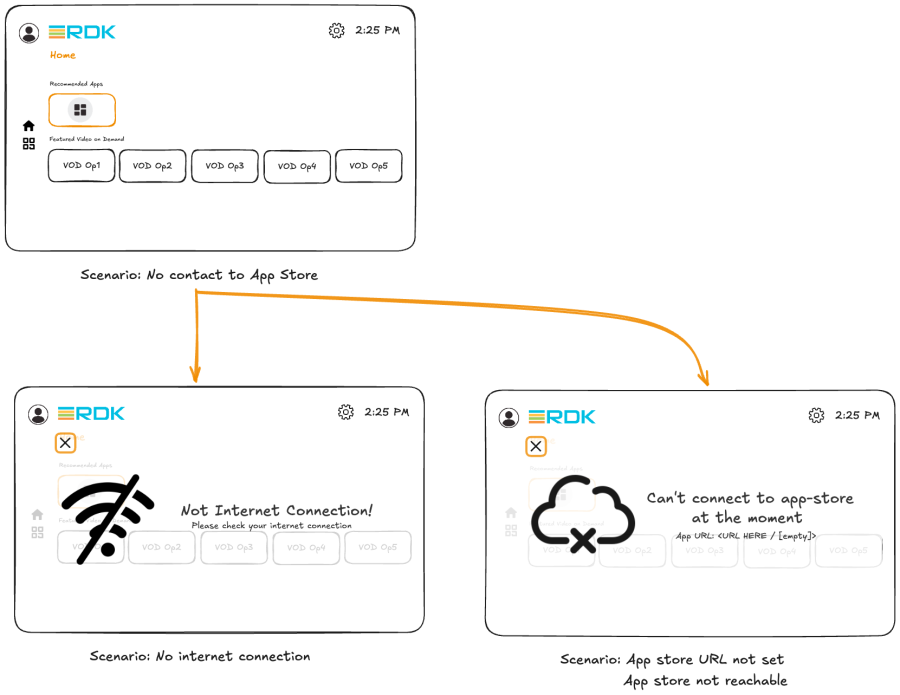
- When the device boots-up and it fails to establish a connection to the App Catalogue server for any reason, only one tile should appear in the Recommended Apps row — the "More Apps" tile.
- When the user selects the "More Apps" tile, an error dialog should be displayed.
- The dialog should provide a brief explanation of the issue to help the user understand what went wrong.
- Possible causes include network connectivity problems, an incorrect App Catalogue URL set by the user, or the App Catalogue server being temporarily unavailable. The error message shown should reflect the specific issue.
...
Downloading /launching the app via the "More Apps" page.
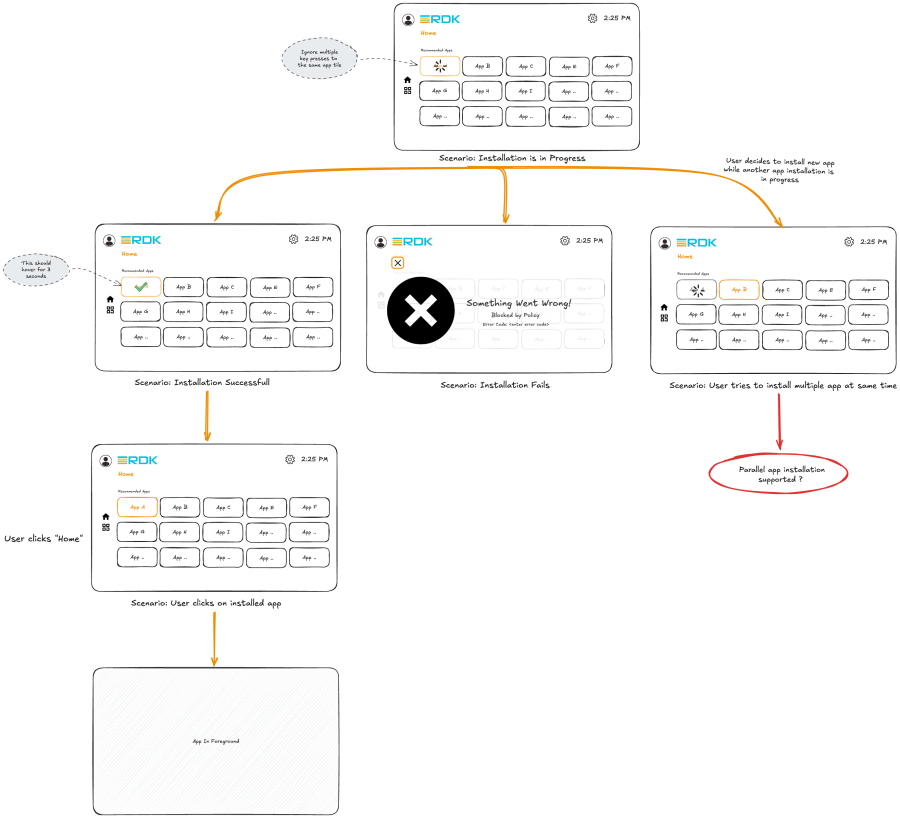
- Upon selecting any app tile on the "More Apps" page, if the app is not already downloaded or installed, the UI should initiate the download process.
- The download flow is identical to the DAC app download flow used on the Home page.
- The UI should request the necessary DAC bundles for download through the Package Manager by providing the app download URL.
- During the download process, a buffering/loading icon should be displayed on the app tile to indicate ongoing activity.
- If the download of any app fails, an error dialog should appear, showing the reason for the failure (e.g., network issues, catalogue server problem, insufficient memory).
- The user should be able to exit the error dialog by navigating to and selecting the Cancel button, or by pressing the Back button on the remote.
- Once the installation completes successfully, a green tick icon should be displayed on the app tile for approximately 2–3 seconds.
- Key presses to same tile during download is ignored.
- Any subsequent selection of that app tile should launch the installed DAC application.
- Like mentioned in previous section, Update flow should be invoked if there is a higher version of the app available on the catalogue.
- Multiple rapid key presses on different app tiles may overload the system by triggering multiple concurrent downloads. As per the current reference DAC store implementation, the multiple downloads are queued.
...
Pressing the "Apps Info" button
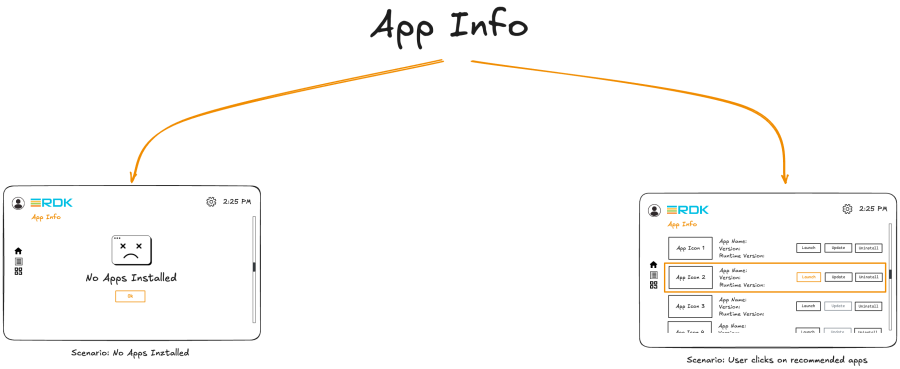
- To manage the installed DAC applications, a new "App Info" button is available on the left side of the Home page UI.
- When the user selects this button, the UI should open a dedicated App Info page. This page lists all DAC apps installed on the device, arranged in a rowbased layout that the user can navigate through.
- Each row displays the details of a specific application — including the app icon, app name, app version, runtime package version, and three management option – Launch, Update, and Uninstall.
- The UI should query the App icon for the App tile and version/name information from the DAC app's meta-data information.
- If no DAC apps are installed on the device, the App Info page should display an informational message stating "No apps installed." Upon selecting OK, the UI should return the user to the Home page.
- Each app row should occupy ~20% of screen height so that we can accommodate 4-5 app rows to be visible at a time without overcrowding.
- Inside each row, ~ 15 % screen width is dedicated for displaying App icon, ~35% screen width for displaying the App name, App version and Runtime package version details, rest ~50 % for the app management action buttons i.e. Launch, Update and Uninstall.INFO
Pressing the launch on "App Info" page
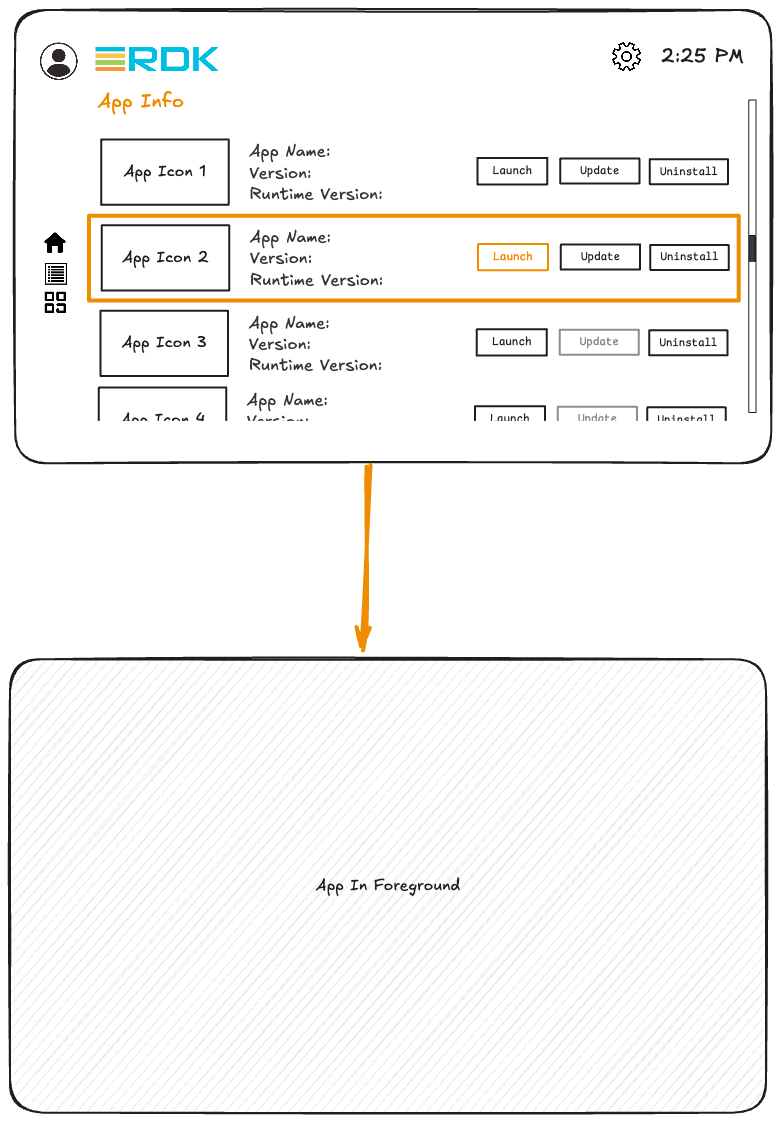
- As mentioned previously, the App Info page displays a list of all DAC applications that the user has downloaded onto the device.
- The first available action is Launch. When the user selects the Launch button for a particular application, that application should be started. The launch may be a cold launch or a hot launch, depending on the application's previous state.
- So far, we have 3 launch points to the App - Tile from Home page (My Apps row and Recommended Apps row if applicable), Tile from More Apps page, Launch button from App Info page.
Pressing the update button on "App Info" page
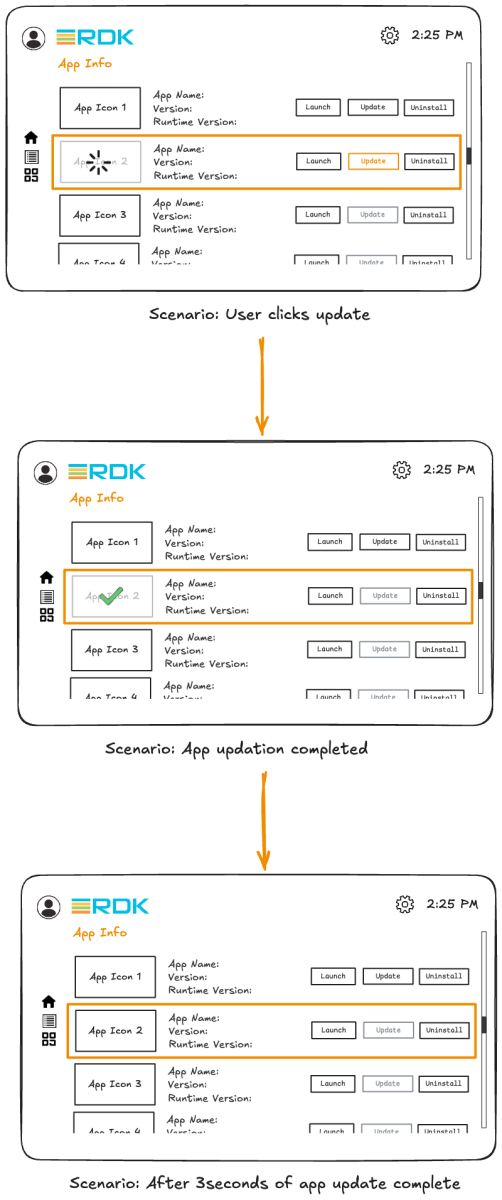
- The second available option is Application Upgrade/Update.
- Every time the App Info page loads, UI should query the Apps Catalogue to determine if any apps that the user has downloaded, had an application version that is higher than what is present currently on the device.
- Based on this versioning info, the Update button should be made active (usable) or greyed out to indicate app is already at the latest version as hosted in the Apps Catalogue.
- If a newer version exists, when user selects the same the latest app's updated DAC bundle should be downloaded and installed on the device replacing the older version of the DAC app.
- During the download process, a buffering/loading indicator should be shown on the app tile, and after the update completes successfully, a green tick icon should be displayed for approximately 2–3 seconds.
- For applications that are already on the latest available version, the Update button should be greyed out.
Pressing the uninstall button on "App Info" page
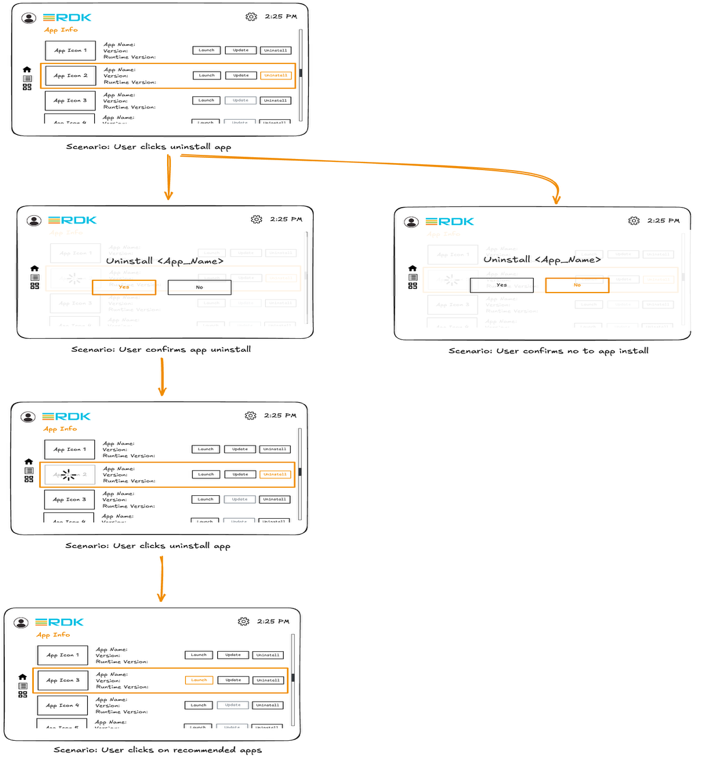
- The third available option is Uninstall. When the user selects this option, the DAC bundle and all associated data for that specific application must be removed from the device.
- When the user clicks Uninstall, a confirmation dialog should appear to verify whether the user truly intends to remove the application. If the user selects Yes, the UI should issue the appropriate command to the Package Manager to delete the DAC application.
- During the deletion process, a buffering/loading indicator should be displayed on the application tile. Once deletion is complete, the application should be removed from the list shown on the App Info page.
- The deleted application should also be removed from the My Apps row on the Home page when UI next re-loads the Home Page.
- If the user selects No when asked to confirm the uninstall action, focus should be returned to the App Info page.
...
| Info | ||
|---|---|---|
| ||
DIAL support for DAC AppsThe UI interaction with DIAL should be tailored to fit into the DAC environment, since applications are no longer "static" on the platform. Users now have the flexibility to install or uninstall DAC Apps at any time, which means the set of DIALcapable applications on a device is dynamic.Therefore, the UI must be enhanced to register, enable, and deregister DIAL support based on the applications currently present on the device. Requirements now look like:
|
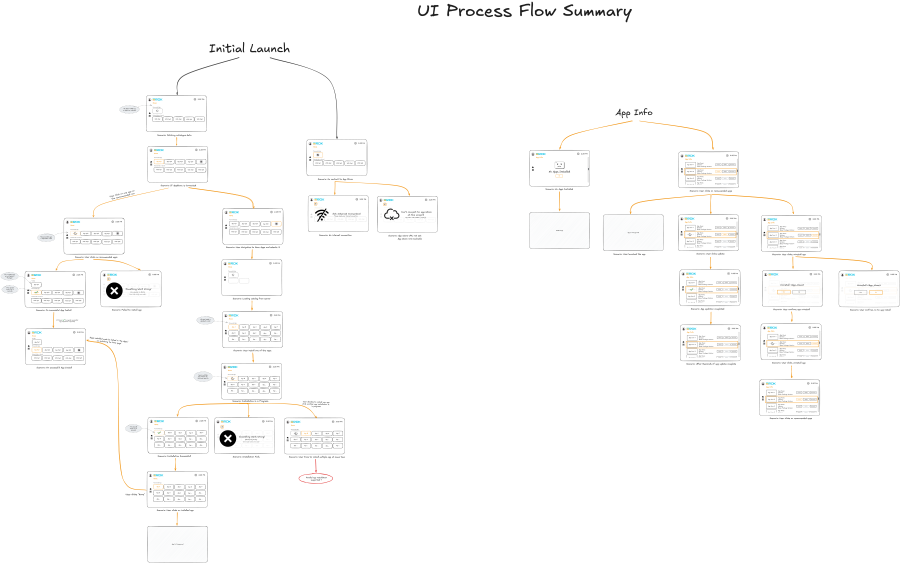
Complete UI process flow
Overview
Community Forums
Content Tools
Tasks