

Page History
...
The process flows for all new UI actions have been documented and need to be reviewed, and several additional flows are still pending and will have to be updated later in this document.
Old UI v/s New UI – A comparison
The non-DAC based Ref UI
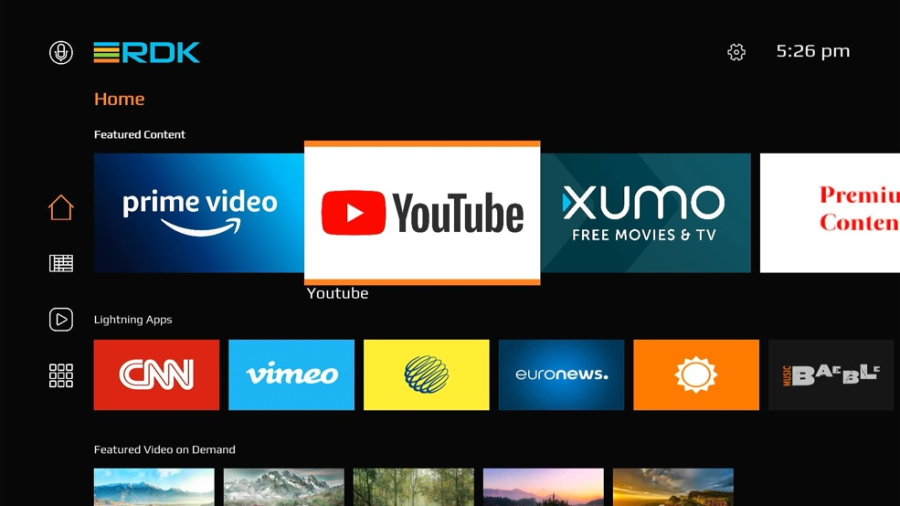
The DAC based Ref UI (For Illustration only, actual look may differ)
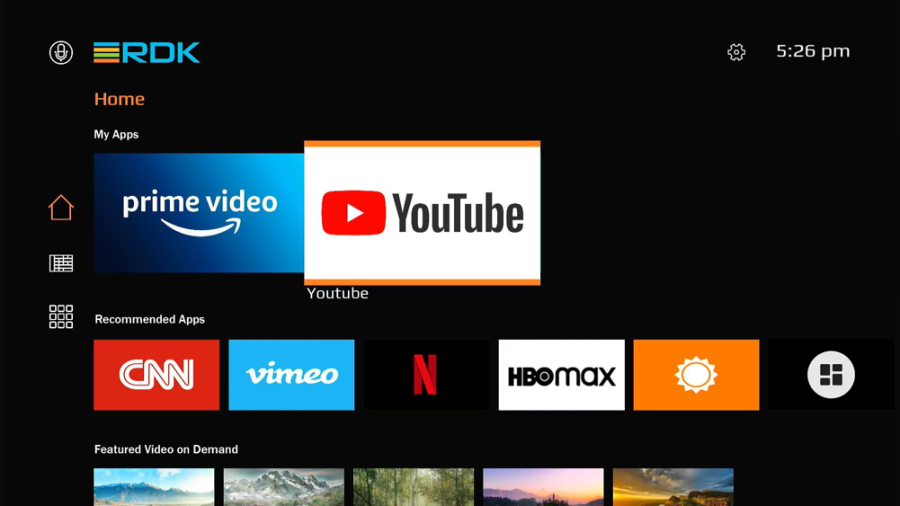
...
Architectural changes w.r.t UI
...
Reboot after a factory reset
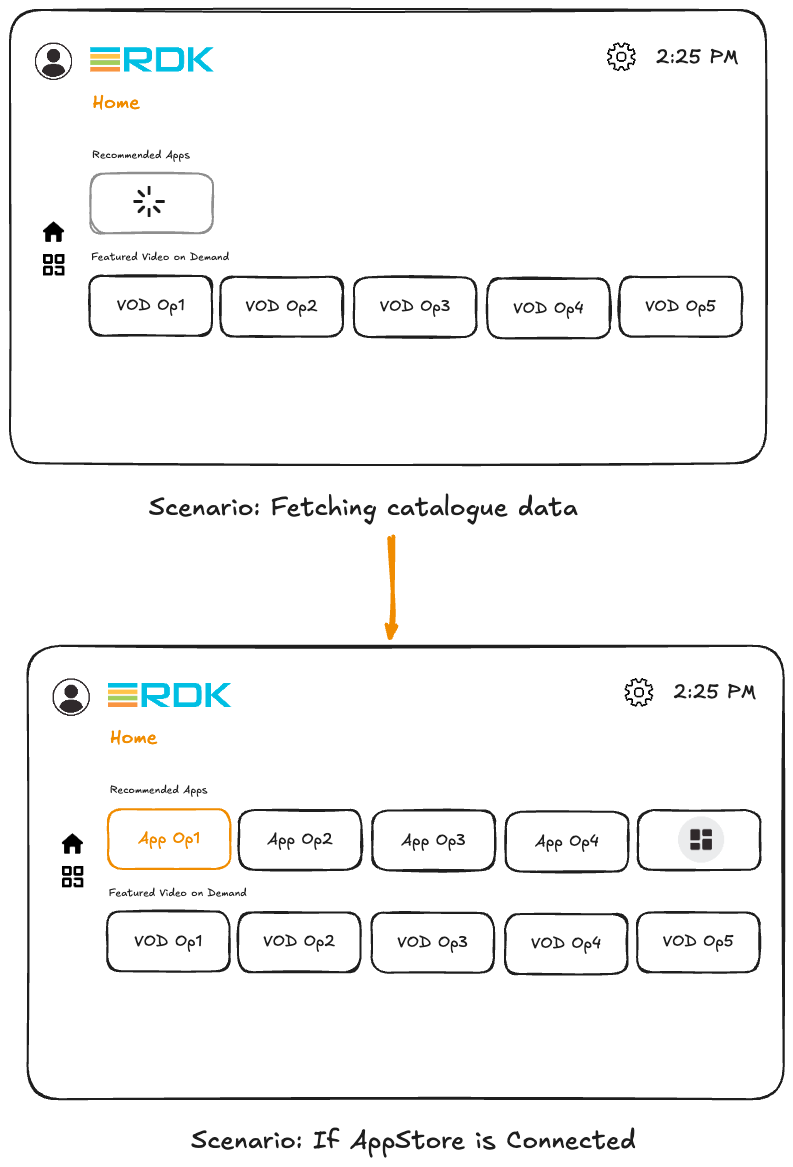
- After a factoryreset reboot or booting up for the very first time, the Home page of the UI will appear as shown above.
- The Home page contains two rows of applications: the top row displays Recommended Apps, while the bottom row displays Video on Demand (VoD) apps. My Apps row is hidden as there are no DAC apps installed yet.
- The Recommended Apps row lists applications that can be downloaded from the App Catalogue.
- On every device boot up, the UI should list the first four DAC apps from the App Catalogue in the tiles, along with a final tile for the "More Apps" option. The UI should download the meta-data and app icons related to the first four DAC apps to populate this row.
- The App Catalogue URL is set via an RFC parameter.
- The Recommended Apps row will display the first four apps from the catalogue, typically in alphabetical order, though this can later be optimized to reflect operator defined ordering.
- If app icons take time to load—for example, due to network latency—the UI should display a loading/buffering indicator until the Recommended Apps row data fully loads.
- Selecting the "More Apps" tile at the end of the Recommended Apps row should open a dedicated page listing all applications available in the DAC App Catalogue; details of this page are described later.
- The Recommended Apps row is populated by the UI contacting the App Catalogue during the first boot; on all subsequent Home page re-loads during the same boot cycle, it is populated using cached data.
...
Pressing "More Apps" on Recommended Apps row
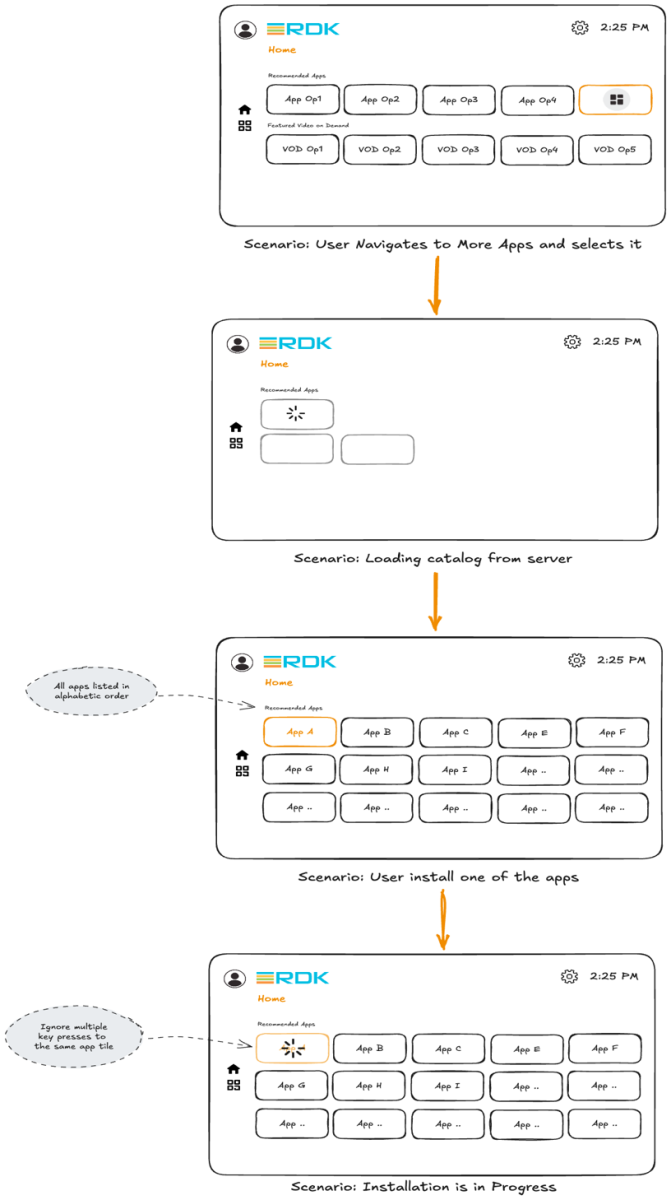
- As mentioned previously, there is a "More Apps" icon in the Recommended Apps row. When the user selects this icon, the UI should navigate to a dedicated page that displays the full list of applications hosted in the DAC App Catalogue.
- The UI should contact the App Catalogue and display the list of all the applications hosted in the Apps Catalogue.
- If the apps list /icons take time to load, the UI should display loading indicators on 3 blank placeholder tiles until the data is available.
- All applications provided by the DAC App Catalogue should be listed on this page in alphabetical order, arranged in a row column (n x 5) grid layout.
- When the user selects an app tile, the app should be downloaded and installed from the DAC App Catalogue if it is not already installed on the device.
- If the selected DAC app is already installed on the device, pressing the tile should launch the app, as described in the previous section about downloading and installing the app.
- If a user selects a DAC app that is already installed on the device, but a newer version is available in the Apps Catalogue, the app should automatically update to the latest version upon user selection.
...
Pressing the uninstall button on "App Info" page
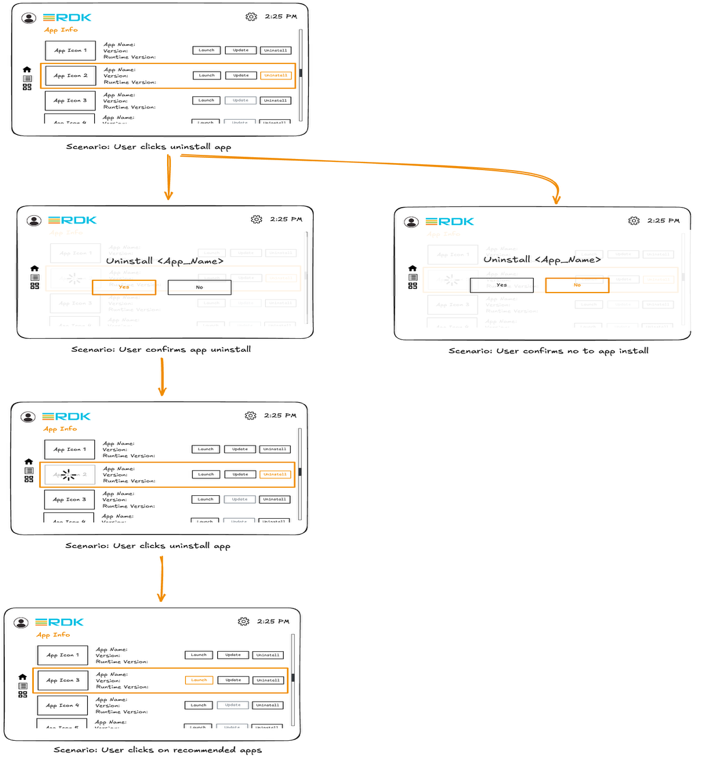
- The third available option is Uninstall. When the user selects this option, the DAC bundle and all associated data for that specific application must be removed from the device.
- When the user clicks Uninstall, a confirmation dialog should appear to verify whether the user truly intends to remove the application. If the user selects Yes, the UI should issue the appropriate command to the Package Manager to delete the DAC application.
- During the deletion process, a buffering/loading indicator should be displayed on the application tile. Once deletion is complete, the application should be removed from the list shown on the App Info page.
- The deleted application should also be removed from the My Apps row on the Home page when UI next re-loads the Home Page.
- If the user selects No when asked to confirm the uninstall action, focus should be returned to the App Info page.
...
Overview
Community Forums
Content Tools
Tasks