

Page History
This section specifies how to bring up a telemetry reference server for community using a sample php code in Ubuntu 24.04 machine and how to display the json files in the browser.
| Table of Contents |
|---|
Pre-requisite
- Install apache server
| Code Block |
|---|
$apache -v
server version: Apache/2.4.58 (Ubuntu) |
- Install php
| Code Block |
|---|
$ php -v
PHP 7.2.34-45+ubuntu20.04.1+deb.sury.org+1 (cli) (built: Apr 11 2024 22:10:08) ( NTS )
Copyright (c) 1997-2018 The PHP Group
Zend Engine v3.2.0, Copyright (c) 1998-2018 Zend Technologies
    with Zend OPcache v7.2.34-45+ubuntu20.04.1+deb.sury.org+1, Copyright (c) 1999-2018, by Zend Technologies
|
| Code Block |
|---|
$ apt install apache2 php libapache2-mod-php |
How to run the telemetry
...
upload
...
script
- Create a directory named "xconf" in the rootpath directory(rootpath directory can be found from apache configuration file)
- Copy the telemetry_upload.php file attached here(telemetry_upload.php) to xconf directory. Make sure to set the ownership as www-data and set execute permissions
...
| Code Block |
|---|
drwsrwsrwx 2 www-data www-data 2637824 May 9 11:30 upload |
| Code Block |
|---|
$ a2enmod php7.2 |
...
$ systemctl restart apache2 |
Steps to display the telemetry json files
...
- Copy the display.php file attached here( display.php)to upload directory. Make sure to set the ownership as www-data and set execute permissions as below
| Code Block |
|---|
ls -l display.php -rwxr-x--x 1 www-data www-data 2765 Mar 12 13:36 display.php |
...
| Code Block |
|---|
$ systemctl restart apache2 |
How to display json files in browser
https://xconf.rdkcentral.com/xconf/upload/display.php?mode=telemetry
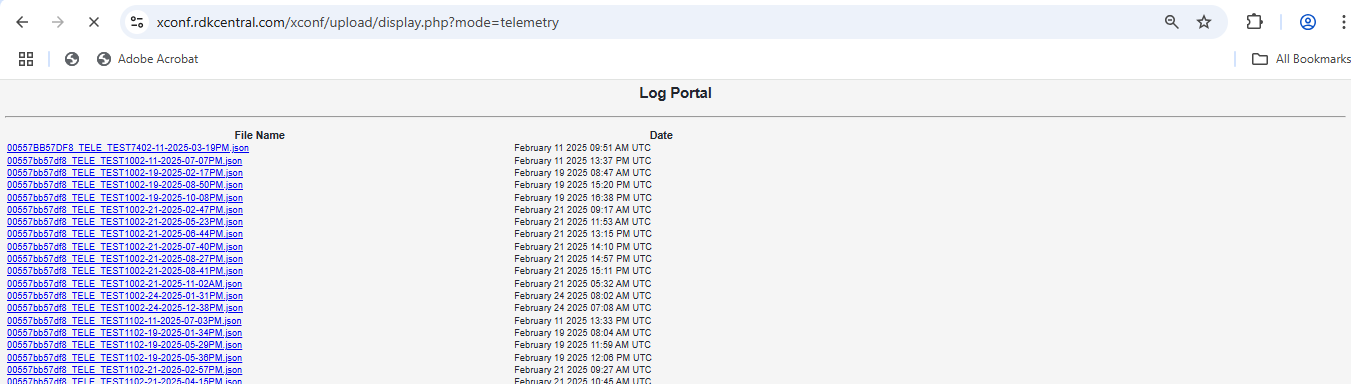
Sample JSON file
JSON file can be viewed by clicking the json files listed. It will be opened in other tab like below.

Overview
Community Forums
Content Tools
Tasks