

Page History
...
WPS stands for Wi-Fi Protected Setup. It is a wireless network security standard that tries to make connections between a router and wireless devices faster and easier. WPS works only for wireless networks that use a password that is encrypted with the WPA Personal or WPA2 Personal security protocols. WPS doesn't work on wireless networks that are using the deprecated WEP security, which can be cracked easily by any hacker with a basic set of tools and skills. Wi-Fi Users don't want to know the broadcasting ssid and password.
Push Button Configuration (PBC): In this method, a WPS physical button on the BPI and WPS option on the wireless client are pressed within a specific timeframe, initiating the connection without the need for entering a password.
Verifying of PBC HW button in BPI
Method 1
| Code Block | ||
|---|---|---|
| ||
→ Added configurations for support of gpio_keys module and evtest  - https://github.com/rdkcentral/meta-cmf-bananapi/pull/98
→ load the gpio-key module
root@Filogic-GW:/lib/modules/5.4.271-yocto-standard/kernel/drivers/input/keyboard# modprobe gpio_keys
root@Filogic-GW:/lib/modules/5.4.271-yocto-standard/kernel/drivers/input/keyboard# dmesg | grep gpio
[  163.696818] input: gpio-keys as /devices/platform/gpio-keys/input/input0
root@Filogic-GW:/lib/modules/5.4.271-yocto-standard/kernel/drivers/input/keyboard# cat /sys/kernel/debug/gpio
gpiochip0: GPIOs 428-511, parent: platform/1001f000.pinctrl, pinctrl_moore:
 gpio-428 (                    |tx-disable          ) in  lo
 gpio-430 (                    |los                 ) in  hi IRQ
 gpio-432 (                    |asm_sel             ) in  hi
 gpio-433 (                    |pca9545_rst         ) in  hi
 gpio-441 (                    |reset               ) in  lo IRQ ACTIVE LOW
 gpio-442 (                    |wps                 ) in  hi IRQ ACTIVE LOW
 gpio-482 (                    |los                 ) in  hi IRQ
 gpio-498 (                    |tx-disable          ) in  lo
 gpio-510 (                    |mod-def0            ) in  hi IRQ ACTIVE LOW
 gpio-511 (                    |mod-def0            ) in  hi IRQ ACTIVE LOW
→ run the evtest
root@Filogic-GW:/lib/modules/5.4.271-yocto-standard/kernel/drivers/input/keyboard# evtest
No device specified, trying to scan all of /dev/input/event*
Available devices:
/dev/input/event0:      gpio-keys
Select the device event number [0-0]: 0
Input driver version is 1.0.1
Input device ID: bus 0x19 vendor 0x1 product 0x1 version 0x100
Input device name: "gpio-keys"
Supported events:
  Event type 0 (EV_SYN)
  Event type 1 (EV_KEY)
    Event code 256 (BTN_0)
    Event code 529 (KEY_WPS_BUTTON)
Properties:
Testing ... (interrupt to exit)
Event: time 1739261802.084437, type 1 (EV_KEY), code 529 (KEY_WPS_BUTTON), value 1     # when HW WPS button pushed
Event: time 1739261802.084437, -------------- SYN_REPORT ------------
Event: time 1739261802.282856, type 1 (EV_KEY), code 529 (KEY_WPS_BUTTON), value 0     # when HW WPS button released
|
...
| Code Block | ||
|---|---|---|
| ||
since buttons are associated with GPIO, we can do the export wps gpio using its number
→ In mt7988a-bananapi-bpi-r4-nand.dts file, we can see WPS is defined with 14
    wps {
                        label = "wps";
                        linux,code = <KEY_WPS_BUTTON>;
                        gpios = <&pio 14 GPIO_ACTIVE_LOW>;
                };
root@Filogic-GW:~# cd /sys/class/gpio/
export       gpiochip428/ unexport
→ Here by using 14+428=442, 428 (gpiochip428 refers to a GPIO controller that manages GPIO pins, starting from GPIO number 428.)
→ export the WPS pin number
root@Filogic-GW:/sys/class/gpio# echo 442 > /sys/class/gpio/export
root@Filogic-GW:/sys/class/gpio/gpio442# cat value
1
→ Whenever we press the WPS, this gpio442 value is changed to 0
root@Filogic-GW:/sys/class/gpio/gpio442# cat value
0 |
...
WPS State Machine
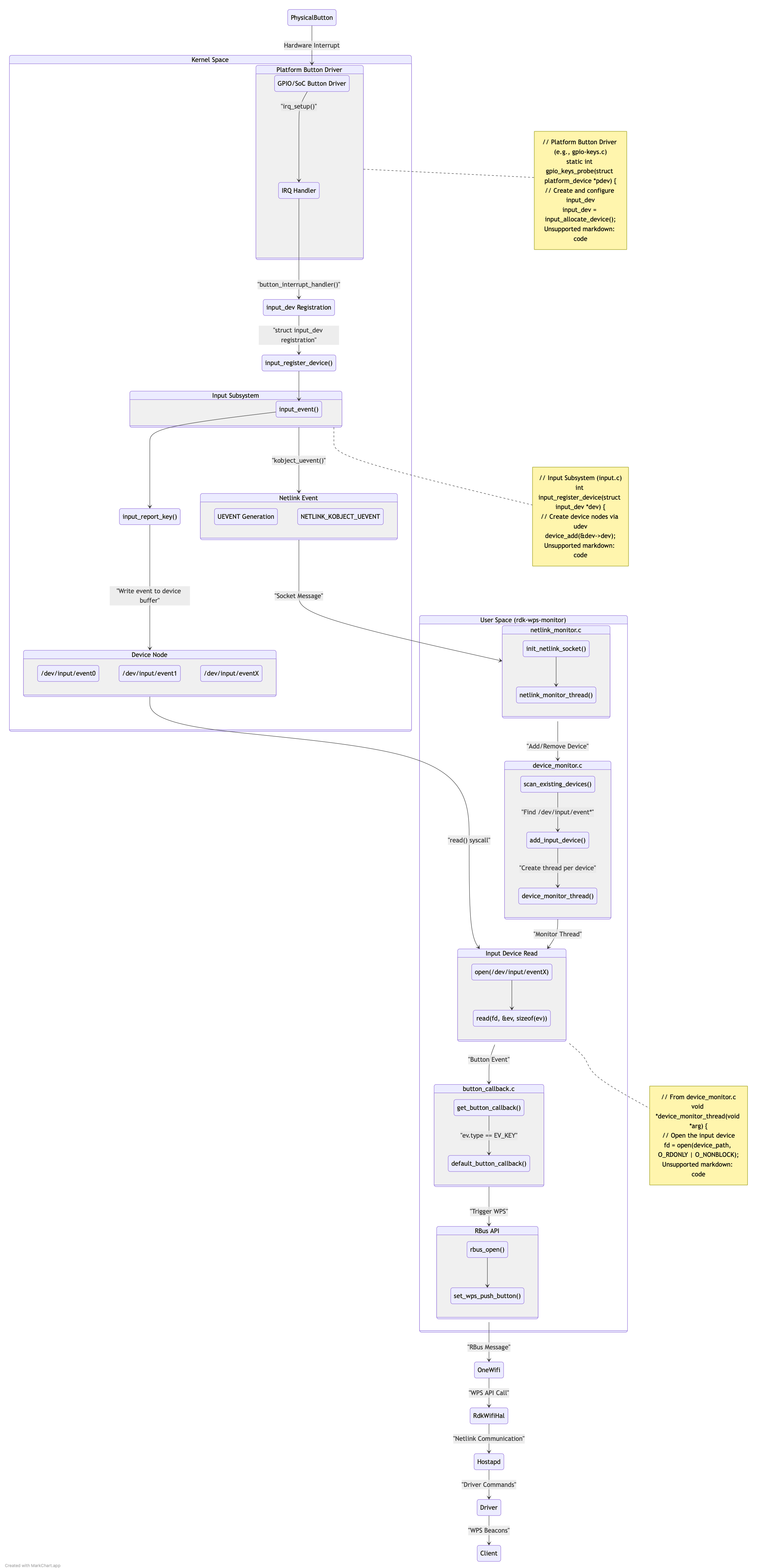
WPS HW button Monitor component design
draw.io Diagram border true diagramName wps block simpleViewer false width links auto tbstyle top lbox true diagramWidth 484 height 662 revision 1
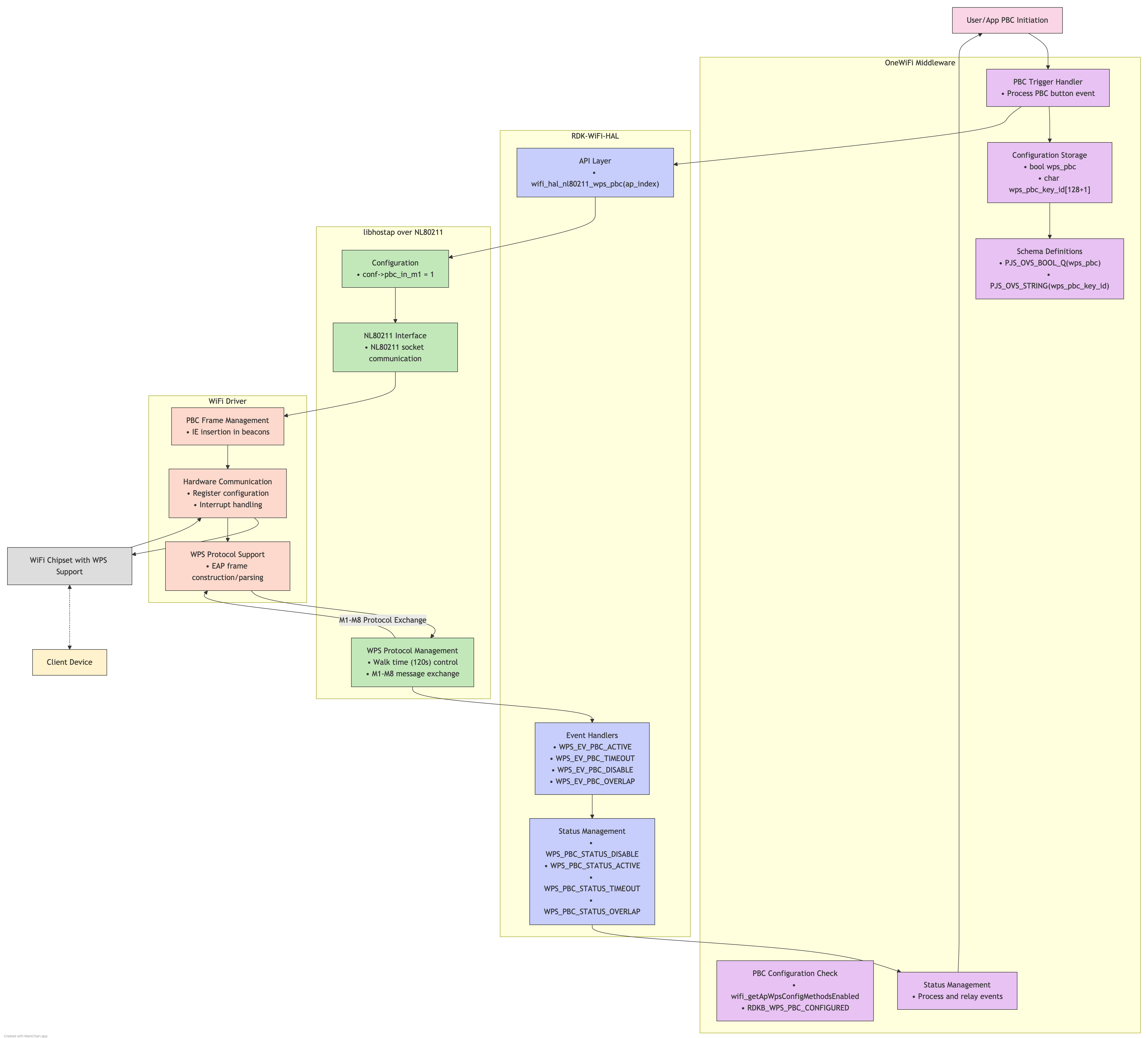
WPS HW button Monitor component design
- TBD
Concept
Conceptual Process
...
Code Block root@Docsis-Gateway:~# dmcli eRT getv Device.WiFi.AccessPoint.1.WPS.Enable CR component name is: eRT.com.cisco.spvtg.ccsp.CR subsystem_prefix eRT. getv from/to component(eRT.com.cisco.spvtg.ccsp.wifi): Device.WiFi.AccessPoint.1.WPS.Enable Execution succeed. Parameter 1 name: Device.WiFi.AccessPoint.1.WPS.Enable type: bool, value: true root@Docsis-Gateway:~# dmcli eRT getv Device.WiFi.AccessPoint.1.WPS.X_CISCO_COM_WpsPushButton CR component name is: eRT.com.cisco.spvtg.ccsp.CR subsystem_prefix eRT. getv from/to component(eRT.com.cisco.spvtg.ccsp.wifi): Device.WiFi.AccessPoint.1.WPS.X_CISCO_COM_WpsPushButton Execution succeed. Parameter 1 name: Device.WiFi.AccessPoint.1.WPS.X_CISCO_COM_WpsPushButton type: int, value: 0 root@Docsis-Gateway:~# dmcli eRT setv Device.WiFi.AccessPoint.1.WPS.X_CISCO_COM_WpsPushButton int 1 CR component name is: eRT.com.cisco.spvtg.ccsp.CR subsystem_prefix eRT. setv from/to component(eRT.com.cisco.spvtg.ccsp.wifi): Device.WiFi.AccessPoint.1.WPS.X_CISCO_COM_WpsPushButton Execution succeed. root@Docsis-Gateway:~# dmcli eRT setv Device.WiFi.ApplyAccessPointSettings bool true CR component name is: eRT.com.cisco.spvtg.ccsp.CR subsystem_prefix eRT. setv from/to component(eRT.com.cisco.spvtg.ccsp.wifi): Device.WiFi.ApplyAccessPointSettings Execution succeed. root@Docsis-Gateway:~# dmcli eRT getv Device.WiFi.AccessPoint.1.WPS.X_CISCO_COM_WpsPushButton CR component name is: eRT.com.cisco.spvtg.ccsp.CR subsystem_prefix eRT. getv from/to component(eRT.com.cisco.spvtg.ccsp.wifi): Device.WiFi.AccessPoint.1.WPS.X_CISCO_COM_WpsPushButton Execution succeed. Parameter 1 name: Device.WiFi.AccessPoint.1.WPS.X_CISCO_COM_WpsPushButton type: int, value: 0 In BPI Target Board: root@Filogic-GW:/lib/systemd/system# dmcli eRT setv Device.WiFi.AccessPoint.1.WPS.X_CISCO_COM_ActivatePushButton bool true CR component name is: eRT.com.cisco.spvtg.ccsp.CR subsystem_prefix eRT. Execution succeed. root@Filogic-GW:/lib/systemd/system# dmcli eRT setv Device.WiFi.AccessPoint.2.WPS.X_CISCO_COM_ActivatePushButton bool true CR component name is: eRT.com.cisco.spvtg.ccsp.CR subsystem_prefix eRT. Execution succeed.
WPS Hardware Key Press in BPI
...
- The Hardware key press is handled as a separate utility under broadband-utils repo:
https://github.com/rdkcentral/broadband-utils
In this implementation, Netlink sockets are handling the WPS Key press event (netlink-button-monitor.service) and further functionality is carried out by rbus API's which intimates OneWifi to carry out the WPS operation.
The recipe is present under:
meta-cmf-bananapi/meta-rdk-mtk-bpir4/recipes-common/rdk-wps-monitor/rdk-wps-monitor.bb
Test Results in BPI: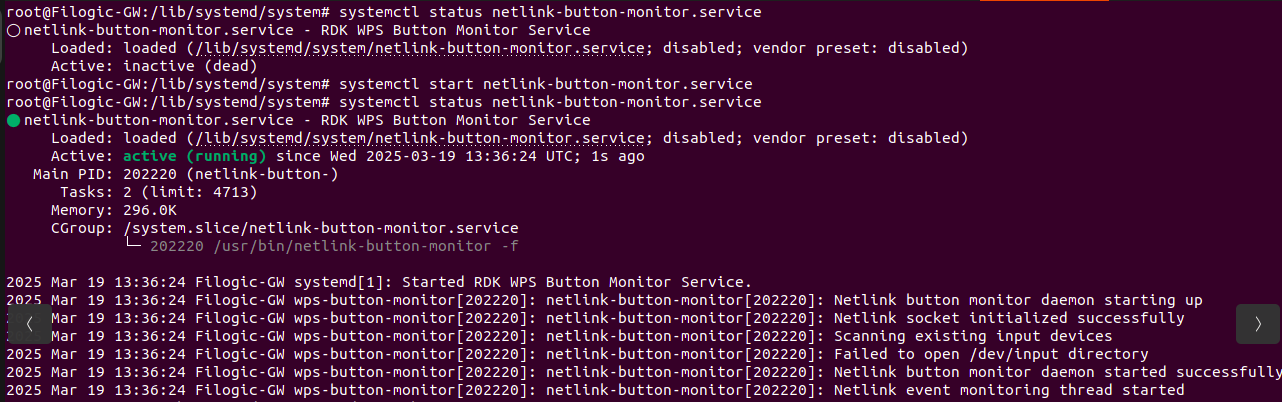
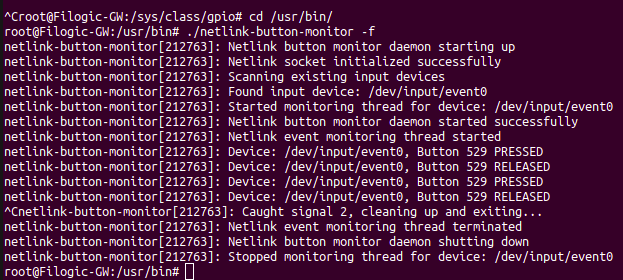
WPS Initiation:
1.Change the SSID of 2G and 5G from Web UI, to test WPS feature functionality.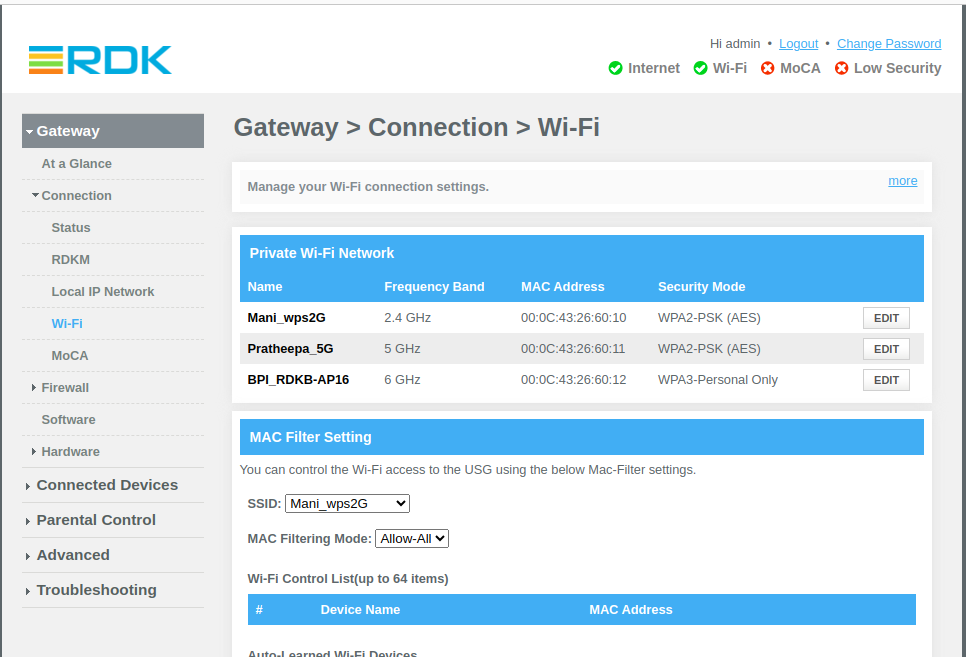
2. Press the WPS PBC from BananaPi hardware. Try connecting 2G and 5G clients with new SSID without entering the password.
2G Client Connected (via Mobile):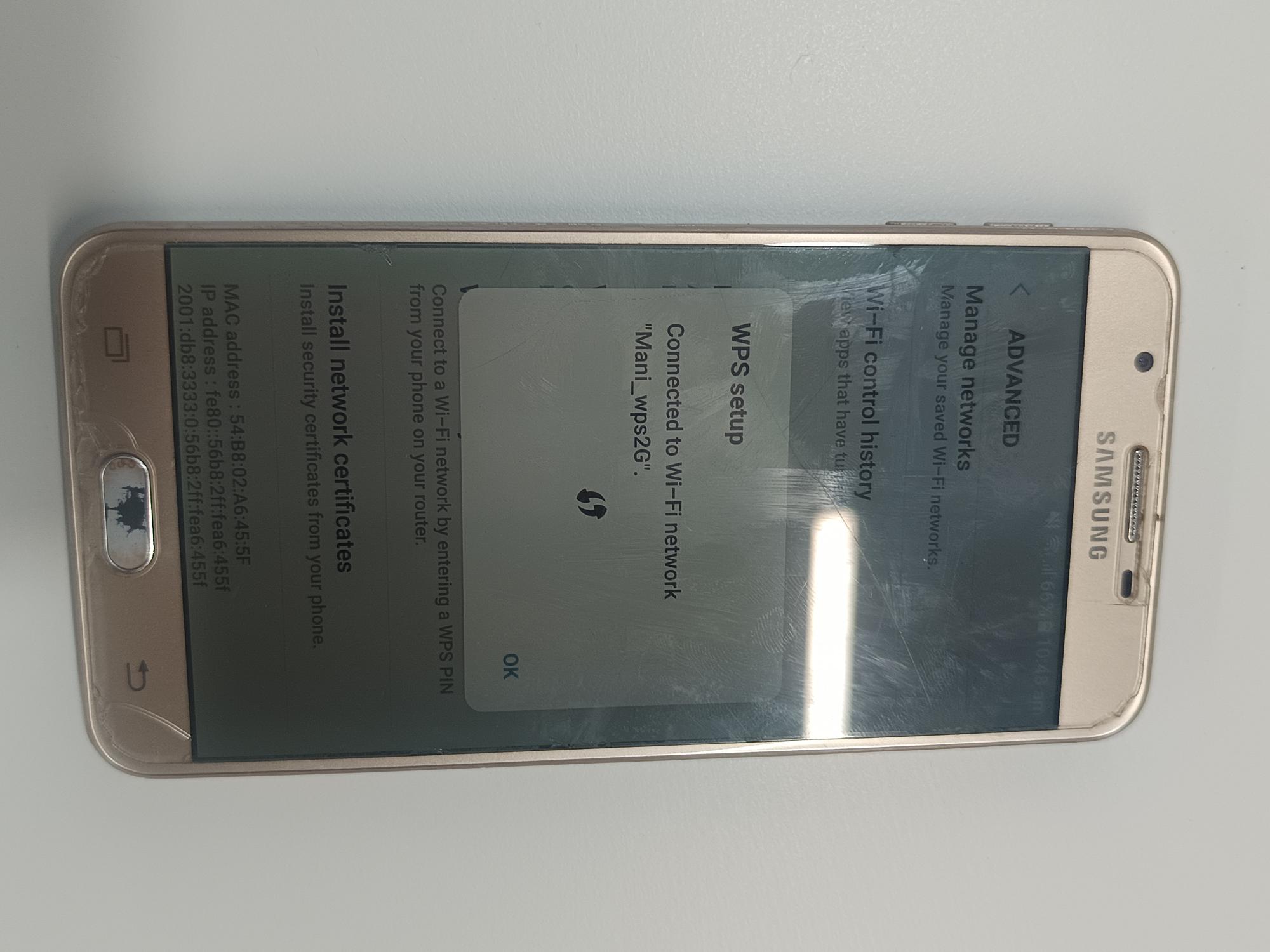
5G Client connected (via Laptop):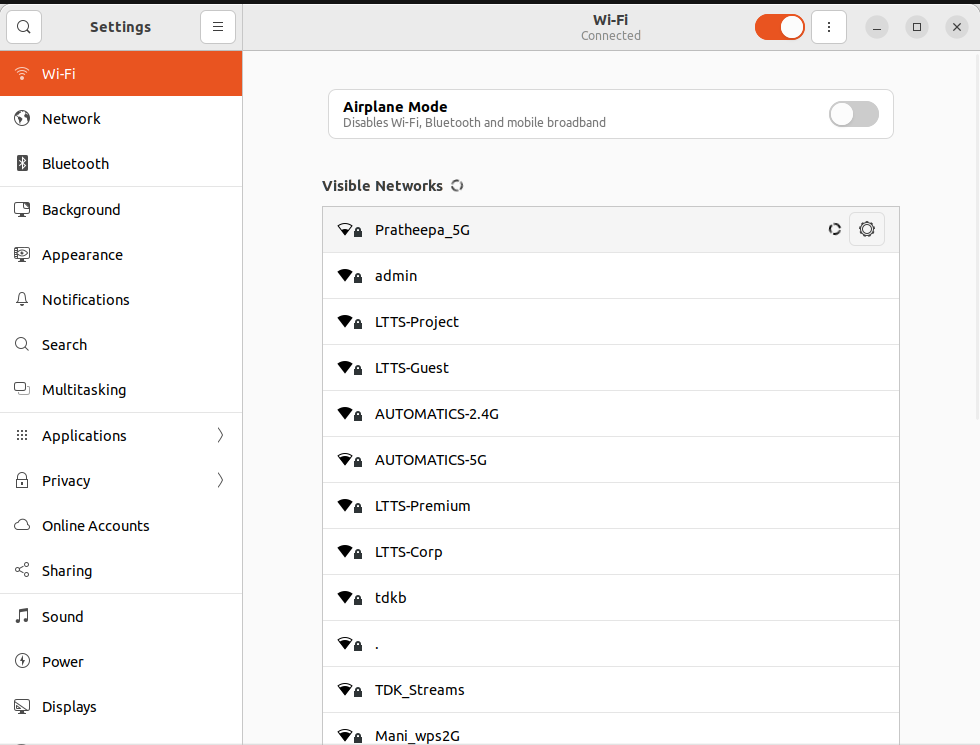
3. Check the internet connectivity for both the clients.
NOTE:
6GHz is WPA3 personal-only. Does not support WPS!
UI validation:
- The Hardware key press is handled as a separate utility under broadband-utils repo:
By default WPS button is hidden. For that , change the default security mode for 6g to enable the WPS button in WebUI.
Note - WPS button will be hidden in UI if we have security mode as "None" or "WPA3-Personal" for any Access-Points as per the jst code.
...
echo "Listening for WPS button press on $EVENT_DEVICE..." | tee -a $LOGFILE
# Read event stream and trigger WPS when KEY_WPS_BUTTON (529) is detected
evtest "$EVENT_DEVICE" | while read line; do
if echo "$line" | grep -q "code 529 (KEY_WPS_BUTTON), value 1"; then
echo "✅ WPS Button Pressed! Triggering OneWifi WPS for 2G, 5G and 6G..." | tee -a $LOGFILE
# Kill any existing interactive session before triggering WPS
pkill -f onewifi_component_test_app
# Run WPS command and log output
echo "Executing: echo 'wps $VAP_INDEX' | /usr/bin/onewifi_component_test_app" | tee -a $LOGFILE
echo "wps $VAP_INDEX_2G" | /usr/bin/onewifi_component_test_app >> $LOGFILE 2>&1
echo "wps $VAP_INDEX_5G" | /usr/bin/onewifi_component_test_app >> $LOGFILE 2>&1
echo "wps $VAP_INDEX_6G" | /usr/bin/onewifi_component_test_app >> $LOGFILE 2>&1
sleep 5 # Prevent multiple triggers within 5 seconds
fi
done
Overview
Community Forums
Content Tools
Tasks