

Page History
...
To reduce the effort for user to add new test script scripts and its steps in bulk, user can import the test scripts in excel format. Click on 'Choose File' and select the excel file to be imported. Then Click on Upload File button and then Upload All Scripts. Status message of file upload will be shown in page after the upload. The imported test scripts can viewed after applying Filter option.
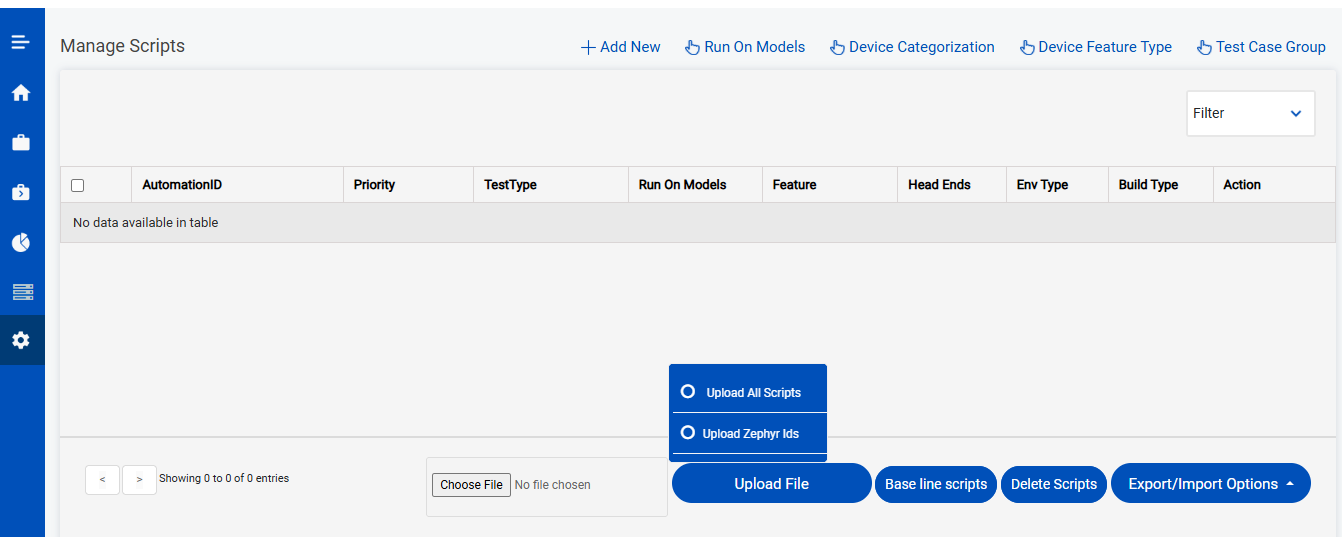
the existing excel sheet with required details. The template for the excel sheet to be used for importing the test case can be downloaded from Manage scripts page from Export/Import options menu. File picker from the Managed scripts page can be used to choose the excel sheet from the local PC and upload it to Automatics to import all the test cases and its steps in bulk
Run On Models
The Run On Models page is used to save device models which will be used for test execution. When we open the manage scripts page, over the top right we could see the Run On Models option, when we click it we will be redirected to Run On Models page. Please note that only Admin users will have access to this page.
Once we open this page we can see list of models and a button at the top right which is 'Add Device Name'.
Add Device Model
To add a new device, click on 'Add Device Name' button, Enter the device name, image name prefix, select the device category, choose whether the device is a client device or not and then click on save button.

Delete Device Model
To delete a device model, click on the 'Delete Device Model' button on the Actions column next to device which we wish to delete. A confirmation message will be displayed over the screen which shows the list of tables from which the device data will be deleted. Click on OK to confirm with deleting the device model. Once after clicking OK, the device model will be deleted. 

...
Test
...
Group
User can trigger a test execution from “Trigger Execution Manually” page.
Service Name “FUNCTIONAL VERIFICATION” refers to functional testing. “CI_VERIFICATION” refers to CI testing. In Build Name field, user can provide the build name that is currently loaded in device. End Point “RACK_DEVICE” and “DESK_DEVICE” which indicates Rack device and Desk device. From Environment Type, user can select values like “RDKV” or “RDKB” and test type like “1HOUR”, “4HOUR” etc.
When “Is Quick Test Required”, it means before executing tests like 1HOUR or others, an image upgrade is to be done on device. QT refers to “Quick Test” which is a special test that will load the device with image mentioned in Build Name field. Only if QT is success, other type of tests will be executed by Automatics. If QT box is unchecked, then image upgrade is not performed.
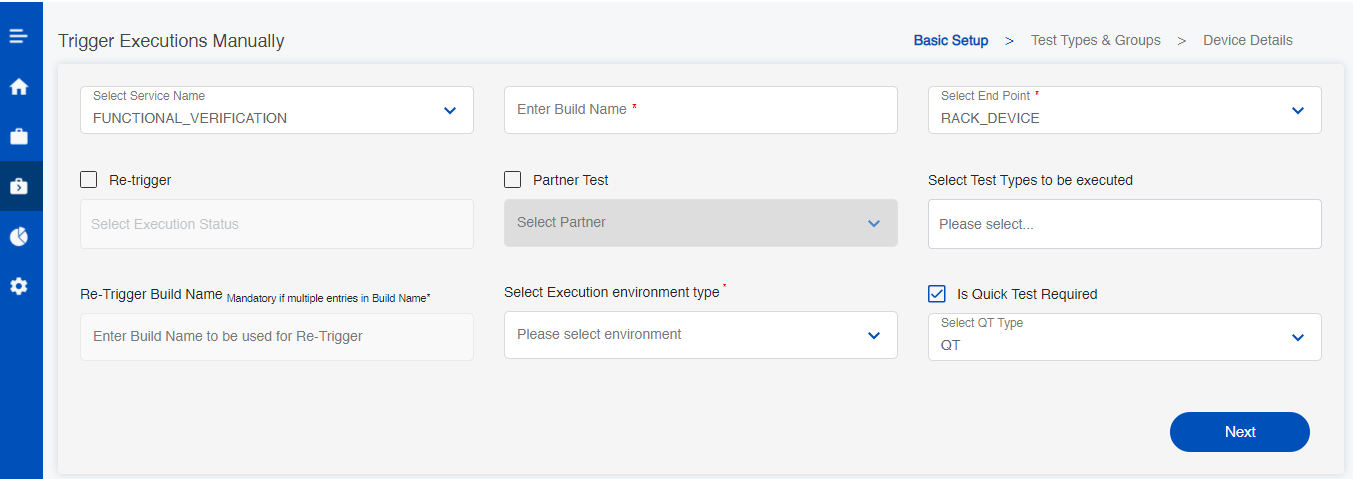
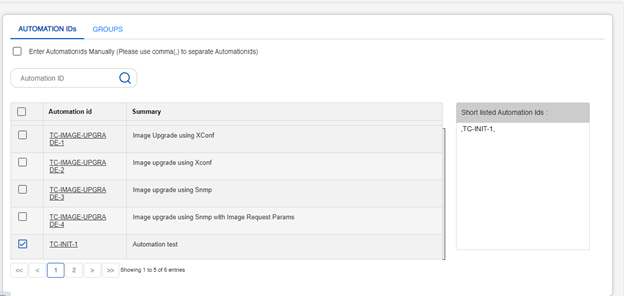
Navigate to next page. In 2nd page, user can select test cases to be executed.
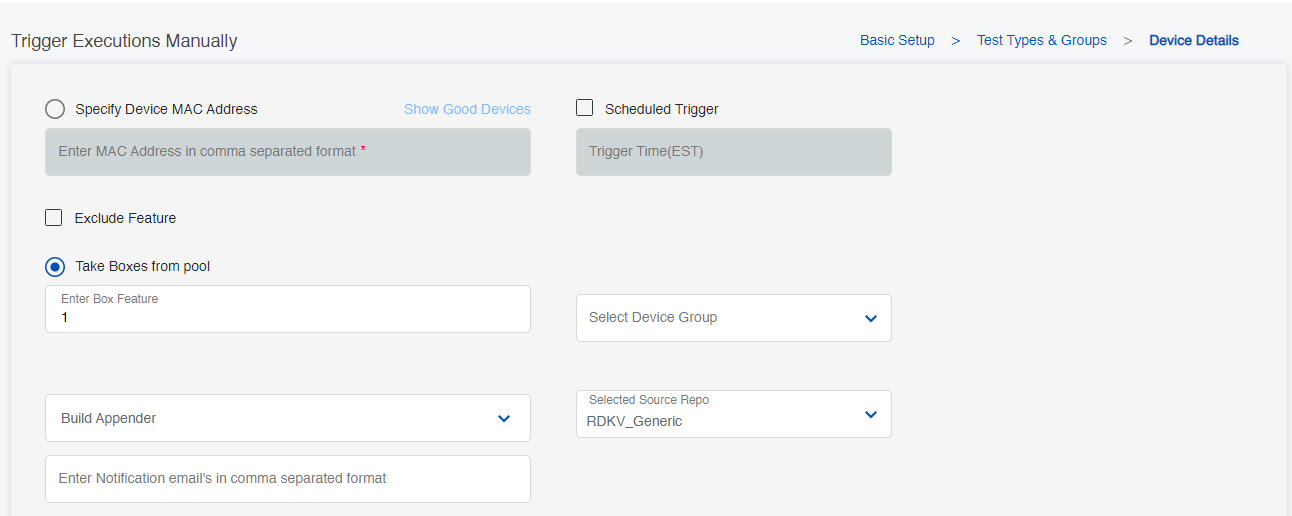
Next, navigate to 3rd page Device Details. User can provide device details from here. Automatics gets devices for execution either from user or via pool based mechanism.
Select the option, ‘Specify Device MAC Address’ for user to provide the mac address. If option ‘Take Boxes from pool’ is selected, then devices will be fetched by Automatics from partner’s inventory. The device needed for execution are identified from test script features added in Manage Script page.
‘Build Appender’ field has different functions in job execution. It is used in 2 different ways.
- Build Appender – execution grouping.
During execution, when user provides a custom appender value, then in job manager page the jobs are displayed in separate tab with appender name. In results page, the results will be displayed in against buildname with appender so that execution results for the same build with and without appender are displayed as 2 entries.
- Build Appender – pre-test initializer.
Partner can configure pre-defined appender values in orchestration via System config. If user selects any of the pre-defined appender, then partner can add support at partner side implementation to perform device initialization based on appender value. The Automatics core sends appender to partner during initialization. This helps user to enable specific configurations in device before test execution.
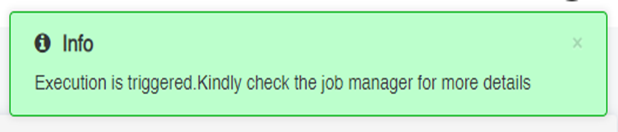
When execution is triggered successfully, below pop message will be displayed.
Job Manager
User can verify the status of the job executions from Job Manager page. Also, user can cancel or re-trigger a job, view child jobs, navigate to Jenkins executions are other features provided by Job Manager.
Navigate to Manage Test Trigger, click on Job Manager under RDKV/RDKB.
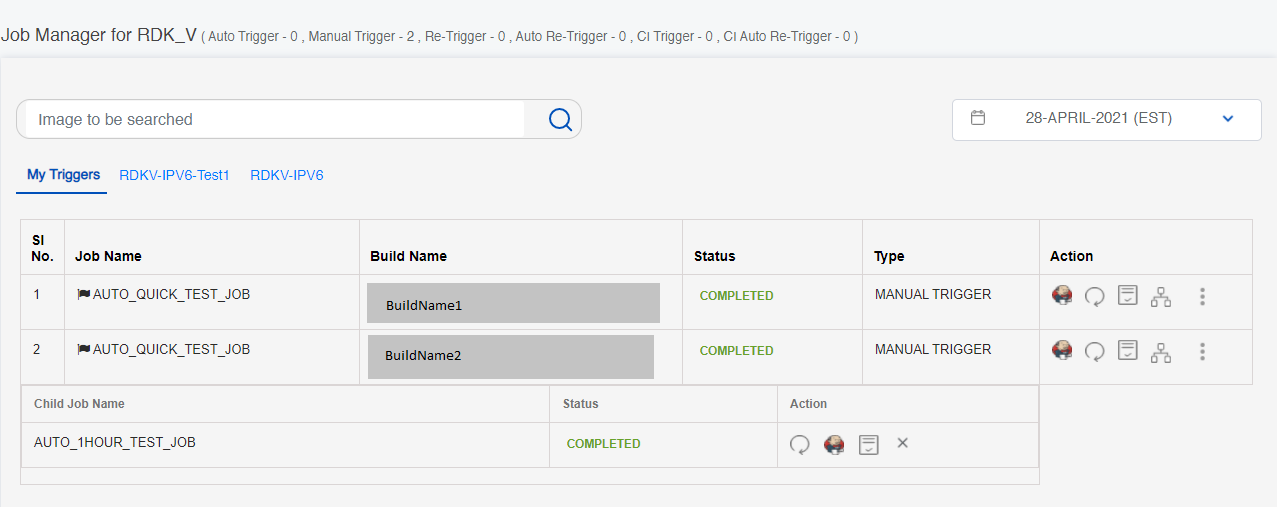
Here, user can find the status of job executions. Quick Test(QT) is always the parent job of any other jobs. All other job types will be created under QT as child jobs. If user selected QT, then QT will be executed first on all selected devices and only when QT execution status is “COMPLETED” child jobs will start executing. If QT job status is “FAILURE”, then all child jobs become “CANCELLED”. Click on Action to view child jobs.
In scenario where user skips QT, then QT job with dummy QT test will be created and child jobs will be added under it. User can find the details of job by hovering on the job name.
Details of JOB status are
...
Job Status
...
Description
...
QUEUED
...
Job is created and waiting for free Jenkins job for execution
...
SCHEDULED
...
Found free Jenkins job and it is scheduled for execution
...
IN PROGRESS
...
Jenkins job execution in progress
...
CANCELLED
...
Jenkins job cancelled
...
COMPLETED
...
Jenkins job execution completed successfully. The job has executed the tests.
...
FAILURE
...
Jenkins job execution was not completed. The job has failed to executed tests.
...
ALREADY_LOCKED
...
Device provided for execution is locked by some other execution. Execution cannot proceed.
...
INVENTORY_DOWN
...
Device inventory is down. Automatics couldn’t get devices for execution.
...
BOXES_UNUSABLE
...
Jenkins job execution could not be completed due to device issue
...
BUILD_CHANGED_BEFORE_TEST
...
As pre-test verification, Automatics core will check if the build in device is same as user provided. If it is not same, then execution will fail with this status
...
BUILD_CHANGED_AFTER_TEST
...
As post-test verification, Automatics core will check if the build in device is same as user provided. If it is not same, then execution will fail with this status
...
SSH_FAIL
...
Automatics core will check the accessibility of device before starting test execution. If device is not accessible, then execution fails with this status
create test group and group the test scripts under a test group. This enables user to select test group for execution from Trigger Execution Manually page.
The UI provides support to add and delete test groups. Click on 'Test Case Group' link displayed in Manage Script page. This will launch the Test Case Group page from where user can view test groups, add new test group and delete test group.

Test Case Group Page

Add Test Group
To add new test group, click on 'Add Group Name' link. Enter group name and click on Save. On successful save, the newly saved test group will be displayed in main page.

Delete Test Group
To delete test group, click on Delete icon in main page.

Confirmation message will be asked before deleting the group. Click OK if you wish to delete test group or else click on Cancel if wish to Cancel deleting group.

Trigger Test Execution
User can trigger a test execution from “Trigger Execution Manually” page.
Service Name “FUNCTIONAL VERIFICATION” refers to functional testing. “CI_VERIFICATION” refers to CI testing. In Build Name field, user can provide the build name that is currently loaded in device. End Point “RACK_DEVICE” and “DESK_DEVICE” which indicates Rack device and Desk device. From Environment Type, user can select values like “RDKV” or “RDKB” and test type like “1HOUR”, “4HOUR” etc.
When “Is Quick Test Required”, it means before executing tests like 1HOUR or others, an image upgrade is to be done on device. QT refers to “Quick Test” which is a special test that will load the device with image mentioned in Build Name field. Only if QT is success, other type of tests will be executed by Automatics. If QT box is unchecked, then image upgrade is not performed.
Navigate to next page. In 2nd page, user can select test cases to be executed.
Next, navigate to 3rd page Device Details. User can provide device details from here. Automatics gets devices for execution either from user or via pool based mechanism.
Select the option, ‘Specify Device MAC Address’ for user to provide the mac address. If option ‘Take Boxes from pool’ is selected, then devices will be fetched by Automatics from partner’s inventory. The device needed for execution are identified from test script features added in Manage Script page.
‘Build Appender’ field has different functions in job execution. It is used in 2 different ways.
- Build Appender – execution grouping.
During execution, when user provides a custom appender value, then in job manager page the jobs are displayed in separate tab with appender name. In results page, the results will be displayed in against buildname with appender so that execution results for the same build with and without appender are displayed as 2 entries.
- Build Appender – pre-test initializer.
Partner can configure pre-defined appender values in orchestration via System config. If user selects any of the pre-defined appender, then partner can add support at partner side implementation to perform device initialization based on appender value. The Automatics core sends appender to partner during initialization. This helps user to enable specific configurations in device before test execution.
When execution is triggered successfully, below pop message will be displayed.
Job Manager
User can verify the status of the job executions from Job Manager page. Also, user can cancel or re-trigger a job, view child jobs, navigate to Jenkins executions are other features provided by Job Manager.
Navigate to Manage Test Trigger, click on Job Manager under RDKV/RDKB.
Here, user can find the status of job executions. Quick Test(QT) is always the parent job of any other jobs. All other job types will be created under QT as child jobs. If user selected QT, then QT will be executed first on all selected devices and only when QT execution status is “COMPLETED” child jobs will start executing. If QT job status is “FAILURE”, then all child jobs become “CANCELLED”. Click on Action to view child jobs.
In scenario where user skips QT, then QT job with dummy QT test will be created and child jobs will be added under it. User can find the details of job by hovering on the job name.
Details of JOB status are
Job Status | Description |
QUEUED | Job is created and waiting for free Jenkins job for execution |
SCHEDULED | Found free Jenkins job and it is scheduled for execution |
IN PROGRESS | Jenkins job execution in progress |
CANCELLED | Jenkins job cancelled |
COMPLETED | Jenkins job execution completed successfully. The job has executed the tests. |
FAILURE | Jenkins job execution was not completed. The job has failed to executed tests. |
ALREADY_LOCKED | Device provided for execution is locked by some other execution. Execution cannot proceed. |
INVENTORY_DOWN | Device inventory is down. Automatics couldn’t get devices for execution. |
BOXES_UNUSABLE | Jenkins job execution could not be completed due to device issue |
BUILD_CHANGED_BEFORE_TEST | As pre-test verification, Automatics core will check if the build in device is same as user provided. If it is not same, then execution will fail with this status |
BUILD_CHANGED_AFTER_TEST | As post-test verification, Automatics core will check if the build in device is same as user provided. If it is not same, then execution will fail with this status |
SSH_FAIL | Automatics core will check the accessibility of device before starting test execution. If device is not accessible, then execution fails with this status |
Initially, the status will be QUEUED. When the job is triggered in Jenkins it changes to SCHEDULED and when job execution is going on, then status will become IN PROGRESS. Once, it is completed you can see the status as COMPLETED.
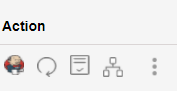
Action tab on the page supports features in the order as “Go To Jenkins Job”, “Re-trigger”, “View Execution Results”, “View Child Jobs” and “More Options”. User can cancel a job from “More Options”.
Reports
User will be to view and download the various reports of Build Execution Results, Device Usage, Script Health & Script Execution Time reports from the Reports section.
Execution Results
From execution results page, user can view the results of the triggered build executions. It shows the total count of test steps and its Pass, Fail, NT(Not Tested), NR(Not Run) and NA(Not Applicable) counts.
Now, click on Reports and go to Execution Results under RDKV/RDKB
Initially, the status will be QUEUED. When the job is triggered in Jenkins it changes to SCHEDULED and when job execution is going on, then status will become IN PROGRESS. Once, it is completed you can see the status as COMPLETED.
Action tab on the page supports features in the order as “Go To Jenkins Job”, “Re-trigger”, “View Execution Results”, “View Child Jobs” and “More Options”. User can cancel a job from “More Options”.
Reports
User will be to view and download the various reports of Build Execution Results, Device Usage, Script Health & Script Execution Time reports from the Reports section.
Execution Results
From execution results page, user can view the results of the triggered build executions. It shows the total count of test steps and its Pass, Fail, NT(Not Tested), NR(Not Run) and NA(Not Applicable) counts.
Now, click on Reports and go to Execution Results under RDKV/RDKB.
Following details will be displayed as shown below:
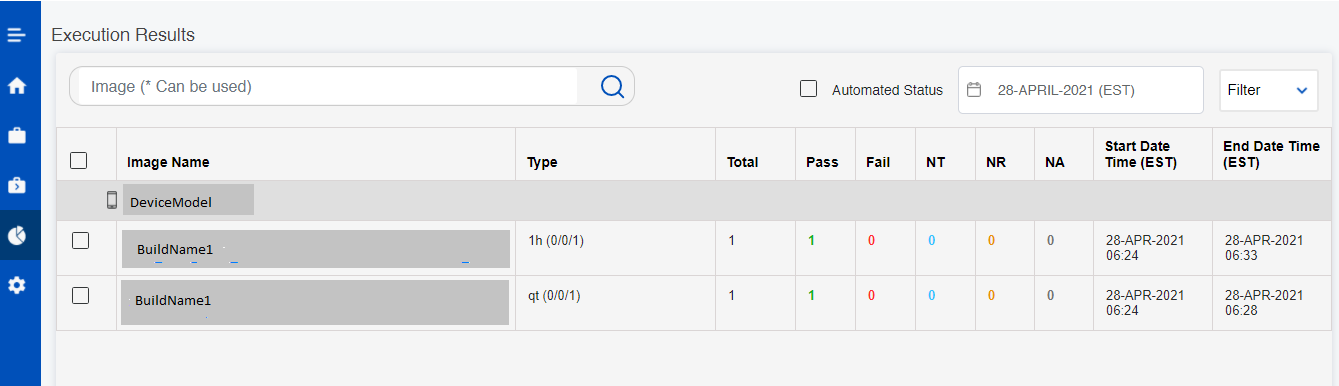
Now, click on the Build name under the Image Name column to see the Test Case Results as below.
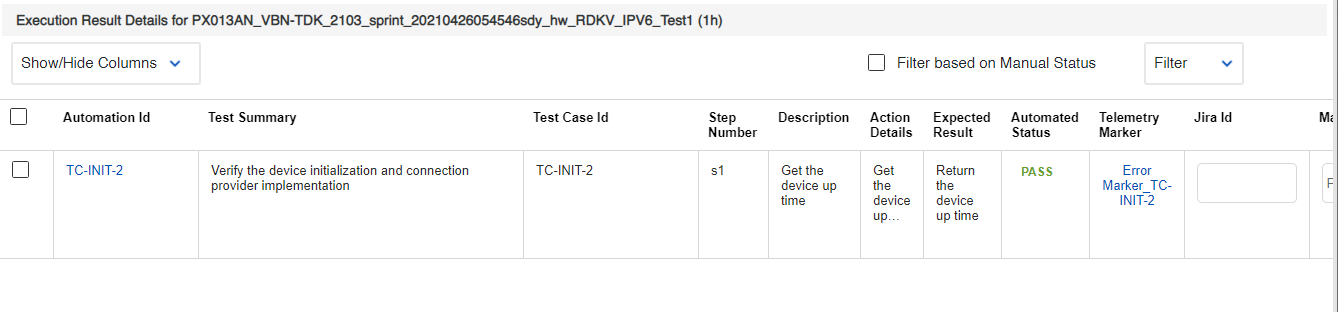
You can verify the required information from the Execution Result Details for that particular build.
Execution Results – TC
User can get an idea on the execution results from test case count via this page.
Now, click on Reports and go to Execution Results - TC under RDKV/RDKB.
Select the date for the required result details.
Following details will be displayed as shown below:
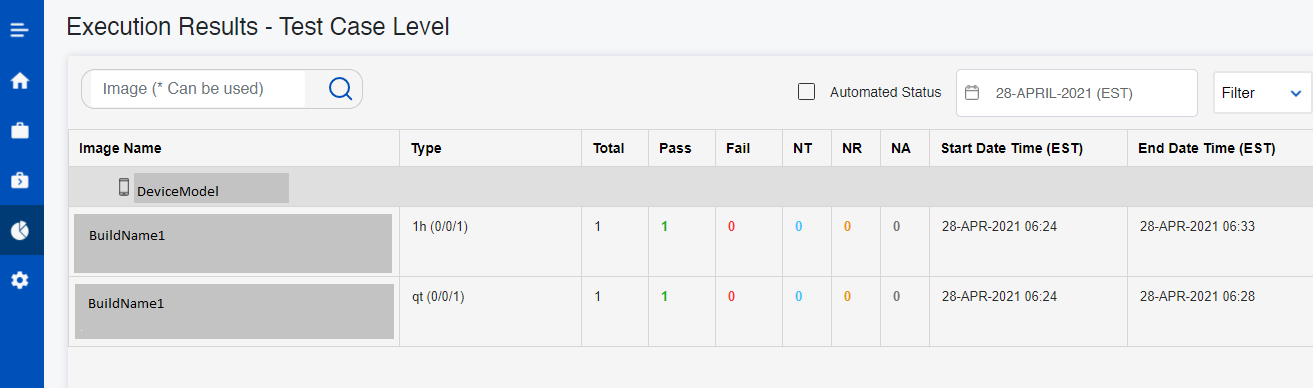
To download Test Case Level Execution Results
User can export test cases level execution results using 'Download Reports' button located in Execution Results – TC page.
Follow the steps mentioned in Execution Results – TC section to navigate to Execution Results – TC page.
Select required date and below filter options for the required test result details:
Now, click on the Build name under the Image Name column to see the Test Case Results as below.
You can verify the required information from the Execution Result Details for that particular build.
Execution Results – TC
User can get an idea on the execution results from test case count via this page.
Now, click on Reports and go to Execution Results - TC under RDKV/RDKB.
Select the date for the required result details.
Following details will be displayed as shown below:
To download Test Case Level Execution Results
User can export test cases level execution results using 'Download Reports' button located in Execution Results – TC page.
Follow the steps mentioned in Execution Results – TC section to navigate to Execution Results – TC page.
Select required date and below filter options for the required test result details:
Regular Test Types, CI Test Types Regular Test Types, CI Test Types and Execution Mode
Now, click on 'Download Reports' button highlighted below:
...
Eg: AUTO_1HOUR_JOB. Quick Test is configured as parent of all other jobs. Child jobs are executed in the order of priority set for the job.
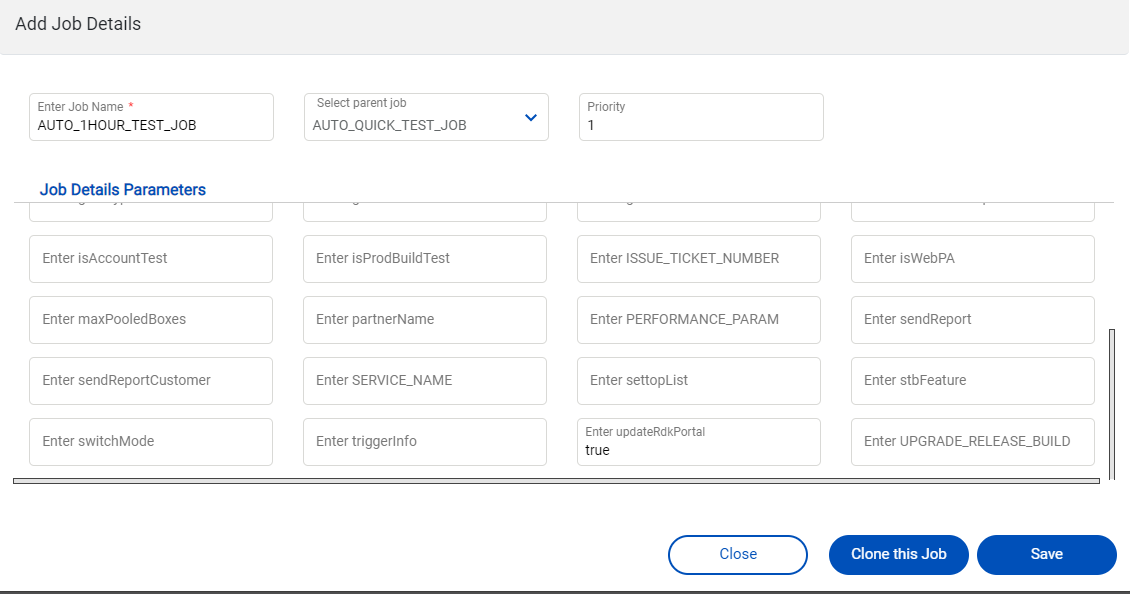
- Please update the default value for each field here.
- For CI integration, if results of test execution to be updated to CI portal, then set 'updateRdkPortal' to true here.
- Click on Save.
Email Server configuration - SMTP
Automatics orchestration has the functionality to send email notifications. For sending an email notification an SMTP server is required. One an SMTP server is available the below are the configuration which need to be configured for sending email notification's from Automatics Orchestration. The configuration can be added via "System Configuration" page under "Settings" menu
...
| Configuration Name | Description |
|---|---|
| SMTP_PROTOCOL | It is the protocol used for sending email. The value can either be SMTP or SMTPS. If the SMTP server connection should SSL enabled but not TLS then the value should be configured as SMTPS. In all other scenarios SMTP should be configured. |
| SMTP_HOST | It is the IP address or domain of the SMTP server. |
| SMTP_PORT | It is the PORT of SMTP server. |
| SMTP_AUTHENTICATION | A Boolean field, this needs to be configured as true when the SMTP server has authentication. If the SMTP server do not have an authentication then this needs to be configured as false and there is no need to configure SMTP_USERNAME and SMTP_PASSWORD. |
| SMTP_USERNAME | Username of the SMTP server which is used to login and send email from an application |
| SMTP_PASSWORD | Password of the SMTP server. |
| SMTP_AUTH_TYPE | The value of this configuration can either be "SSL" or "TLS". If the SMTP server is enabled with STARTTLS then it should be configured as TLS or else it should be configured as SSL |
Apart from the above configurations if any other properties are required for connecting to a SMTP server then those SMTP mail properties can be added as JAVA_OPTS in the server. For doing the same follow the below steps.
- Open catalina.sh file of the tomcat server in which Automatics is deployed.
- Add the required properties like "-Dmail.smtp.ssl.protocols=TLSv1.2" needs to be added under the variable JAVA_OPTS.
- Restart the server to take effect.
The above are the configurations which should be available in Automatics for sending emails.
Automatics 3.0
New Pages are added as a part of scriptless executions Details for the following pages is provided below
API Explorer
User can get to know the API's information such as API category, Class name, API name, Applicable for, description and parameter details.
Please refer Automatics 3.0 User Manual#APIExplorer for more details.
Build Test Utility
Build Test Utility is creating the set of steps frequently used in test cases which helps in reducing the user efforts while creating test cases.
Please refer Automatics 3.0 User Manual#BuildTestUtility for more details.
Test Constants
Tests Constants in automatics 3.0 is used to provide a feasible option for test developer to add a key value pair where the value can accessed any where in the test case by providing the key value.
Please refer Automatics 3.0 User Manual#TestConstants for more details on how to create and use test constants in test cases.
Build Test Case
Scriptless test cases can be build in Build test case page.
...
| else it should be configured as SSL |
Apart from the above configurations if any other properties are required for connecting to a SMTP server then those SMTP mail properties can be added as JAVA_OPTS in the server. For doing the same follow the below steps.
- Open catalina.sh file of the tomcat server in which Automatics is deployed.
- Add the required properties like "-Dmail.smtp.ssl.protocols=TLSv1.2" needs to be added under the variable JAVA_OPTS.
- Restart the server to take effect.
The above are the configurations which should be available in Automatics for sending emails.
Automatics 3.0
New Pages are added as a part of scriptless executions Details for the following pages is provided below
API Explorer
User can get to know the API's information such as API category, Class name, API name, Applicable for, description and parameter details.
Please refer Automatics 3.0 User Manual#APIExplorer for more details.
Build Test Utility
Build Test Utility is creating the set of steps frequently used in test cases which helps in reducing the user efforts while creating test cases.
Please refer Automatics 3.0 User Manual#BuildTestUtility for more details.
Test Constants
Tests Constants in automatics 3.0 is used to provide a feasible option for test developer to add a key value pair where the value can accessed any where in the test case by providing the key value.
Please refer Automatics 3.0 User Manual#TestConstants for more details on how to create and use test constants in test cases.
Build Test Case
Scriptless test cases can be build in Build test case page.
Please refer Automatics 3.0 User Manual#BuildTestCase for more details on how to build 3.0 test cases.
Execute Tests using Smart Debugger Feature
In step builder page at the top, developer can find a debugger icon. Click on the icon to open the testcase debugger popup.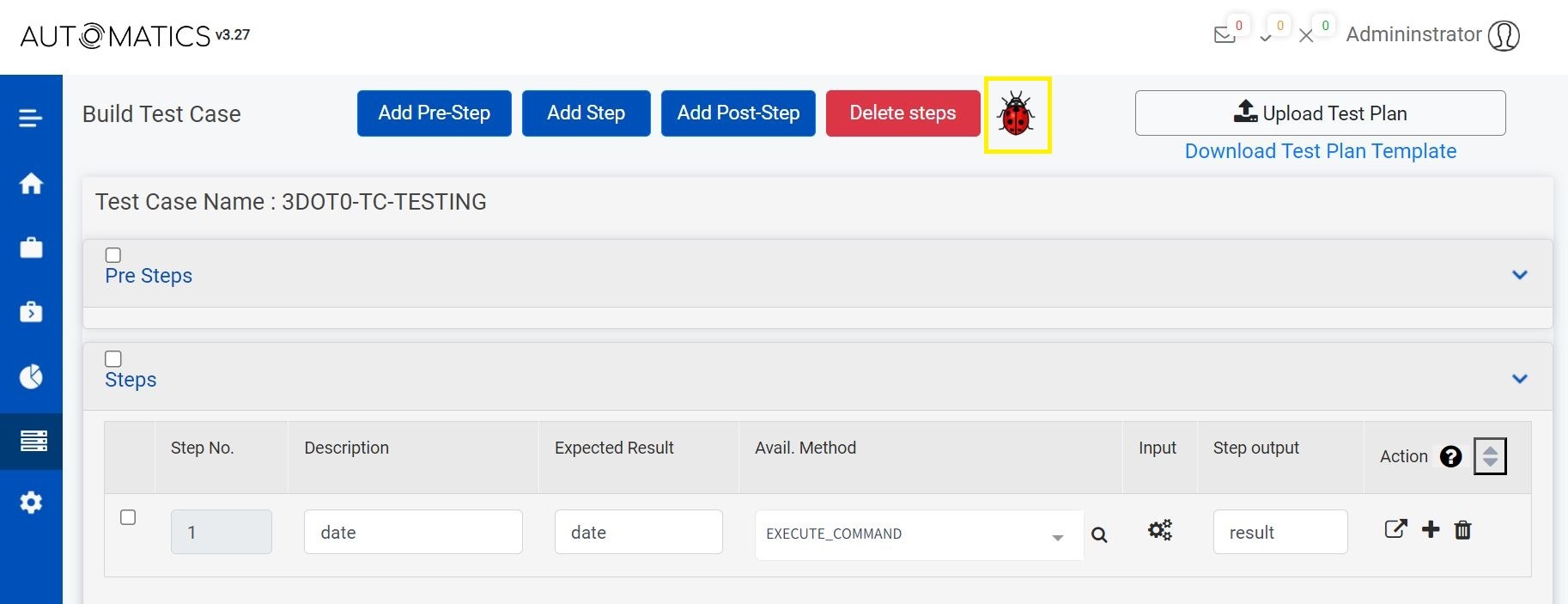
2. In the debugger popup, developer can see configuration options to start the execution.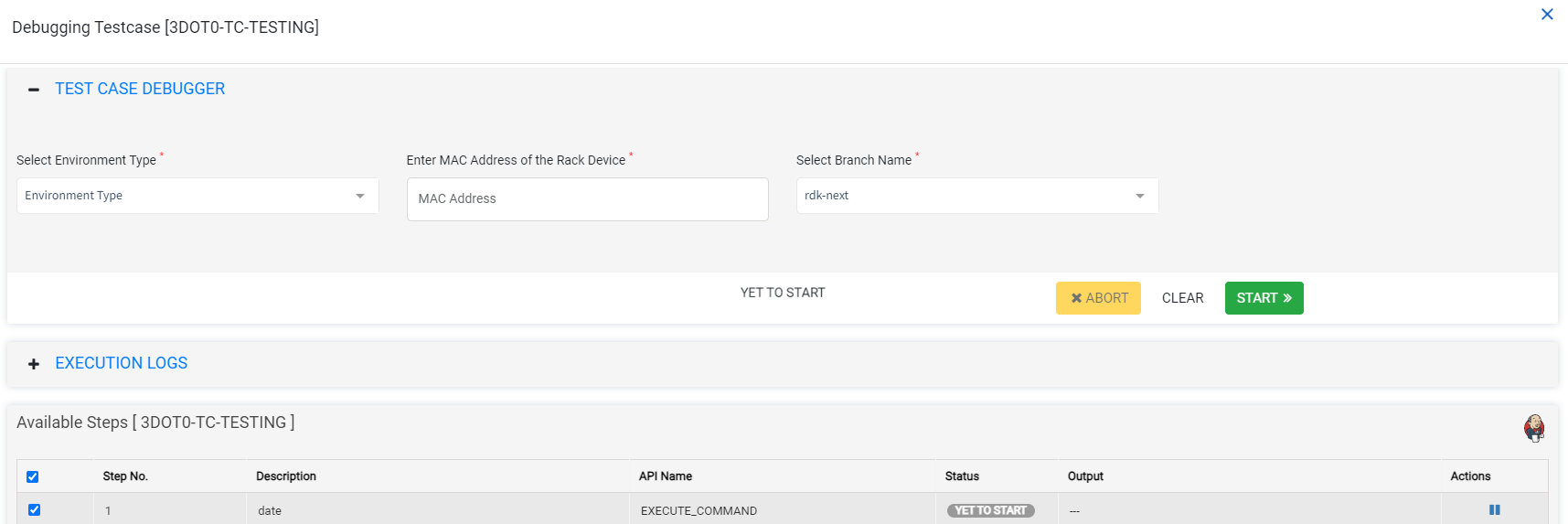
After starting the execution, click on EXECUTION LOGS panel to see the execution logs.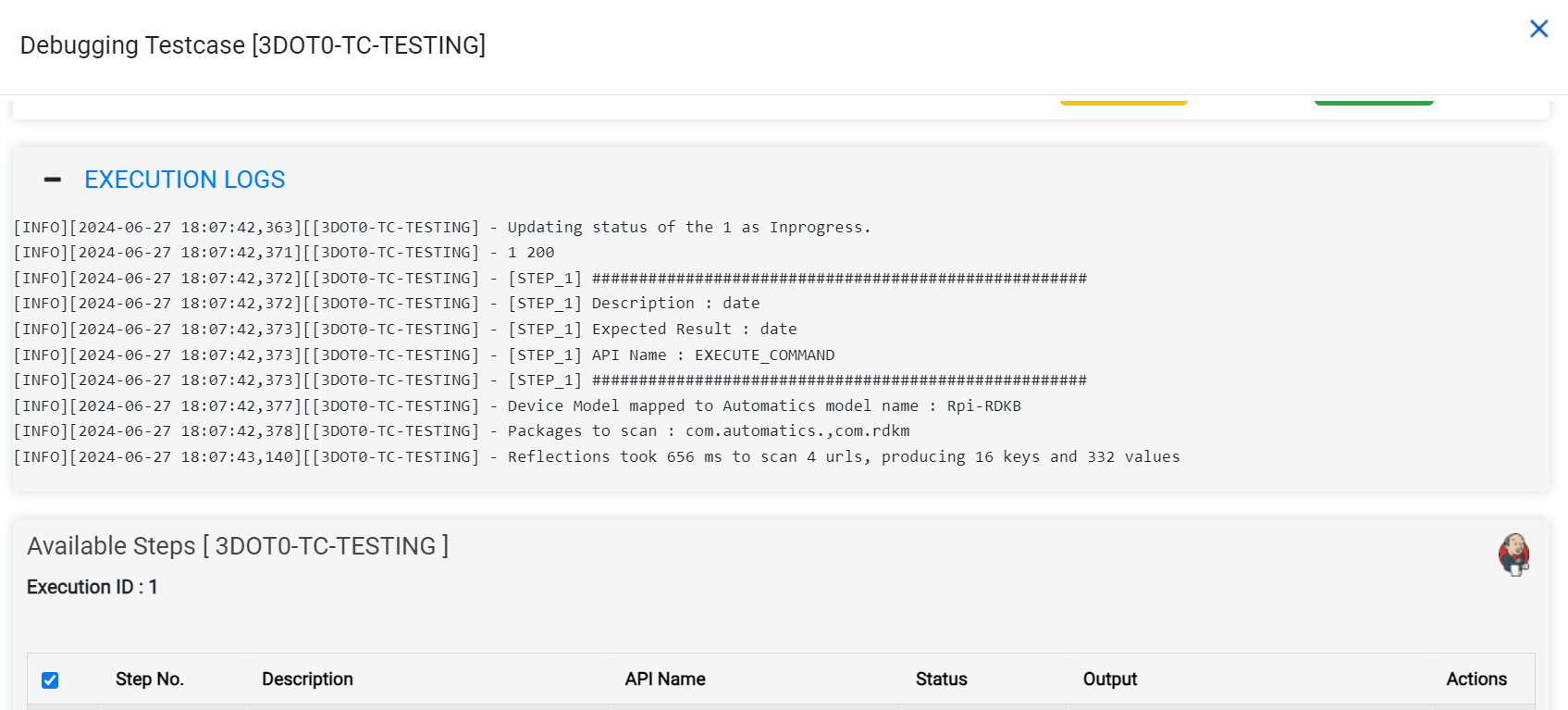
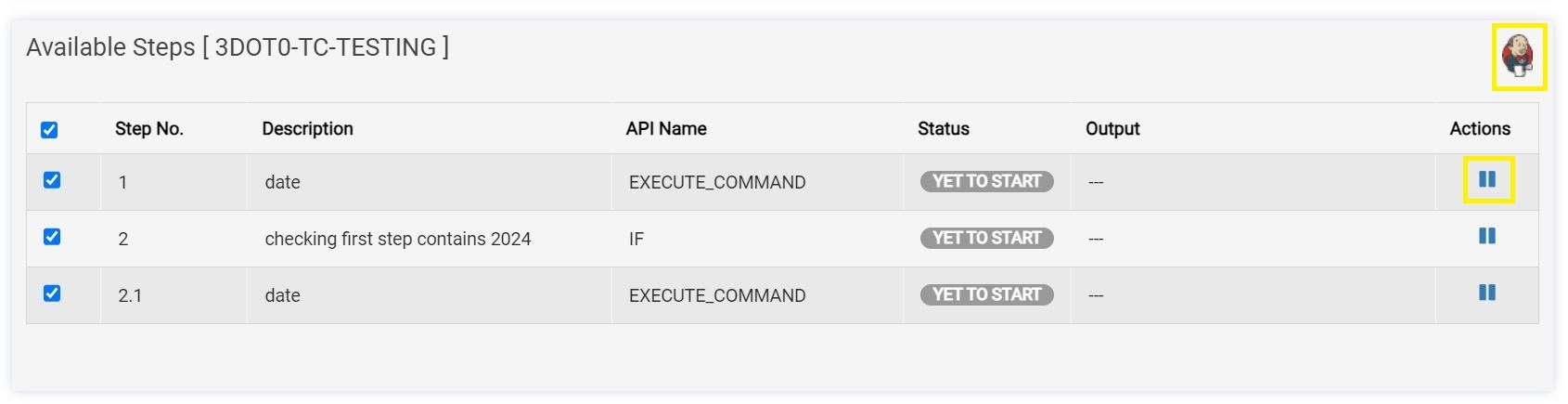
3. At the bottom of the page, automation developer can see the available steps from the testcase loaded in table.
4. Functionalities:
Status involved in step execution:
* YET_TO_START
* IN_PROGRESS
* PAUSED
* PASS
* FAIL
* Output: Step output will be added in output column of the table.
* By using Checkboxes at the left side, automation developer can select/unselect the steps for the execution. So, if automation developer wants to execute sepecific steps they can select the steps on demand for the execution.
* Click on PAUSE button to pause the execution and use the PLAY button to resume the execution.
* Automation Developers can see the Jenkins execution logs using the Jenkins icon at the top right corner.
For the test execution team, separate dashboard was there under Manage Test Trigger menu. This option is available under Manage Test Trigger tab → Test Case Debugger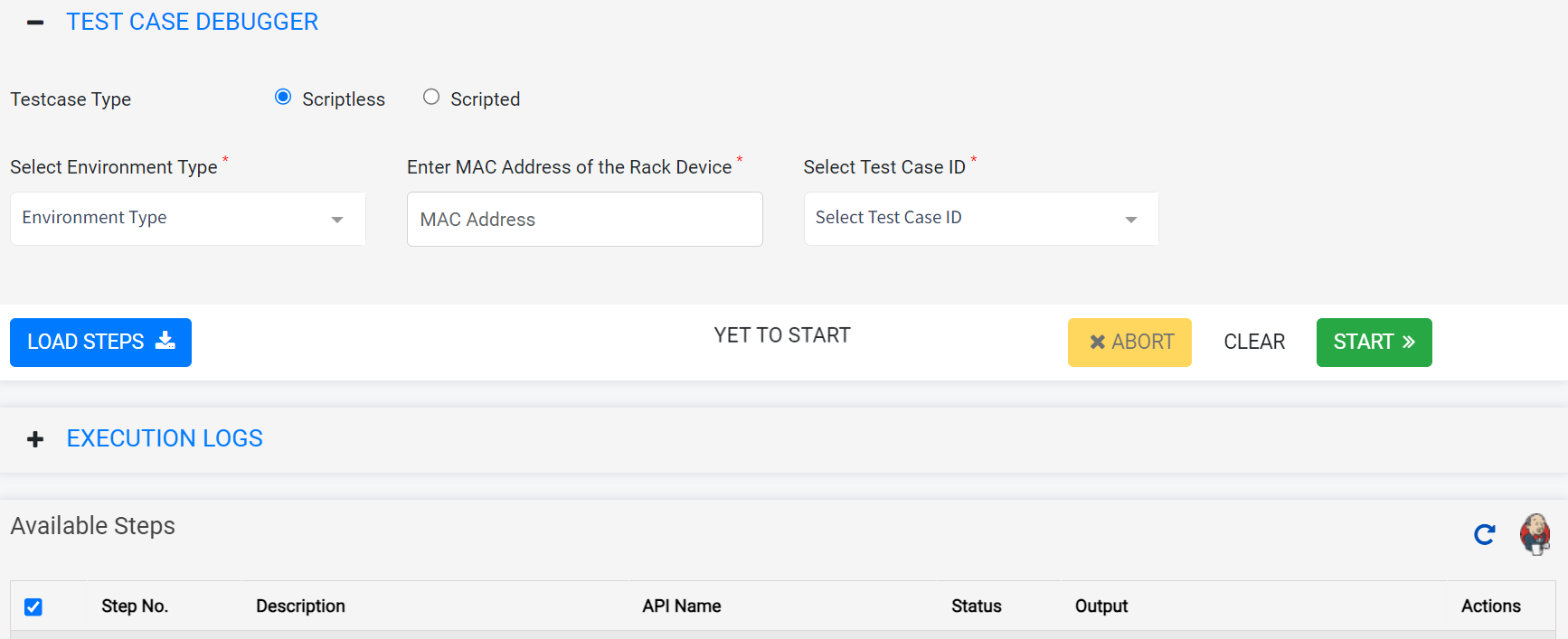
To start the debugger execution, please follow the below steps:
1. Select Testcase Type
* Scriptless - To load the Scriptless testcases (i.e. created from Build Testcase page)
* Scripted - To load the scripted testcases (i.e. Testcases that has its own scripts in Test projects).
2. Select Environment Type and enter valid Device Mac of the Rack Device.
3. Upon the previous inputs Testcase IDs will be populated in Test case ID select box. Select the test case from the drop down.
4. After giving all the inputs click on Load Steps button at the left side.
5. After loading the steps into the table present in Available Steps division, click on the START button to start the execution.
Review 3.0 Test Scripts from Review Dashboard
Follow below steps to perform review of 3.0 Test Scripts from dashboard
- Navigate to Automatics Menu -> Test Manager-> Review Dashboard.
- Here everyone will be able to see the reviews with all the testcase details, developer, assigned reviewer, and review status.
- To review a test case, choose the test case and click on Actions -> Review.
- User can review the testcase details by using the Review option. It will redirect the user to the testcase in Build Test Case. Their user can review the testcase and can add comments about the development or any change needs to be done, etc.
- To change the status of the test case, choose the test case and click on Actions -> Change status.
- According to test case developer's point of view, they will be able to change the status to REWORK or ABANDONED.
- According to test case reviewer's point of view, they will have the authority to change the status to APPROVED, MERGED, REWORK or ABANDONED.
- You can also add notes to a review, to add a note choose the test case and click on Actions -> Add Notes
- The test case developers or the reviewer can add comments to the review by using the Add Notes option.
Overview
Community Forums
Content Tools
Tasks