

Page History
...
User can also see the Execution Details of Last 4.
Manage User Group Access
For user to execute the test cases on the devices need to have permissions to access the device group. Admin user can map device groups to users so that only those users mapped to device group can execute tests on device.
- From Automatics UI, navigate to Settings -> User Management
- Click on User Group Module Access
- Select the User Group and click on Fetch Access Rights.
- Select the access right checkbox of the Module Name, you want to provide access.
- Click on Save.
...
To reduce the effort for user to add new test script scripts and its steps in bulk, user can import the test scripts in excel format. Click on 'Choose File' and select the excel file to be imported. Then Click on Upload File button and then Upload All Scripts. Status message of file upload will be shown in page after the upload. The imported test scripts can viewed after applying Filter option.
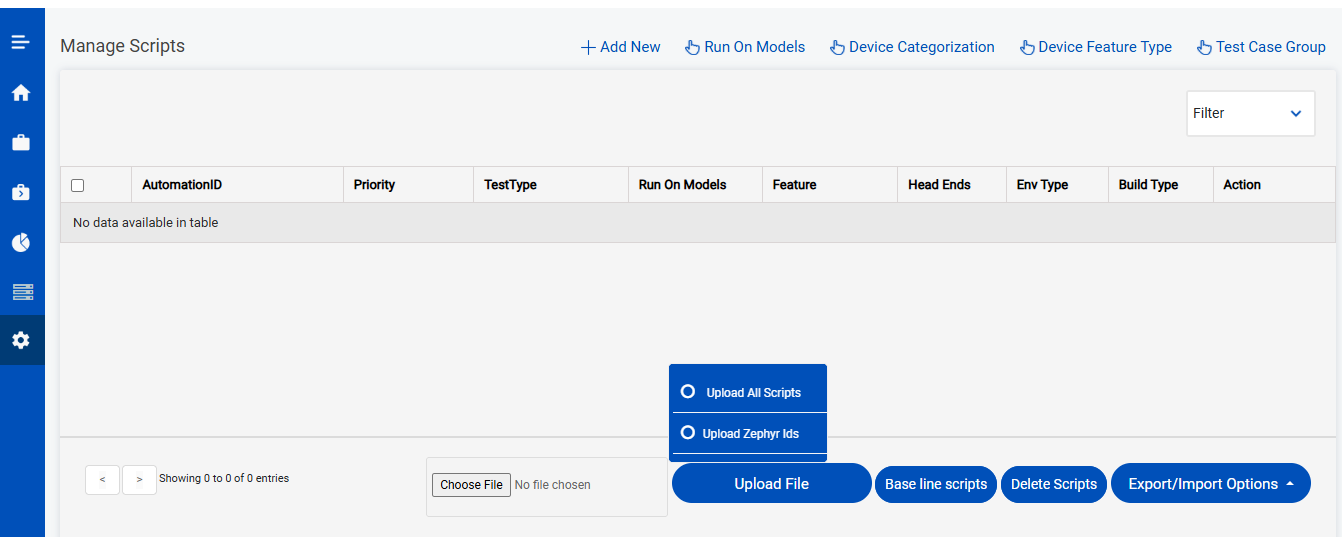
the existing excel sheet with required details. The template for the excel sheet to be used for importing the test case can be downloaded from Manage scripts page from Export/Import options menu. File picker from the Managed scripts page can be used to choose the excel sheet from the local PC and upload it to Automatics to import all the test cases and its steps in bulk
Run Run On Models
The Run On Models page is used to save device models which will be used for test execution. When we open the manage scripts page, over the top right we could see the Run On Models option, when we click it we will be redirected to Run On Models page. Please note that only Admin users will have access to this page.
Once we open this page we can see list of models and a button at the top right which is 'Add Device Name'.
...
Select required date and below filter options for the required test result details:
Regular Test Types, CI Test Types and Execution Mode
Now, click on 'Download Reports' button highlighted below:
...
New Pages are added as a part of scriptless executions Details for the following pages is provided below
API Explorer
User can get to know the API's information such as API category, Class name, API name, Applicable for, description and parameter details.
Please refer Automatics 3.0 User Manual#APIExplorer for more details.
Build Test Utility
Build Test Utility is creating the set of steps frequently used in test cases which helps in reducing the user efforts while creating test cases.
...
5. After loading the steps into the table present in Available Steps division, click on the START button to start the execution.
Review 3.0 Test Scripts from Review Dashboard
Follow below steps to perform review of 3.0 Test Scripts from dashboard
- Navigate to Automatics Menu -> Test Manager-> Review Dashboard.
- Here everyone will be able to see the reviews with all the testcase details, developer, assigned reviewer, and review status.
- To review a test case, choose the test case and click on Actions -> Review.
- User can review the testcase details by using the Review option. It will redirect the user to the testcase in Build Test Case. Their user can review the testcase and can add comments about the development or any change needs to be done, etc.
- To change the status of the test case, choose the test case and click on Actions -> Change status.
- According to test case developer's point of view, they will be able to change the status to REWORK or ABANDONED.
- According to test case reviewer's point of view, they will have the authority to change the status to APPROVED, MERGED, REWORK or ABANDONED.
- You can also add notes to a review, to add a note choose the test case and click on Actions -> Add Notes
- The test case developers or the reviewer can add comments to the review by using the Add Notes option.
Overview
Community Forums
Content Tools
Tasks