

Page History
...
To reduce the effort for user to add new test script scripts and its steps in bulk, user can import the test scripts in excel format. Click on 'Choose File' and select the excel file to be imported. Then Click on Upload File button and then Upload All Scripts. Status message of file upload will be shown in page after the upload. The imported test scripts can viewed after applying Filter option.
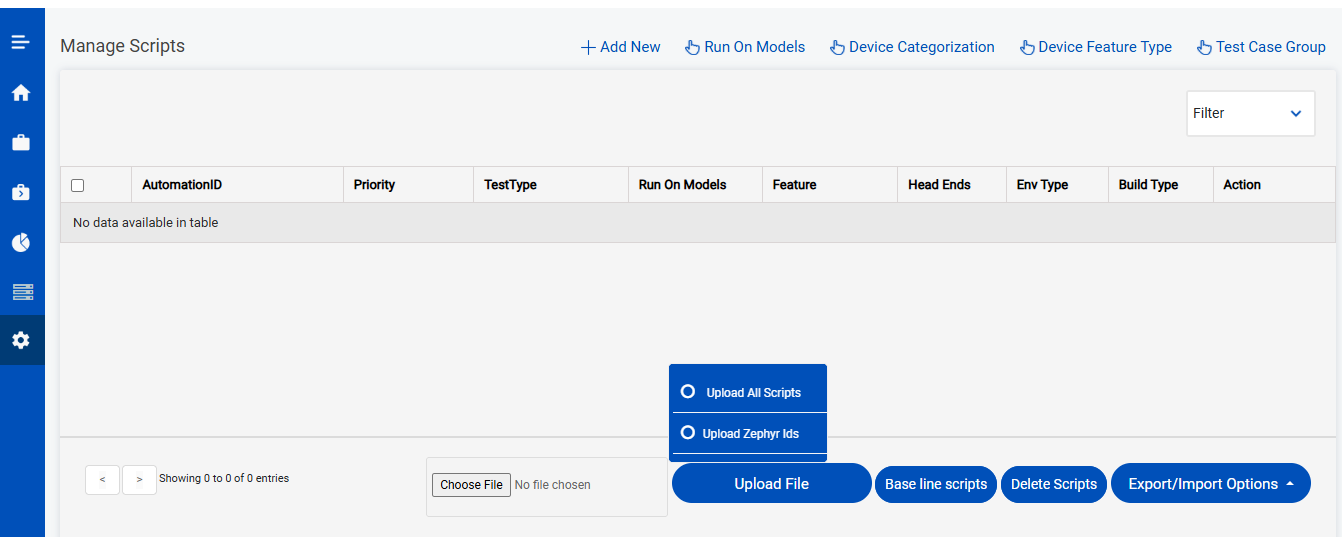
the existing excel sheet with required details. The template for the excel sheet to be used for importing the test case can be downloaded from Manage scripts page from Export/Import options menu. File picker from the Managed scripts page can be used to choose the excel sheet from the local PC and upload it to Automatics to import all the test cases and its steps in bulk
Run On Models
The Run On Models page is used to save device models which will be used for test execution. When we open the manage scripts page, over the top right we could see the Run On Models option, when we click it we will be redirected to Run On Models page. Please note that only Admin users will have access to this page.
Once we open this page we can see list of models and a button at the top right which is 'Add Device Name'.
...
Overview
Community Forums
Content Tools
Tasks