


Introduction
WPS stands for Wi-Fi Protected Setup. It is a wireless network security standard that tries to make connections between a router and wireless devices faster and easier. WPS works only for wireless networks that use a password that is encrypted with the WPA Personal or WPA2 Personal security protocols. WPS doesn't work on wireless networks that are using the deprecated WEP security, which can be cracked easily by any hacker with a basic set of tools and skills. Wi-Fi Users don't want to know the broadcasting ssid and password.
Push Button Configuration (PBC): In this method, a WPS physical button on the BPI and WPS option on the wireless client are pressed within a specific timeframe, initiating the connection without the need for entering a password.
WPS State Machine
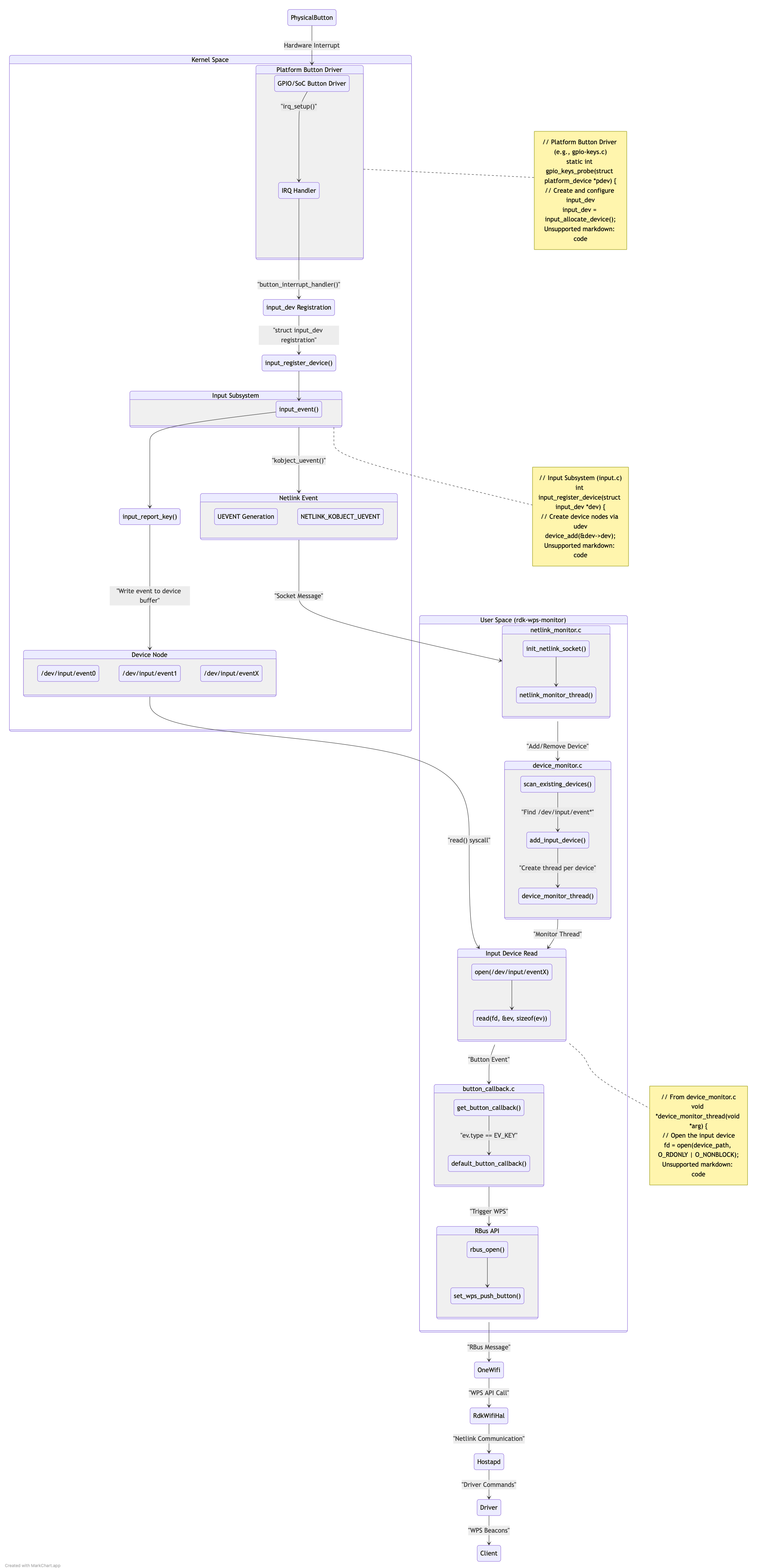
WPS HW button Monitor component design
Concept
Conceptual Process
When a WPS PBC request is initiated in your system:
- PBC Activation:
- Your code calls the RDK-WiFi-HAL API for WPS PBC
- The HAL communicates this to hostapd via its control interface
- hostapd sets the access point into "WPS waiting" mode
- Registration Window:
- A 2-minute window opens where the access point is receptive to WPS registration
- The AP broadcasts its WPS capability in beacons
- The AP listens for probe requests with WPS information elements
- Device Discovery:
- When a client device (like your mobile phone) activates WPS PBC
- It sends probe requests with WPS information elements
- Your access point responds to these probes
- Credential Exchange:
- The client and AP establish an EAP (Extensible Authentication Protocol) session
- They perform a handshake to validate each other
- The AP sends the encrypted network credentials to the client
- The client configures itself with these credentials
- Connection Completion:
- The client connects to the network using the received credentials
- The AP notifies the system (through hostapd → nl80211 → RDK-WiFi-HAL) of successful registration
- The WPS PBC mode on the AP ends
- PBC Activation:
Technical Implementation Details
In your specific setup with RDK-WiFi-HAL and hostapd 2.10:
- RDK-WiFi-HAL WPS Functions:
- The HAL typically provides functions like
wifi_pushButtonPBC() - These functions handle the communication with hostapd
- The HAL typically provides functions like
- hostapd Control Communication:
- hostapd 2.10 provides a control interface via Unix domain sockets
- RDK-WiFi-HAL connects to this socket and sends "WPS_PBC" commands
- nl80211 Commands Used:
- hostapd uses
NL80211_CMD_START_WPSwith attributes:NL80211_ATTR_IFINDEX: Specifies the wireless interfaceNL80211_ATTR_WPS_MODE: Set toNL80211_WPS_PBCfor push button method
- hostapd uses
- Event Monitoring:
- WPS events flow back from the driver → nl80211 → hostapd → RDK-WiFi-HAL
- These events include connection attempts, successful registrations, and timeouts
- RDK-WiFi-HAL WPS Functions:
Communication Flow for WPS PBC
- Application Layer → RDK-WiFi-HAL:
- Your application makes calls to the RDK-WiFi-HAL API
- These calls are standardized functions in the HAL to trigger WPS
- RDK-WiFi-HAL → libhostapd:
- The HAL translates your request into specific hostapd commands
- It handles the complexity of connecting to and communicating with hostapd
- libhostapd → nl80211:
- hostapd uses the nl80211 interface to communicate with the kernel
- It formats the appropriate Netlink messages to trigger WPS PBC
- nl80211 → Driver:
- The kernel's nl80211 subsystem passes commands to your WiFi driver
- The driver activates the WPS PBC mode on the hardware
- Application Layer → RDK-WiFi-HAL:
Datamodels
root@Docsis-Gateway:~# dmcli eRT getv Device.WiFi.AccessPoint.1.WPS.Enable
CR component name is: eRT.com.cisco.spvtg.ccsp.CR
subsystem_prefix eRT.
getv from/to component(eRT.com.cisco.spvtg.ccsp.wifi): Device.WiFi.AccessPoint.1.WPS.Enable
Execution succeed.
Parameter    1 name: Device.WiFi.AccessPoint.1.WPS.Enable
               type:       bool,    value: true
root@Docsis-Gateway:~# dmcli eRT getv Device.WiFi.AccessPoint.1.WPS.X_CISCO_COM_WpsPushButton
CR component name is: eRT.com.cisco.spvtg.ccsp.CR
subsystem_prefix eRT.
getv from/to component(eRT.com.cisco.spvtg.ccsp.wifi): Device.WiFi.AccessPoint.1.WPS.X_CISCO_COM_WpsPushButton
Execution succeed.
Parameter    1 name: Device.WiFi.AccessPoint.1.WPS.X_CISCO_COM_WpsPushButton
               type:        int,    value: 0
root@Docsis-Gateway:~# dmcli eRT setv Device.WiFi.AccessPoint.1.WPS.X_CISCO_COM_WpsPushButton int 1
CR component name is: eRT.com.cisco.spvtg.ccsp.CR
subsystem_prefix eRT.
setv from/to component(eRT.com.cisco.spvtg.ccsp.wifi): Device.WiFi.AccessPoint.1.WPS.X_CISCO_COM_WpsPushButton
Execution succeed.
root@Docsis-Gateway:~# dmcli eRT setv Device.WiFi.ApplyAccessPointSettings bool true
CR component name is: eRT.com.cisco.spvtg.ccsp.CR
subsystem_prefix eRT.
setv from/to component(eRT.com.cisco.spvtg.ccsp.wifi): Device.WiFi.ApplyAccessPointSettings
Execution succeed.
root@Docsis-Gateway:~# dmcli eRT getv Device.WiFi.AccessPoint.1.WPS.X_CISCO_COM_WpsPushButton
CR component name is: eRT.com.cisco.spvtg.ccsp.CR
subsystem_prefix eRT.
getv from/to component(eRT.com.cisco.spvtg.ccsp.wifi): Device.WiFi.AccessPoint.1.WPS.X_CISCO_COM_WpsPushButton
Execution succeed.
Parameter    1 name: Device.WiFi.AccessPoint.1.WPS.X_CISCO_COM_WpsPushButton
               type:        int,    value: 0


In BPI Target Board:
root@Filogic-GW:/lib/systemd/system# dmcli eRT setv Device.WiFi.AccessPoint.1.WPS.X_CISCO_COM_ActivatePushButton bool true
CR component name is: eRT.com.cisco.spvtg.ccsp.CR
subsystem_prefix eRT.
Execution succeed.

root@Filogic-GW:/lib/systemd/system# dmcli eRT setv Device.WiFi.AccessPoint.2.WPS.X_CISCO_COM_ActivatePushButton bool true
CR component name is: eRT.com.cisco.spvtg.ccsp.CR
subsystem_prefix eRT.
Execution succeed.
WPS Hardware Key Press in BPI
The Hardware key press is handled as a separate utility under broadband-utils repo:
https://github.com/rdkcentral/broadband-utils
In this implementation, Netlink sockets are handling the WPS Key press event (netlink-button-monitor.service) and further functionality is carried out by rbus API's which intimates OneWifi to carry out the WPS operation.
The recipe is present under:
meta-cmf-bananapi/meta-rdk-mtk-bpir4/recipes-common/rdk-wps-monitor/rdk-wps-monitor.bb
Test Results in BPI:
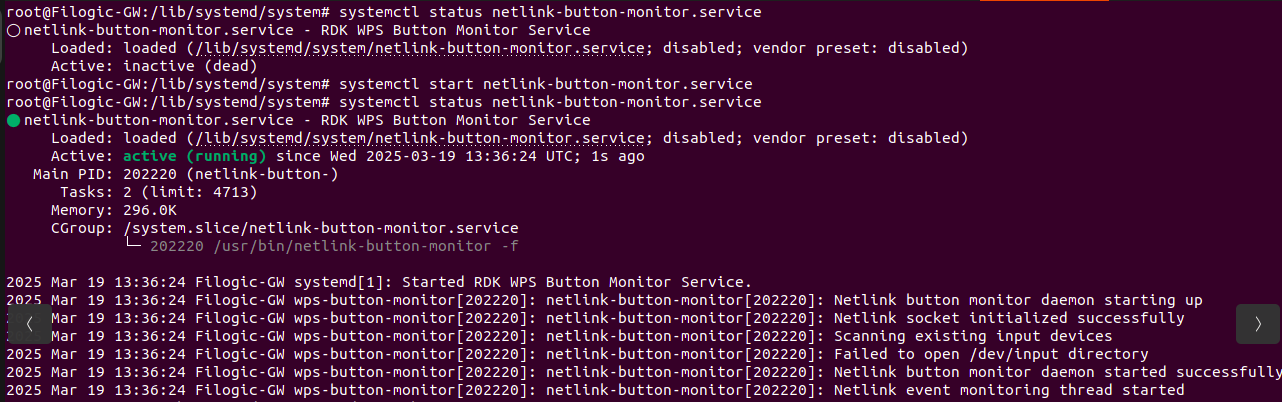
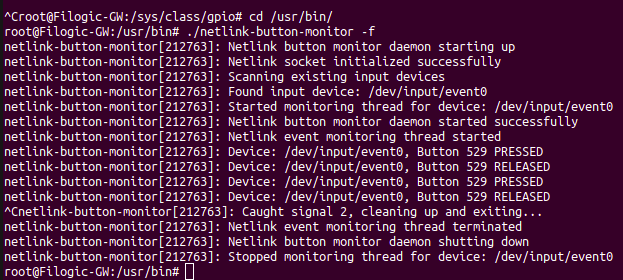
WPS Initiation:
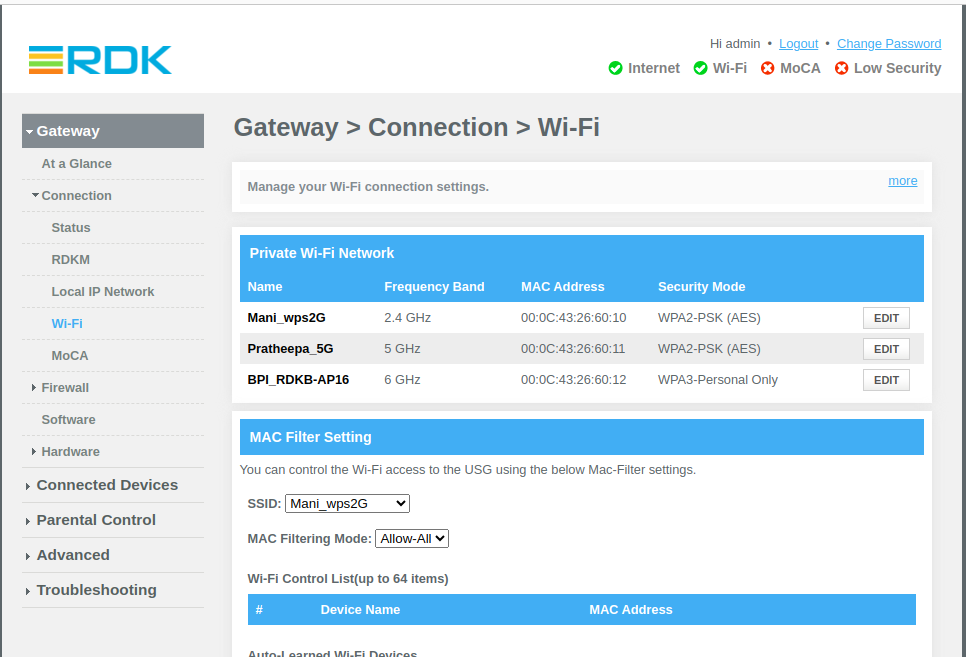
1.Change the SSID of 2G and 5G from Web UI, to test WPS feature functionality.
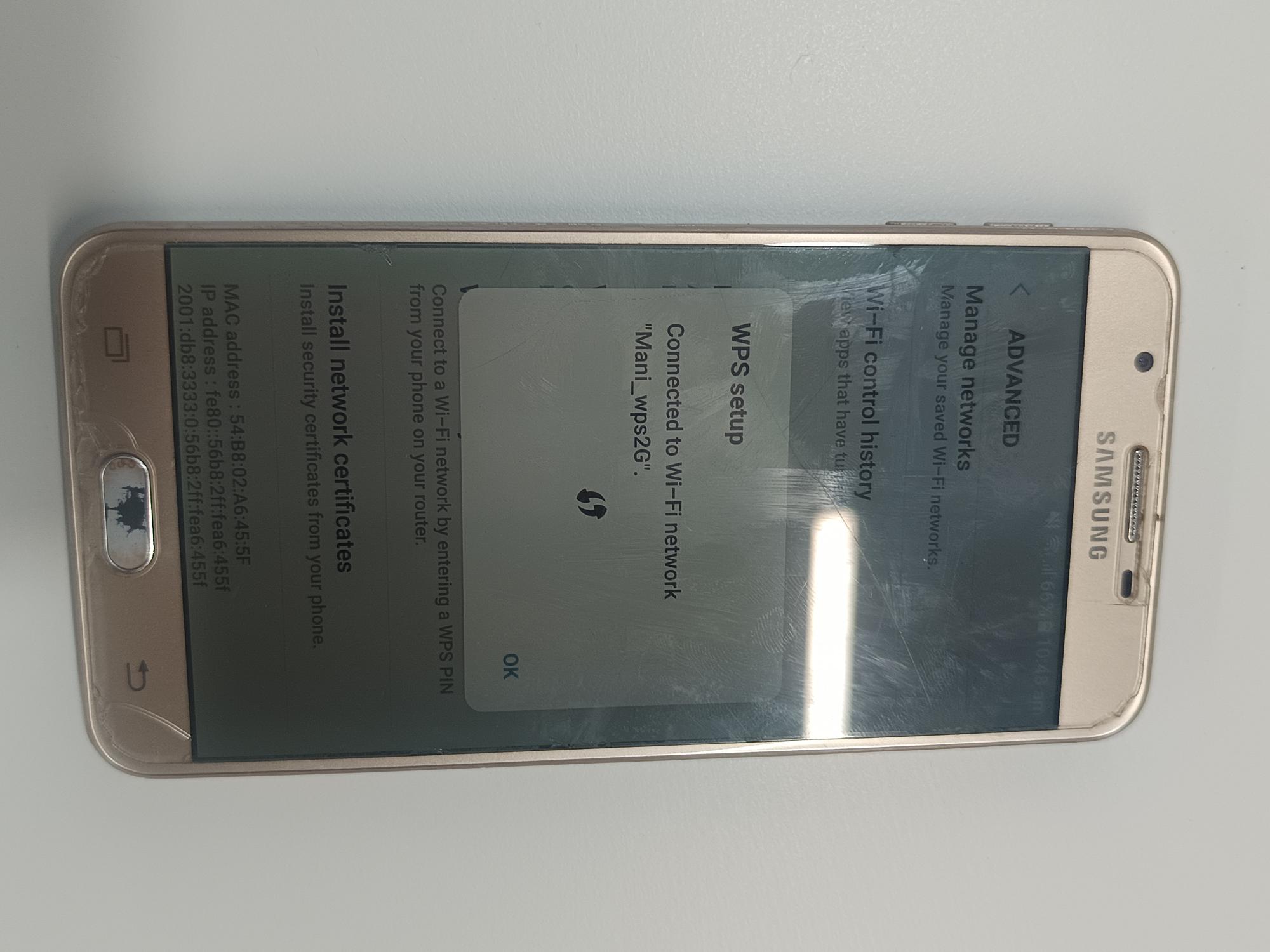
2. Press the WPS PBC from BananaPi hardware. Try connecting 2G and 5G clients with new SSID without entering the password.
2G Client Connected (via Mobile):
5G Client connected (via Laptop):
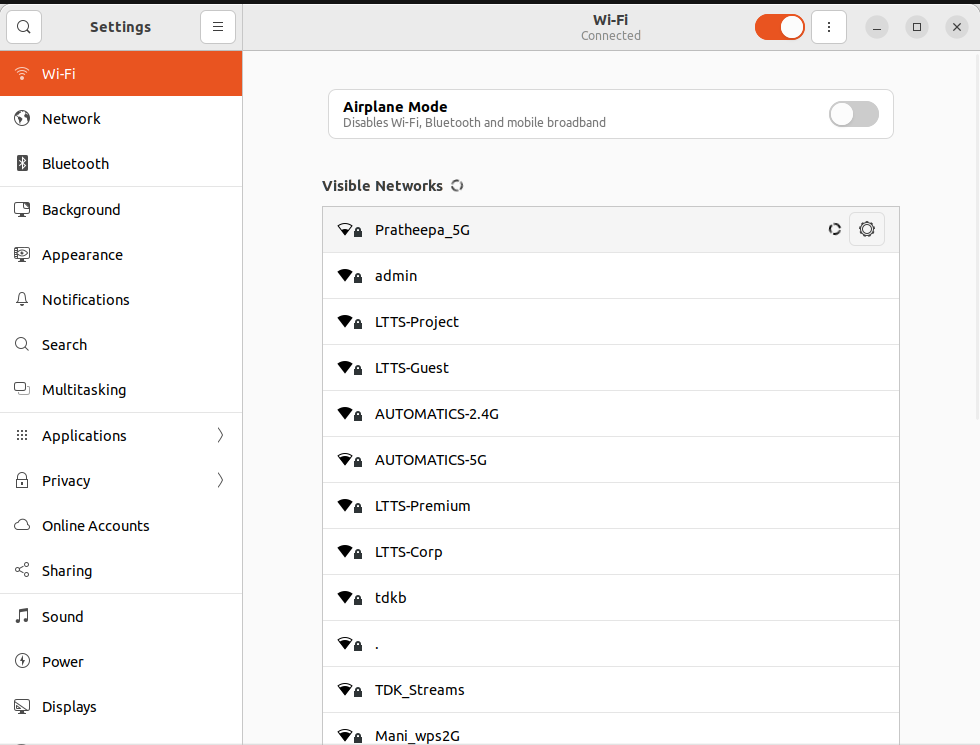
3. Check the internet connectivity for both the clients.
NOTE:
6GHz is WPA3 personal-only. Does not support WPS!
UI validation:
By default WPS button is hidden. For that , change the default security mode for 6g to enable the WPS button in WebUI.
Note - WPS button will be hidden in UI if we have security mode as "None" or "WPA3-Personal" for any Access-Points as per the jst code.
Overview
Community Forums
Content Tools
Tasks