

Page History
| Table of Contents | ||
|---|---|---|
|
Source code repository
Xconf code consists of 3 web applications - Xconf Webconfig, XConf Admin and Xconf UI. The source code for golang version is available in the below Github repositories:
...
    $ sudo apt-get update
    $ sudo apt-get install openjdk-8-jdk

Check your installation using the command :
    $ java  -version
2. Install and setup Cassandra(Version 3.11.9)
...
1. Start Cassandra Service
- To start an Xconf application, start the Cassandra server by executing the following commands:
     $ cd apache-cassandra-3.11.9
     $ sudo bin/cassandra
...
Below steps will affect all the features in Xconf system and should be configured after initial setup. Go to the steps given in site navigation step and press on create button to create new entries.
Login Screen
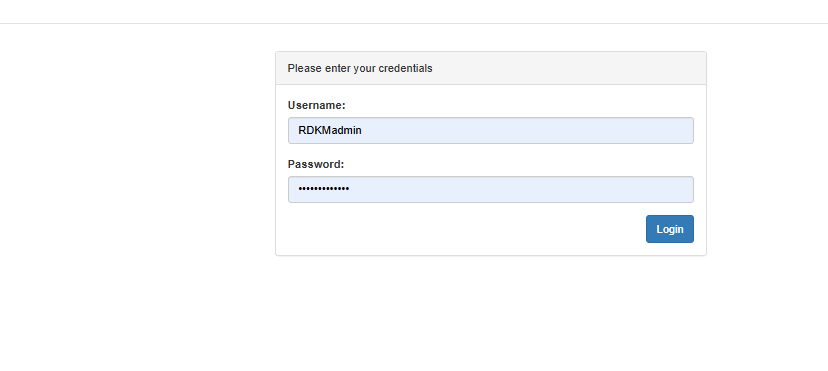
kindly refer this page Xconf GO Reference Setup Credentials for credentials
Define Environments
| Panel | ||
|---|---|---|
| ||
|
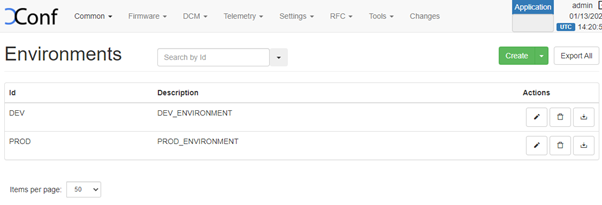
...
1. Create upload repository via DCM->Upload repository -> Create. Here we can add where to configure the log upload, i.e. the upload URL and protocol(This will be the URL of logupload server that is setup to upload the log files, it can be http, https or tftp servers).
| Panel | ||
|---|---|---|
| ||
|
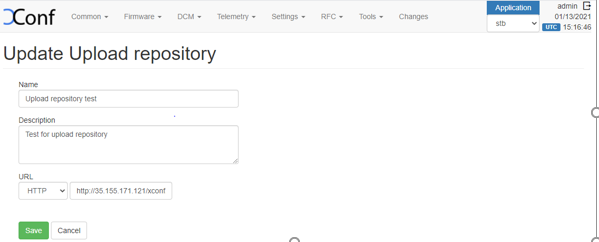
...
4. Click on 'Create Device Settings' tab and edit the Device Settings.
5. Edit the Log upload Setting (Create schedule & Add the upload repository created beforehand).
6. Note : The formula will be effective only if we select 'Are Settings Active' option to 'true' in 'Create Device Settings' and 'Log Upload settings'
| Info |
|---|
For Logupload endpoint, if you are planning to use community reference server please use https://xconf.rdkcentral.com/logTelemetryServer/logupload.php https://xconf-test.rdkcentral.com/logTelemetryServer/upload/display.php to view the uploaded logs. |
...
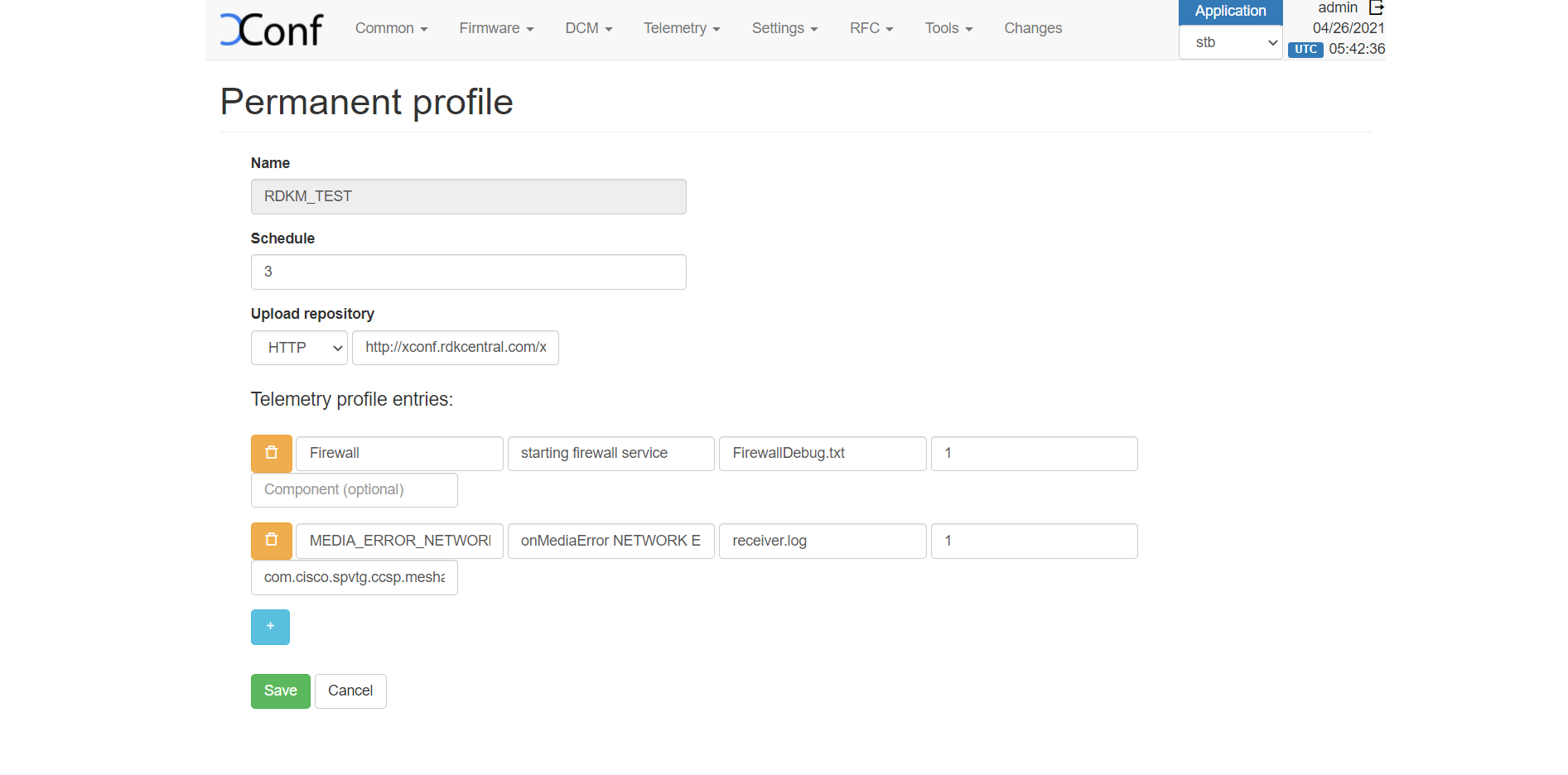
- Create a permanent profile Telemetry - > Permanent Profiles -> Create
In the Telemetry Permanent Profile page, there will be a 5th column that allows a component name to be entered. The component name is optional and may be present for only some of the entries in the Telemetry profile.
| Panel | ||
|---|---|---|
| ||
 |
...
Example for getT2Settings:
{"header":"MEDIA_ERROR_NETWORK_ERROR","content":"com.cisco.spvtg.ccsp.meshagent","type":"<event>","pollingFrequency":"0"}
If the component name has not been defined for an entry, the response will be in the current format.
Example for getSettings:
{"header":"MEDIA_ERROR_NETWORK_ERROR","content":"onMediaError NETWORK ERROR(10)","type":"receiver.log","pollingFrequency":"0"}
eg :
$ curl 'http://<XCONF_IP>/loguploader/getSettings?estbMacAddress=AA:BB:CC:DD:EE:FF’
...
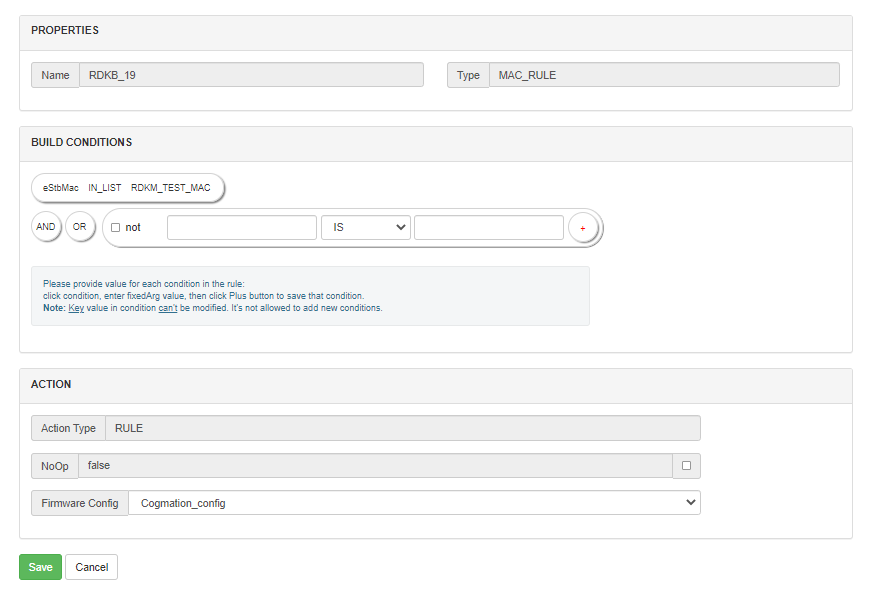
After we select the required template, 'Add firmware Rule' page will be displayed. Here the build conditions will be present from the 'template' that we added and in addition to that we can add additional Build Conditions also. To add firmware config , go to the 'Actions' tab and select the firmware config from 'Firmware config' drop down list (Select the firmware config that you have created).
| Panel |
|---|
|
4. The download location needs to be specified so that it can be returned in the response. Choose Firmware -> Download location filter-> Edit, where we can specify the location from where we can download the firmware. Enter the FQDN and Full http location for the firmware download server . Http location will be returned by default to all devices.
...
Overview
Community Forums
Content Tools
Tasks