| Tabs Container |
|---|
| title | Automatics Setup |
|---|
| direction | horizontal |
|---|
|
|
...
| Welcome to the Automatics Jenkins Setup and Deployment Guide. This document will walk you through the steps to set up and deploy Automatics applications using Jenkins, ensuring a smooth and efficient process. |
|
Automatics Automated build and deployment Repo
Repo : https://code.rdkcentral.com/r/admin/repos/rdk/tools/automatics/dev-ops
(Please open the above url in browser and git clone url is available in the page)
Branch : rdk-next
Sub folder :
- Build : automationScripts\build\
- Deployment : automationScripts\deployment\
- Jenkins Setup : jenkinsServerSetup\
...
Navigate through below stages to bring up Automatics Test System. | draw.io Diagram |
|---|
| border | true |
|---|
| |
|---|
| diagramName | Setup Flow |
|---|
| simpleViewer | false |
|---|
| width | |
|---|
| links | auto |
|---|
| tbstyle | top |
|---|
| lbox | true |
|---|
| diagramWidth | 1141 |
|---|
| height | 72 |
|---|
| revision | 1 |
|---|
|
|
| Tabs Page |
|---|
| title | Deployment Approaches |
|---|
| Deployment ApproachesDeployment Setup in 3 VMThe recommended approach to deploy Automatics for a stable test environment is using 3 VM setup. In this approach the automatics components are deployed among the VMs. Following diagram shows in which VM each component should be deployed. | draw.io Diagram |
|---|
| border | true |
|---|
| |
|---|
| diagramName | Automatics_3_VM_Deployment_Diagram |
|---|
| simpleViewer | false |
|---|
| width | |
|---|
| links | auto |
|---|
| tbstyle | top |
|---|
| lbox | true |
|---|
| diagramWidth | 759 |
|---|
| height | 651 |
|---|
| revision | 1 |
|---|
|
Deployment Setup in single VM In this approach all components that is shown in the above section will be deployed in single VM. |
| Tabs Page |
|---|
| title | Automated Deployment |
|---|
| Automatics Setup StepsNavigate through below stages to bring up Automatics Docker Containers. | draw.io Diagram |
|---|
| border | true |
|---|
| |
|---|
| diagramName | JenkinsSetupFlow |
|---|
| simpleViewer | false |
|---|
| width | |
|---|
| links | auto |
|---|
| tbstyle | top |
|---|
| lbox | true |
|---|
| diagramWidth | 1161 |
|---|
| height | 61 |
|---|
| revision | 3 |
|---|
|
Pre-requisitesBefore you begin, ensure you have the following installed in VMs: |
|
...
...
Docker Setup StepsPlease follow below steps to setup docker in your VMs. | Code Block |
|---|
curl -fsSL https://get.docker.com -o get-docker.sh
sh get-docker.sh |
Create a new user group named "docker" and add the Jenkins user to this group: | Code Block |
|---|
sudo groupadd docker
sudo usermod -aG docker $USER |
Log out and log back in to re-evaluate group membership. On a virtual machine, you may need to restart it. On Linux, you can also run: Verify Docker commands can be run without sudo: | Code Block |
|---|
docker run hello-world |
Note: Ensure access to pull Docker base images like Tomcat and MySQL from Docker Hub. If access is not available, ensure these images are available locally on the Jenkins VM.
Clone Automated Deployment RepositoryAfter the pre-requisites are done, clone the automated deployment repository in the VM where Jenkins is planned to setup. Automatics Automated build and deployment Repo Repo : https://code.rdkcentral.com/r/admin/repos/rdk/tools/automatics/dev-ops |
|
...
(Please open the above url in browser and git clone url is available in the page) Branch : rdk-next Sub folder : - Build : automationScripts\build\
- Deployment : automationScripts\deployment\
- Jenkins Setup : jenkinsServerSetup\
Clone the |
|
...
...
| Code Block |
|---|
sudo sh install_jenkins_server.sh |
from dev-ops/jenkinsServerSetup. This script installs Docker, pulls the Jenkins server image from Docker Hub, and installs necessary dependencies like Maven and Jenkins plugins. It also creates Automatics Core & RDKB Utils build jobs and build and deployment jobs
| Code Block |
|---|
sudo sh install_jenkins_server. |
|
|
...
- Maven Repository Selection
During the installation, you will be prompted to specify whether you have a cloud-based Maven artifact repository. If you have cloud Maven artifact repository, enter ‘Y’ and provide the URL of the private cloud Maven artifact repository along with the username and password. If you do not have a cloud Maven artifact repository and want to configure a local Maven repository instead, enter ‘N’. In this case, the .m2 folder will be used by default as the local Maven repository inside the Docker container.
 Image Added Image Added
- Next, user has to provide the port on which Jenkins to be run. Please provide the port when below prompt comes in.
 Image Added Image Added
- Jenkins Configurations
- After setup, access Jenkins via the browser using the public IP and port (e.g.,
|
|
...
...
- And, configure Jenkins security:
- Go to "Manage Jenkins" → "Security".
- Under Security Realm, select Jenkins’ own user database.
- In the Authorization section, select "Logged-in users can do anything".
- Unselect "Allow anonymous read access".
- Click "Save"
|
|
...
Modify the necessary configurations in the pre-created Jenkins jobs (e.g., Maven repo URL, shell script file paths).
Running the jobs
Build Job
- Populate the parameters as shown in the sample images.
 Image Removed
 Image Removed
 Image Removed
 Image Removed
- Create Jenkins Admin User.
- Once first step is done, it will automatically launch below page to create admin user. Please create admin user.
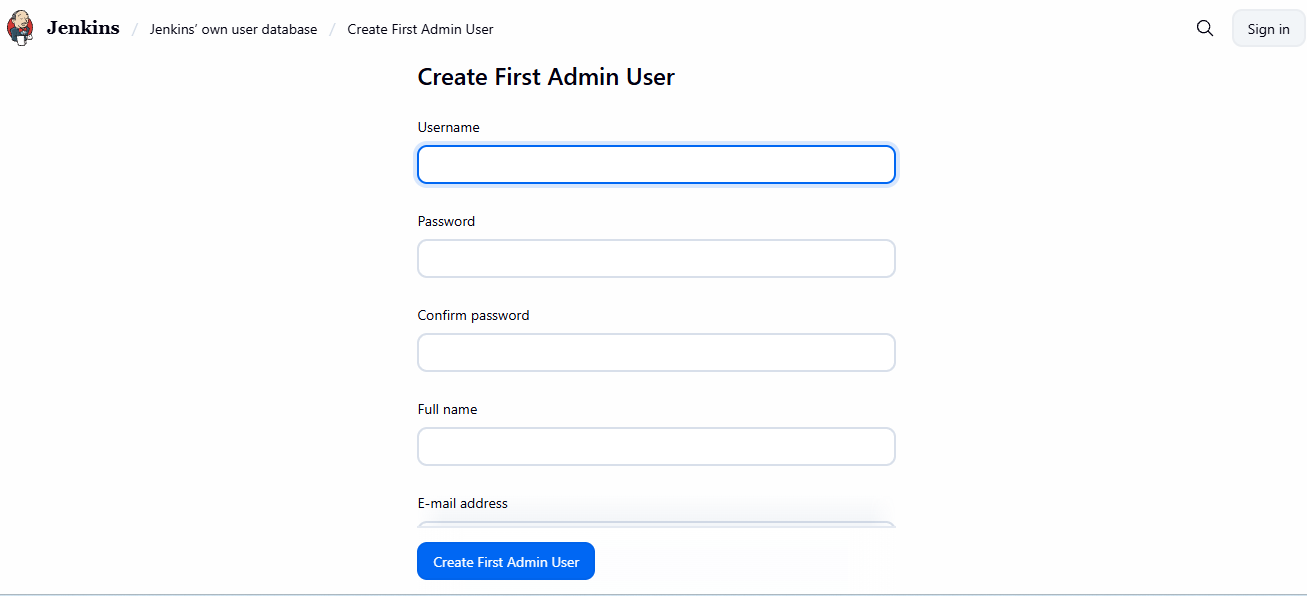 Image Added Image Added
- Add the ssh credentials under Manage Jenkins->Credentials->System→Global Credentials. ie ssh credentials of Jenkins VM if all Automatics components are planned to be executed in single VM. Otherwise ssh credentials of other VMs where Automatics Components are planned to be deployed.
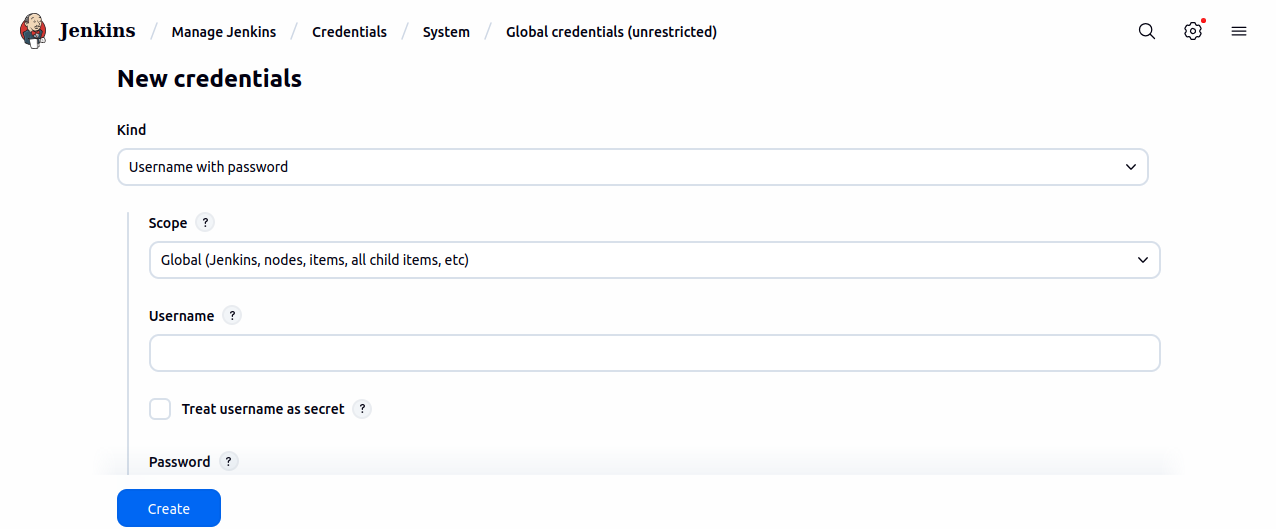 Image Added Image Added
Below set of jobs will be created after successful setup of Jenkins.  Image Added Image Added
Execute Automatics Build JobFirst execute Automatics_Build_Job. This will build the source code of Automatics tools and services and generate war or jar files. |
|
- Tick the checkbox like "BUILD_AUTOMATICS_ORCHESTRATION" for the orchestration build. You can tick or untick checkbox against each Automatics application to build the corresponding docker container
- Provide the repository URL, branch, and credentials for each Automatics project.
- Click "Build" to start the build.
|
|
Deployment Job
Prerequisite
...
Populate the parameters as shown in the sample images. Image AddedImage Added
Image AddedImage Added
Execute Automatics Deployment JobNext, execute Automatics_Deployment_Job. This will create docker files and deploy dockers on the destination VMs. After this execution, Automatics tools should be up and running. While running this job, - Provide details of the VMs for deploying each tool, including user details for SSH access.
- Ensure SSH connection to the Jenkins VM for executing commands and copying Docker images.
- Select the tools to deploy and click "Build".
|
|
Mandatory Automatics Configurations for Test Execution
Configure Maven Artifact Repository
After the automated deployment job execution, user has to configure the artifact repository details in maven settings.xml in automatics_jenkins docker to maven deploy the automatics artifacts. This is required for test execution, as maven artifacts of automatics-core, test-utils are pulled from artifact repo during execution.
The below configurations needs to be available in Automatics Orchestration, Automatics Properties, Device Manager and Jenkins jobs inorder to trigger a successful Test case execution from Automatics Orchestration
Jenkins Jobs
The below set of jobs will be created after successful completion of Automated Build and Deployment execution.
Image Removed
...
- Check the logs to ensure that deployment was success.
- The tools and services deployment urls are available at the end of the console log. All the URLs and DB credentials used for the deployment can be found as a YAML file in "archived artifacts" of Automatics Deployment Job execution DeploymentJob
|
| Tabs Page |
|---|
| title | Automatics Configurations |
|---|
| After successful docker deployment, please follow below manual configurations in Jenkins and Automatics tools. Jenkins Job ConfigurationConfigure the jenkins jobs with below mentioned details | Jenkins Job Name | Configuration to be done in Jenkins Jobs | Steps carryout the configuration |
|---|
| Automatics_Build_Job |
|
|
...
| No config needed |
| | Automatics_Deployment_job |
|
|
...
| No config needed |
| | CI_Automatics_Code_Deploy_And_3.0_Api_Parser |
|
|
...
| No config needed |
| | CI_Api_Parser_Automatics_Core |
|
|
...
Add Automatics Properties Url in -Dautomatics.properties.file |
|
|
...
under Goal Section and Automatics Properties credentials in format 'username:password' and convert it to base64encoded and add as value to property -Dproperties.file.token. Note: if these values are populated as part of setup, then no manual update needed.
| - Open the job by clicking the job name
- In the menus at the left click configure button
- Now click the Build tab at the top
|
|
|
...
- Refer Automatics Core : Jenkins Deployment Job configuration#ConfigureBuildSettings for more details to configure artifact repo url along with maven command
- Add Automatics Properties Url in -Dautomatics.properties.file under Goal Section text field under " Invoke top-level Maven targets " menu. More details on job configuration is available at Jenkins Job for Test Execution#2.ConfigureJenkinsJob)
| | CI_Api_Parser_RDKB_Utils | | CI_Api_Parser_RDKV_Utils | | CI_Api_Parser_Scriptless_Automation | | JOB1 | | Deploy_Automatics_Core |
|
|
...
| Deploy_RDKB_Utils | | Deploy_RDKV_Utils | | Deploy_RPi_Partner_Java_API |
Run Jenkins JobsAfter completing the above set of configuration execute Jenkins Jobs in below order. - "CI_Automatics_Code_Deploy_And_3.0_Api_Parser"
|
|
...
- .
- This job will build and deploy all the automatics dependencies to the repo and run the parsers needed for Automatics Scriptless automation (Automatics 3.0).
|
|
...
-
- "Deploy_RPi_Partner_Java_API"
|
|
...
- This job will build and deploy rpi provider partner implementation.
Configure devices in device manager Configurations in Automatics OrchestrationSystem ConfigurationThe below mandatory system configurations needs to be done in Automatics orchestration for running a first dummy Test execution and result verification from automatics. Please follow Automatics Orchestration Setup#Configuration to configure required configs System Config page of Automatics Properties to make use of features like scriptless automation, review management etc All the URLs and DB credentials used for the deployment can be found as a YAML file in "archived artifacts" of Automatics Deployment Job execution DeploymentJob | System Config Param | Description |
|---|
DEFAULT_SYNDICATION_PARTNER | Default syndication partner. Eg: Company name | SYNDICATION_PARTNERS | Syndication partner names in comma separated format. Eg: Company name1, Company name2 | DEVICE_INVENTORY_BASE_URL | Base URL which is having the rest implementation of device management | EXECUTION_ENVIRONMENT_TYPES | Execution environment types in comma separated format. Supported values are RDKV, RDKB | | AUTOMATICS_BASE_URL | Base URL of Automatics Orchestration Application | | MICROSERVICE_URL | Base URL of Scriptless Service | | JUN | Jenkins Admin User Name | | JUP | Jenkins Admin User Password |
|
|
Device Details
You need to configure the below data related to device in Automatics orchestration in order to trigger a Test case successfully for the first time.
Automatics Properties
...
All the mandatory properties mentioned in the document Automatics Properties should be configured in automatics properties for the successful execution of a test case. Restart Debugger ServiceAfter all configuration are done, please login to the VM where debugger service is running and restart the debugger docker container. | Code Block |
|---|
docker start debugger-service-spring-boot-1 |
|
| Tabs Page |
|---|
| title | Import Automatics Scripts |
|---|
| RDKB, RDKV 1.0 Scripts - Download excel files. For RDKB Automatics RDK-B Test Scripts and for RDKV Automatics RDK-V Test Scripts
- Add your device name in column RUN ON MODELS and Save.
- Import the excel in Automatics Orchestration tool→Test Manager → Manage Script page
RDKB , RDKV 3.0 Scripts
|
| Tabs Page |
|---|
| To validate that system setup is complete and good for execution. Please execute a simple test case as mentioned below and verify the steps.
- Trigger Test Script , skipping QT(uncheck Is Quick Test Required) from Trigger Execution Manually page following TriggerTestExecution.
- Navigate to Job Manager and ensure QT job and child job is created. Follow steps in Job Manager
- Click on Jenkins icon of child job and verify the jenkins test execution logs. Ensure execution is fine.
- Navigate to reports page and verify that you are able to find the test results. Refer steps in Execution Results.
- Click on automation id to open Detailed Results Page and verify results are updated properly.
|
| Tabs Page |
|---|
| Important Points to NoteNew Features in Release 33- Docker Compose Integration: Automated deployment scripts now use Docker Compose.
- Environment Files: All Docker container data (like VM IP, port credentials, etc.) is stored in an environment file for each Automatics application stack. A stack includes both the backend server Docker container and the database Docker container.
Simplified Container Management- Easier Start/Stop: Starting and stopping Automatics Docker containers is now more user-friendly and efficient.
- Automatic Port Assignment: You no longer need to manually identify and provide free ports in the VM. The script will automatically assign a free port to each Docker container. You can see the assigned ports in the YAML file generated under "archived artifacts" after completing the deployment job. If you input a specific port, the script will use that port for deploying the corresponding application.
- Automated Directory Creation: You no longer need to create directories in the VM and provide them as input to the Automatics deployment job. The automated scripts will use Docker volumes to create and attach volumes for each application stack, ensuring logs and database data persist even after deleting or removing Docker containers.
Upgrading from Older VersionsFor users upgrading from older versions of Automatics using the latest scripts, please note the following one-time activities: - Stop and Remove Old Containers: Manually stop and remove old Automatics Docker containers.
- New Containers: After running the deployment job, all containers will be new, so no existing data will be present.
- Backup and Restore Data:
- Backup and restore database data to the new DB Docker containers.
- Backup and restore
automatics.properties and device_config.json files to the newly deployed application.
- Log Files: Old Automatics Docker container log files will remain in the existing VM directory. For accessing the logs you can go inside the docker container and open the logs folder, all the server logs will be available in that location.
Upgrading Automatics Applications Post-ReleaseTo upgrade Automatics applications after a release using the latest automated deployment scripts: - Identify Changes: Determine which Automatics application stacks have new changes.
- Build Job:
- Open the Automatics Build job in Jenkins.
- Tick the Build button for the application stacks with changes and run the build job.
- Deployment Job:
- Open the Deployment Job.
- Input all parameters, including the existing VM IP address and port where the application stack is running.
- Run the deployment job to deploy the latest changes to the corresponding application.
|
|

