

Page History
| Table of Contents | ||
|---|---|---|
|
Source code repository
Xconf code consists of 3 web applications - Xconf Webconfig, XConf Admin and Xconf UI. The source code for golang version is available in the below Github repositories:
...
    $ sudo apt-get update
    $ sudo apt-get install openjdk-8-jdk

Check your installation using the command :
    $ java  -version
2. Install and setup Cassandra(Version 3.11.9)
...
1. Start Cassandra Service
- To start an Xconf application, start the Cassandra server by executing the following commands:
     $ cd apache-cassandra-3.11.9
     $ sudo bin/cassandra
...
2. Configure and Start Application Services
For standalone server bring up, kindly refer the instructions mentioned in readme
- https://github.com/rdkcentral/xconfui/blob/main/README.md
- https://github.com/rdkcentral/xconfadmin/blob/main/README.md
- https://github.com/rdkcentral/xconfwebconfig
For containerized environment bring up, Kindly refer this section XCONF containerization configuration of XCONF services, refer this page Steps to bring up XCONF golang version
Configuration and Validation of services
Admin UI Common Configuration
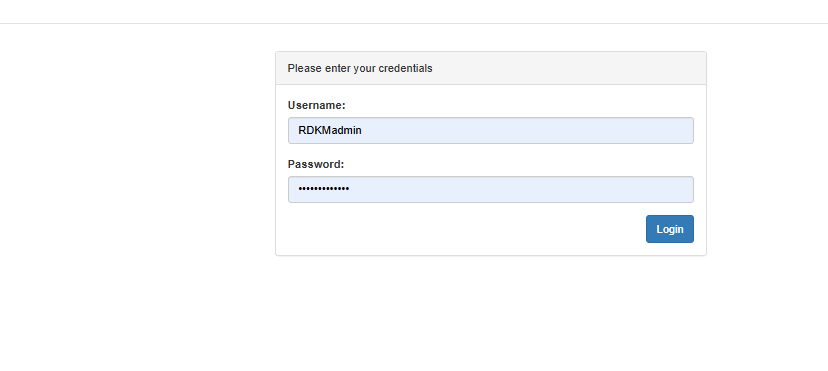
Login Screen
RDKM has the xconf reference server which is primarily hosted in https://xconf.rdkcentral.com/. To login, kindly refer this page Xconf GO Reference Setup Credentials for credentials
Admin UI Common Configuration
Below steps will affect all the features in Xconf system and should be configured after initial setup. Go to the steps given in site navigation step and press on create button to create new entries.
Login Screen
kindly refer this page Xconf GO Reference Setup Credentials for credentials
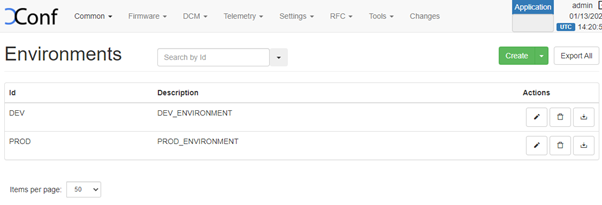
Define Environments
| Panel | ||
|---|---|---|
| ||
|
...
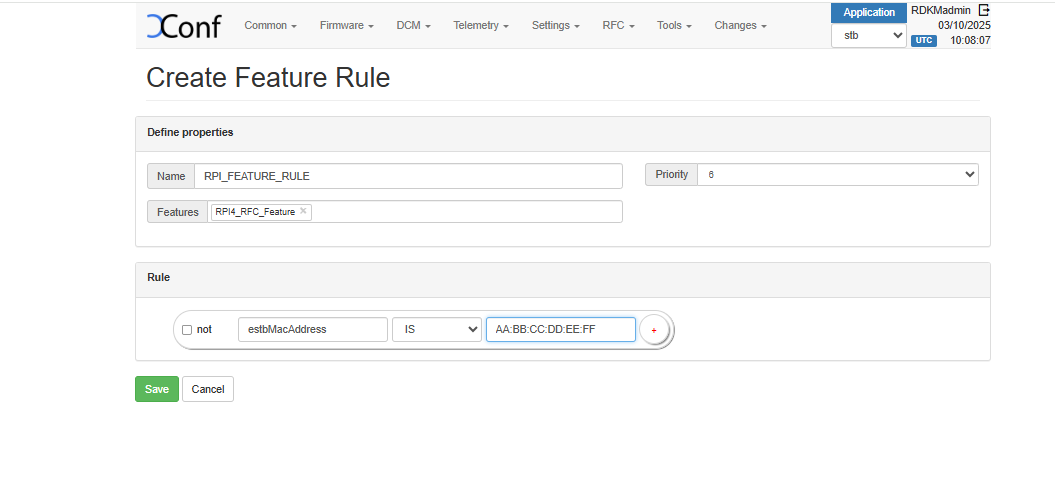
Feature rule is to map devices to a particular feature. A new feature rule can be created via RFC->feature rule -> Create
| Panel | ||
|---|---|---|
| ||
|
Verification
a. Verification of feature and feature rule via test page.
...
Verification and setup from RPI
- Update RFC_CONFIG_SERVER_URL in /etc/rfc.properties
| Code Block |
|---|
RFC_CONFIG_SERVER_URL=https://xconf.rdkcentral.com.rdkcentral.com/featureControl/getSettings |
...
RPI
RDKE RPI
| Code Block |
|---|
curl --header "Content-Type: application/json" --request POST --data '{"jsonrpc":"2.0","id":"3","method":"Controller.1.activate","params":{"callsign":"org.rdk.MaintenanceManager"}}' http://127.0.0.1:9998/jsonrpc |
Feature Validation (LogUpload)
...
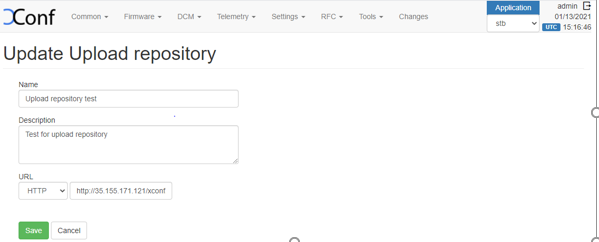
1. Create upload repository via DCM->Upload repository -> Create. Here we can add where to configure the log upload, i.e. the upload URL and protocol(This will be the URL of logupload server that is setup to upload the log files, it can be http, https or tftp servers).
| Panel | ||
|---|---|---|
| ||
|
...
4. Click on 'Create Device Settings' tab and edit the Device Settings.
5. Edit the Log upload Setting (Create schedule & Add the upload repository created beforehand).
6. Note : The formula will be effective only if we select 'Are Settings Active' option to 'true' in 'Create Device Settings' and 'Log Upload settings'
| Info |
|---|
For Logupload endpoint, if you are planning to use community reference server please use https://xconf.rdkcentral.com/logTelemetryServer/logupload.php https://xconf-test.rdkcentral.com/logTelemetryServer/upload/display.php to view the uploaded logs. |
...
| Info |
|---|
For telemetry, if you are using community reference endpoints, please use https://xconf.rdkcentral.com/logTelemetryServer/telemetry_upload.php To view the telemetry logs, there is a reference portal for community https://xconf-test.rdkcentral.com/logTelemetryServer/upload/display.php?mode=telemetry |
Configuration
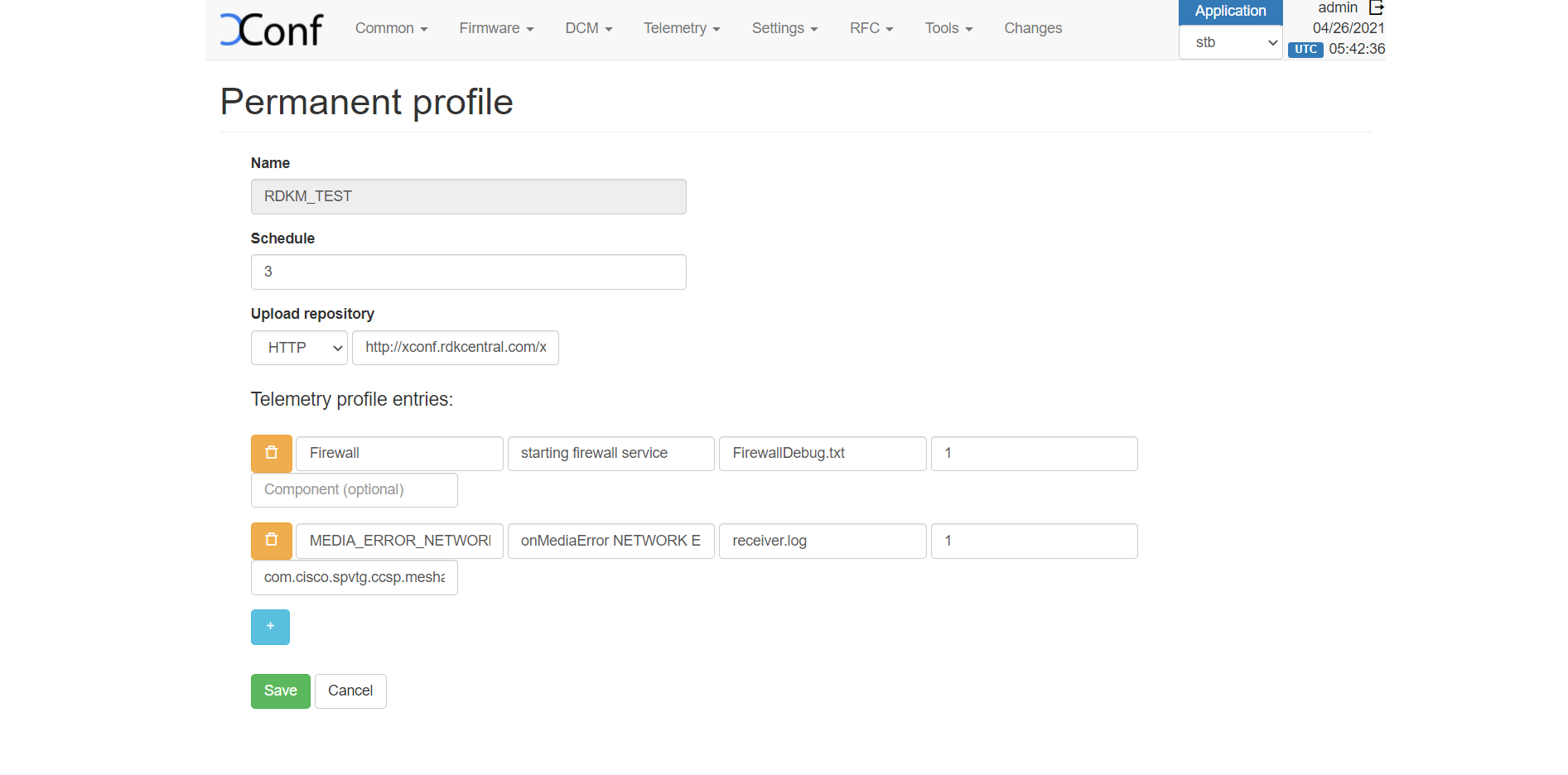
- Create a permanent profile Telemetry - > Permanent Profiles -> Create
In the Telemetry Permanent Profile page, there will be a 5th column that allows a component name to be entered. The component name is optional and may be present for only some of the entries in the Telemetry profile.
| Panel | ||
|---|---|---|
| ||
 |
...
Example for getT2Settings:
{"header":"MEDIA_ERROR_NETWORK_ERROR","content":"com.cisco.spvtg.ccsp.meshagent","type":"<event>","pollingFrequency":"0"}
If the component name has not been defined for an entry, the response will be in the current format.
Example for getSettings:
{"header":"MEDIA_ERROR_NETWORK_ERROR","content":"onMediaError NETWORK ERROR(10)","type":"receiver.log","pollingFrequency":"0"}
eg :
$ curl 'http://<XCONF_IP>/loguploader/getSettings?estbMacAddress=AA:BB:CC:DD:EE:FF’
...
| Code Block |
|---|
{
    "urn:settings:GroupName": "RDKM_TEST",
    "urn:settings:CheckOnReboot": true,
    "urn:settings:CheckSchedule:cron": "2 1 2 1 1",
    "urn:settings:CheckSchedule:DurationMinutes": 0,
    "urn:settings:LogUploadSettings:Message": null,
    "urn:settings:LogUploadSettings:Name": "RDKM_TEST",
    "urn:settings:LogUploadSettings:NumberOfDays": 1,
    "urn:settings:LogUploadSettings:UploadRepositoryName": "RDKM_TEST",
    "urn:settings:LogUploadSettings:RepositoryURL": "http://{loguoloadserver}/xconf/logupload.php",
    "urn:settings:LogUploadSettings:UploadOnReboot": true,
    "urn:settings:LogUploadSettings:UploadImmediately": false,
    "urn:settings:LogUploadSettings:upload": true,
    "urn:settings:LogUploadSettings:UploadSchedule:cron": "2 1 1 1 1",
    "urn:settings:LogUploadSettings:UploadSchedule:levelone:cron": null,
    "urn:settings:LogUploadSettings:UploadSchedule:leveltwo:cron": null,
    "urn:settings:LogUploadSettings:UploadSchedule:levelthree:cron": null,
    "urn:settings:LogUploadSettings:UploadSchedule:DurationMinutes": 0,
    "urn:settings:VODSettings:Name": null,
    "urn:settings:VODSettings:LocationsURL": null,
    "urn:settings:VODSettings:SRMIPList": null,
    "urn:settings:TelemetryProfile": {
        "id": "69e37757-b463-47aa-94a8-2ce438e26a50",
        "telemetryProfile": [
            {
                "header": "Firewall",
                "content": "starting firewall service",
                "type": "FirewallDebug.txt",
                "pollingFrequency": "1"
            },
            {
                "header": "MEDIA_ERROR_NETWORK_ERROR",
                "content": "onMediaError NETWORK ERROR(10)",
                "type": "receiver.log",
                "pollingFrequency": "1"
            }
        ],
        "schedule": "3",
        "expires": 0,
        "telemetryProfile:name": "RDKM_TEST",
        "uploadRepository:URL": "http://{logupload-server}/xconf/logupload.php",
        "uploadRepository:uploadProtocol": "HTTP"
    }
}    }
} |
eg :
$ curl 'https://<XCONF_IP>/loguploader/getT2Settings?estbMacAddress=AA:BB:CC:DD:EE:FF’
Sample Response :
| Code Block |
|---|
{
    "urn:settings:GroupName": "RDKM_TEST",
    "urn:settings:CheckOnReboot": true,
    "urn:settings:CheckSchedule:cron": "2 1 2 1 1",
    "urn:settings:CheckSchedule:DurationMinutes": 0,
    "urn:settings:LogUploadSettings:Message": null,
    "urn:settings:LogUploadSettings:Name": "RDKM_TEST",
    "urn:settings:LogUploadSettings:NumberOfDays": 1,
    "urn:settings:LogUploadSettings:UploadRepositoryName": "RDKM_TEST",
    "urn:settings:LogUploadSettings:RepositoryURL": "http://{log-upload-server}/xconf/logupload.php",
    "urn:settings:LogUploadSettings:UploadOnReboot": true,
    "urn:settings:LogUploadSettings:UploadImmediately": false,
    "urn:settings:LogUploadSettings:upload": true,
    "urn:settings:LogUploadSettings:UploadSchedule:cron": "2 1 1 1 1",
    "urn:settings:LogUploadSettings:UploadSchedule:levelone:cron": null,
    "urn:settings:LogUploadSettings:UploadSchedule:leveltwo:cron": null,
    "urn:settings:LogUploadSettings:UploadSchedule:levelthree:cron": null,
    "urn:settings:LogUploadSettings:UploadSchedule:DurationMinutes": 0,
    "urn:settings:VODSettings:Name": null,
    "urn:settings:VODSettings:LocationsURL": null,
    "urn:settings:VODSettings:SRMIPList": null,
    "urn:settings:TelemetryProfile": {
        "id": "69e37757-b463-47aa-94a8-2ce438e26a50",
        "telemetryProfile": [
            {
                "header": "Firewall",
                "content": "starting firewall service",
                "type": "FirewallDebug.txt",
                "pollingFrequency": "1"
            },
            {
                "header": "MEDIA_ERROR_NETWORK_ERROR",
                "content": "com.cisco.spvtg.ccsp.meshagent",
                "type": "<event>",
                "pollingFrequency": "1"
            }
        ],
        "schedule": "3",
        "expires": 0,
        "telemetryProfile:name": "RDKM_TEST",
        "uploadRepository:URL": "http://log-upload-server}/xconf/logupload.php",
        "uploadRepository:uploadProtocol": "HTTP"
    }
} |
Client end verification (RPI)
| CURL Command | curl 'http://<XCONF_IP>/loguploader/getSettings?estbMacAddress=AA:BB:CC:DD:EE:FF&firmwareVersion=rdk-generic-hybrid-wpe-image_default_20190702100618&env=dev&model=RPI&ecmMacAddress=AA:BB:CC:DD:EE:FF&controllerId=2504&channelMapId=2345&vodId=15660&timezone=&partnerId=&accountId=Unknown&version=2' |
|---|---|
| CPE Script (RDK-V) | /lib/rdk/DCMscript.sh /lib/rdk/dca_utility.sh |
| CPE Service (RDK-V) | /lib/systemd/system/dcm-log.service |
Telemetry (T2 validation)
Creating a T2 Report Profile in XConf
Please watch the demo video below for a quick lesson in creating a T2 Report Profile in XConf.
A few things to note:
- XConf will validate the T2 report profile JSON that you enter and will give an error if the JSON is not valid. For schema refer and refer Report Profile - Documentation of available properties in T2 Report Profiles
- XConf has an approval process. Any creation, change or deletion to a profile must be approved before it will go live. This is demonstrated in the video and is only possible to do yourself while in XConf CI. Otherwise, the Release Management team owns permissions to approve all XConf profile changes.
- The name you give your T2 profile will be the name that is reported for
Profile.Nameif you include that in your T2 profile (which is highly recommended!).
| Multimedia | ||
|---|---|---|
|
Creating a T2 Rule in XConf
Please watch the demo video below for a quick lesson in creating a T2 Rule in XConf.
A few things to note:
- Rules can specify specific information, like mac addresses, or more general information, like device models. A single rule can specify multiple mac addresses with OR so that you could add all test device Macs to a single rule if they should all get the same profiles.
- The simplest thing to do when trying to test for a specific device is to create a Mac-based rule. Please note that XConf uses WAN Mac for RDK-B devices and eSTB Mac for RDK-V devices.
- T2 Rules allow for multiple T2 Report Profiles to be specified in a single rule.
| Multimedia | ||
|---|---|---|
|
Verification
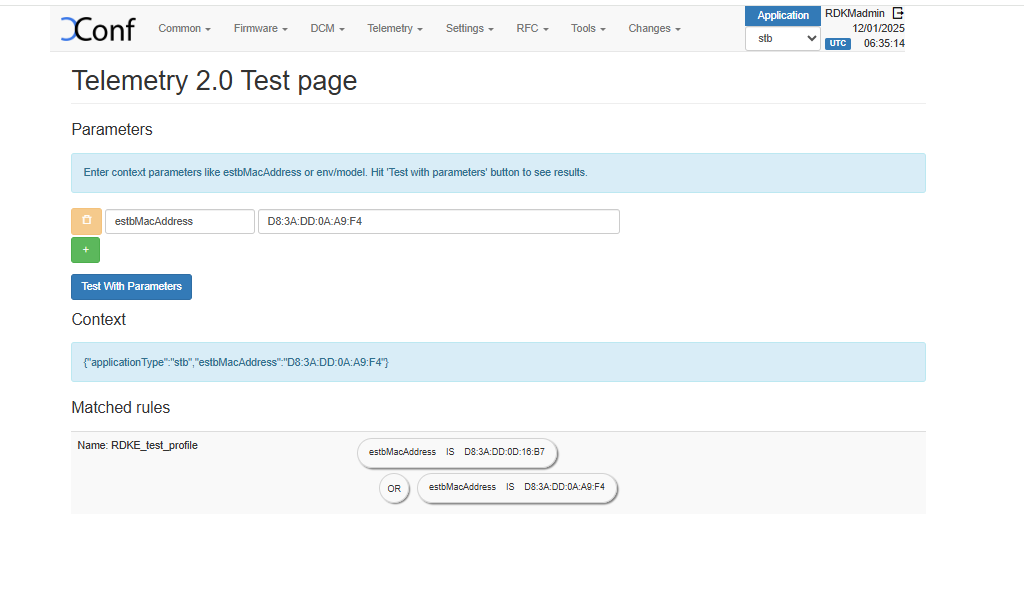
a. Verification of telemetry test page.
After creating the permanent profile and targeting rules, go to Telemetry->Test page and give a parameter that will match the one of the rule that you have created. Then matched rule will be displayed like below.
| Panel | ||
|---|---|---|
| ||
|
b. Verification via curl command
The curl command mocks the request being sent from an STB like below and sample response is also given. It can be given as a curl command or as a get request via postman or browser. To fetch the configured telemetry profile follow curl request as below
eg :
$ curl 'httpshttp://<XCONF_IP>/loguploader/getT2SettingsgetTelemetryProfiles?estbMacAddress=AA:BB:CC:DD:EE:FF’
Sample Response :
| Code Block |
|---|
{
    "urn:settings:GroupName": "RDKM_TEST",
    "urn:settings:CheckOnReboot": true,
    "urn:settings:CheckSchedule:cron": "2 1 2 1 1",
    "urn:settings:CheckSchedule:DurationMinutes": 0,
    "urn:settings:LogUploadSettings:Message": null,
    "urn:settings:LogUploadSettings:Name": "RDKM_TEST",
    "urn:settings:LogUploadSettings:NumberOfDays": 1,
    "urn:settings:LogUploadSettings:UploadRepositoryName": "RDKM_TEST",
    "urn:settings:LogUploadSettings:RepositoryURL": "http://{log-upload-server}/xconf/logupload.php",
    "urn:settings:LogUploadSettings:UploadOnReboot": true,
    "urn:settings:LogUploadSettings:UploadImmediately": false,
    "urn:settings:LogUploadSettings:upload": true,
    "urn:settings:LogUploadSettings:UploadSchedule:cron": "2 1 1 1 1",
    "urn:settings:LogUploadSettings:UploadSchedule:levelone:cron": null,
    "urn:settings:LogUploadSettings:UploadSchedule:leveltwo:cron": null,
    "urn:settings:LogUploadSettings:UploadSchedule:levelthree:cron": null,
    "urn:settings:LogUploadSettings:UploadSchedule:DurationMinutes": 0,
    "urn:settings:VODSettings:Name": null,
    "urn:settings:VODSettings:LocationsURL": null,
    "urn:settings:VODSettings:SRMIPList": null,
    "urn:settings:TelemetryProfile": {
        "id": "69e37757-b463-47aa-94a8-2ce438e26a50",
        "telemetryProfile": [
            {
                "header": "Firewall",
                "content": "starting firewall service",
                "type": "FirewallDebug.txt",
                "pollingFrequency": "1"
            },
            {
                "header": "MEDIA_ERROR_NETWORK_ERROR",
                "content": "com.cisco.spvtg.ccsp.meshagent",
                "type": "<event>",
                "pollingFrequency": "1"
            }
        ],
        "schedule": "3",
        "expires": 0,
        "telemetryProfile:name": "RDKM_TEST",
        "uploadRepository:URL": "http://log-upload-server}/xconf/logupload.php",
        "uploadRepository:uploadProtocol": "HTTP"
    }
} |
Client end verification (RPI)
...
/lib/rdk/DCMscript.sh
/lib/rdk/dca_utility.sh
"profiles":[{"name":"RDKE_test_profile","value":{"EncodingType":"JSON","HTTP":{"Compression":"None","Method":"POST","RequestURIParameter":[{"Name":"device","Reference":"Device.DeviceInfo.X_COMCAST-COM_CM_MAC"}],"URL":"https://xconf.rdkcentral.com/logTelemetryServer/telemetry_upload.php"},"JSONEncoding":{"ReportFormat":"NameValuePair","ReportTimestamp":"None"},"Parameter":[{"name":"NTPServer3","reference":"Device.Time.NTPServer3","type":"dataModel"},{"name":"HwVer","reference":"Device.DeviceInfo.HardwareVersion","type":"dataModel"},{"name":"MemStatFree","reference":"Device.DeviceInfo.MemoryStatus.Free","type":"dataModel"},{"name":"MemStatTotal","reference":"Device.DeviceInfo.MemoryStatus.Total","type":"dataModel"},{"component":"sysint","eventName":"Xi_wifiMAC_split","type":"event","use":"absolute"},{"component":"sysint","eventName":"SYST_ERR_LogUpload_Failed","reportEmpty":false,"type":"event","use":"count"},{"logFile":"NetworkManager.log","marker":"NW_DNSMASQ","search":"starting /usr/bin/dnsmasq","type":"grep","use":"absolute"},{"name":"CpuUsage","reference":"Device.DeviceInfo.ProcessStatus.CPUUsage","type":"dataModel"},{"name":"Uptime","reference":"Device.DeviceInfo.UpTime","type":"dataModel"}],"Protocol":"HTTP","ReportingInterval":30,"TimeReference":"0001-01-01T00:00:00Z","Version":"0.1"},"versionHash":"dca68b4f"}]} |
| Info |
|---|
For telemetry, if you are using community reference endpoints, please use https://xconf.rdkcentral.com/logTelemetryServer/telemetry_upload.php To view the telemetry logs, there is a reference portal for community https://xconf.rdkcentral.com/logTelemetryServer/upload/display.php?mode=telemetry |
Client end verification (RPI)
Refer this page for validation of t2 profile using webconfig WebConfig, XConf & T2
...
Feature Validation (Firmware update)
...
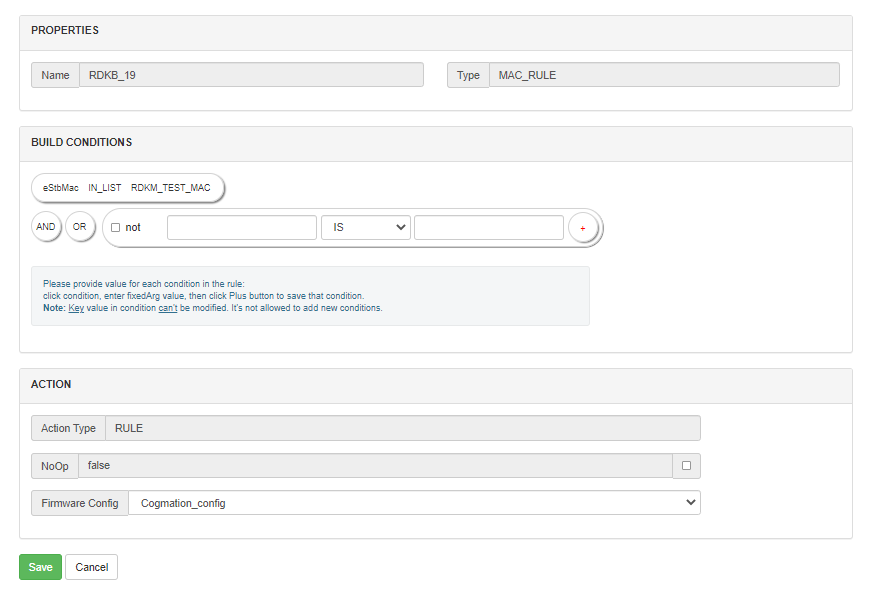
After we select the required template, 'Add firmware Rule' page will be displayed. Here the build conditions will be present from the 'template' that we added and in addition to that we can add additional Build Conditions also. To add firmware config , go to the 'Actions' tab and select the firmware config from 'Firmware config' drop down list (Select the firmware config that you have created).
| Panel |
|---|
|
4. The download location needs to be specified so that it can be returned in the response. Choose Firmware -> Download location filter-> Edit, where we can specify the location from where we can download the firmware. Enter the FQDN and Full http location for the firmware download server . Http location will be returned by default to all devices.
...
| Info |
|---|
For RDK7, TFTP and HTTP is not supported, only HTTPS support is available. |
Verification
a. Verification of Firmware test page.
...
| Code Block |
|---|
{"firmwareDownloadProtocol":"http","firmwareFilename":"rdkb-generic-broadband-image_rdk-next_20250305000408_DEV_NG.rootfs","firmwareLocation":"http://10.75.129.16","firmwareVersion":"rdkb-generic-broadband-image_rdk-next_20250305000408_DEV_NG.rootfs","mandatoryUpdate":false,"rebootImmediately":true} |
Client end verification (RPI)
- Change the CLOUDURL URL in /etc/include.properties File
Code Block CLOUDURL=https://xconf.rdkcentral.com/xconf/swu/stb?eStbMac=
...
/lib/rdk/swupdate_utility.sh
NG.rootfs","mandatoryUpdate":false,"rebootImmediately":true} |
Client end verification (RPI)
RDKE
| Code Block |
|---|
curl --header "Content-Type: application/json" --request POST --data '{"jsonrpc":"2.0","id":"3","method":"Controller.1.activate","params":{"callsign":"org.rdk.MaintenanceManager"}}' http://127.0.0.1:9998/jsonrpc |
...
Percent Filter
Percentage based filters allow us to block a certain percentage of Xconf responses that would otherwise have resulted in a change in firmware. The use case for this is when we have tons of STBs out there and we don't yet have scheduled downloads. We would like to be able to only service a certain percentage as a throttling mechanism so download servers aren't overwhelmed.
...
Overview
Community Forums
Content Tools
Tasks