


Introduction
WPS stands for Wi-Fi Protected Setup. It is a wireless network security standard that tries to make connections between a router and wireless devices faster and easier. WPS works only for wireless networks that use a password that is encrypted with the WPA Personal or WPA2 Personal security protocols. WPS doesn't work on wireless networks that are using the deprecated WEP security, which can be cracked easily by any hacker with a basic set of tools and skills. Wi-Fi Users don't want to know the broadcasting ssid and password.
Push Button Configuration (PBC): In this method, a WPS physical button on the BPI and WPS option on the wireless client are pressed within a specific timeframe, initiating the connection without the need for entering a password.
Verifying of PBC HW button in BPI
Method 1
→ Added configurations for support of gpio_keys module and evtest  - https://github.com/rdkcentral/meta-cmf-bananapi/pull/98
→ load the gpio-key module
root@Filogic-GW:/lib/modules/5.4.271-yocto-standard/kernel/drivers/input/keyboard# modprobe gpio_keys
root@Filogic-GW:/lib/modules/5.4.271-yocto-standard/kernel/drivers/input/keyboard# dmesg | grep gpio
[  163.696818] input: gpio-keys as /devices/platform/gpio-keys/input/input0
root@Filogic-GW:/lib/modules/5.4.271-yocto-standard/kernel/drivers/input/keyboard# cat /sys/kernel/debug/gpio
gpiochip0: GPIOs 428-511, parent: platform/1001f000.pinctrl, pinctrl_moore:
 gpio-428 (                    |tx-disable          ) in  lo
 gpio-430 (                    |los                 ) in  hi IRQ
 gpio-432 (                    |asm_sel             ) in  hi
 gpio-433 (                    |pca9545_rst         ) in  hi
 gpio-441 (                    |reset               ) in  lo IRQ ACTIVE LOW
 gpio-442 (                    |wps                 ) in  hi IRQ ACTIVE LOW
 gpio-482 (                    |los                 ) in  hi IRQ
 gpio-498 (                    |tx-disable          ) in  lo
 gpio-510 (                    |mod-def0            ) in  hi IRQ ACTIVE LOW
 gpio-511 (                    |mod-def0            ) in  hi IRQ ACTIVE LOW
→ run the evtest
root@Filogic-GW:/lib/modules/5.4.271-yocto-standard/kernel/drivers/input/keyboard# evtest
No device specified, trying to scan all of /dev/input/event*
Available devices:
/dev/input/event0:      gpio-keys
Select the device event number [0-0]: 0
Input driver version is 1.0.1
Input device ID: bus 0x19 vendor 0x1 product 0x1 version 0x100
Input device name: "gpio-keys"
Supported events:
  Event type 0 (EV_SYN)
  Event type 1 (EV_KEY)
    Event code 256 (BTN_0)
    Event code 529 (KEY_WPS_BUTTON)
Properties:
Testing ... (interrupt to exit)
Event: time 1739261802.084437, type 1 (EV_KEY), code 529 (KEY_WPS_BUTTON), value 1     # when HW WPS button pushed
Event: time 1739261802.084437, -------------- SYN_REPORT ------------
Event: time 1739261802.282856, type 1 (EV_KEY), code 529 (KEY_WPS_BUTTON), value 0     # when HW WPS button released
Method 2
since buttons are associated with GPIO, we can do the export wps gpio using its number
→ In mt7988a-bananapi-bpi-r4-nand.dts file, we can see WPS is defined with 14
    wps {
                        label = "wps";
                        linux,code = <KEY_WPS_BUTTON>;
                        gpios = <&pio 14 GPIO_ACTIVE_LOW>;
                };
root@Filogic-GW:~# cd /sys/class/gpio/
export       gpiochip428/ unexport
→ Here by using 14+428=442, 428 (gpiochip428 refers to a GPIO controller that manages GPIO pins, starting from GPIO number 428.)
→ export the WPS pin number
root@Filogic-GW:/sys/class/gpio# echo 442 > /sys/class/gpio/export
root@Filogic-GW:/sys/class/gpio/gpio442# cat value
1
→ Whenever we press the WPS, this gpio442 value is changed to 0
root@Filogic-GW:/sys/class/gpio/gpio442# cat value
0
WPS Block diagram
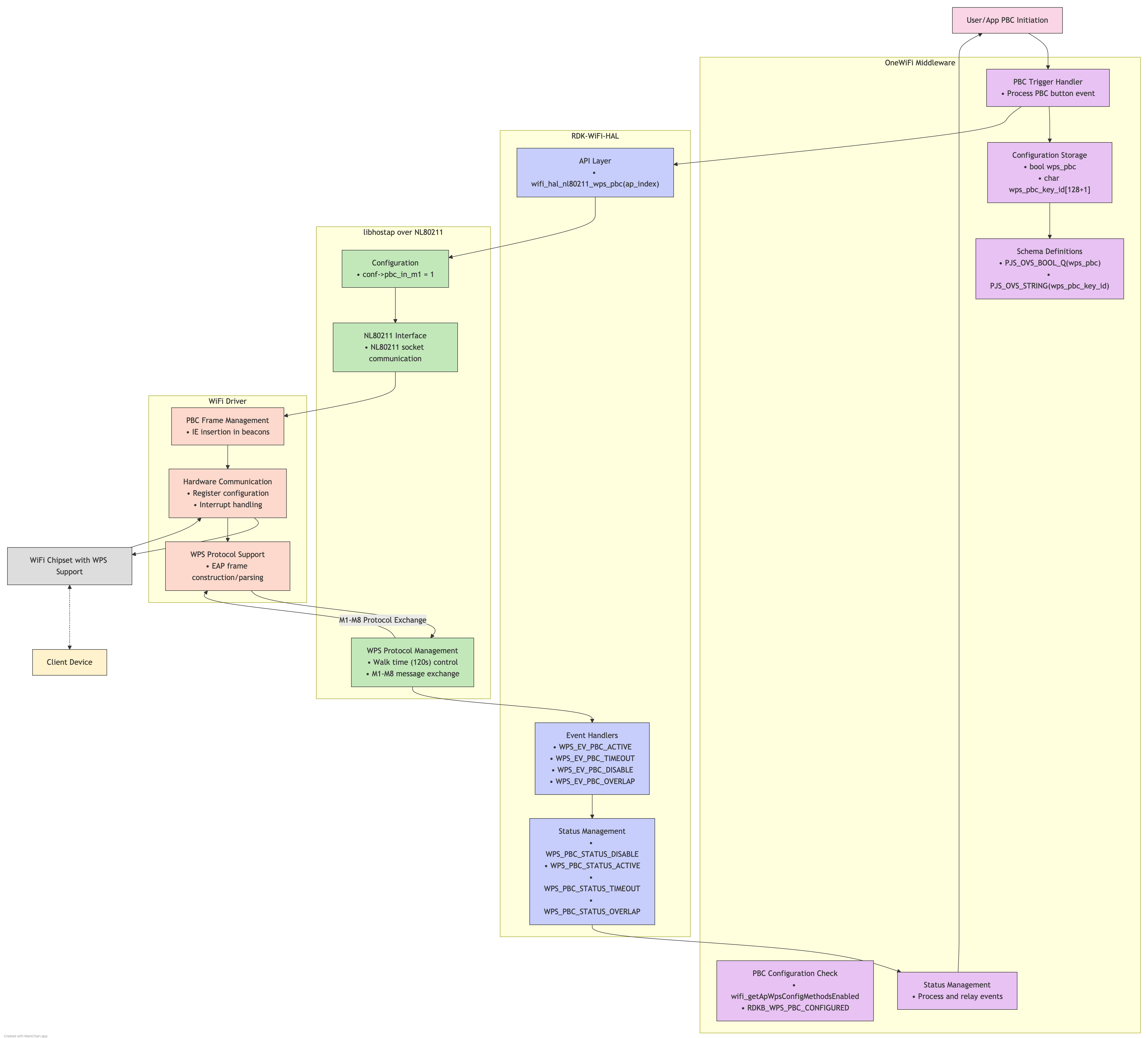
Concept
Conceptual Process
When a WPS PBC request is initiated in your system:
- PBC Activation:
- Your code calls the RDK-WiFi-HAL API for WPS PBC
- The HAL communicates this to hostapd via its control interface
- hostapd sets the access point into "WPS waiting" mode
- Registration Window:
- A 2-minute window opens where the access point is receptive to WPS registration
- The AP broadcasts its WPS capability in beacons
- The AP listens for probe requests with WPS information elements
- Device Discovery:
- When a client device (like your mobile phone) activates WPS PBC
- It sends probe requests with WPS information elements
- Your access point responds to these probes
- Credential Exchange:
- The client and AP establish an EAP (Extensible Authentication Protocol) session
- They perform a handshake to validate each other
- The AP sends the encrypted network credentials to the client
- The client configures itself with these credentials
- Connection Completion:
- The client connects to the network using the received credentials
- The AP notifies the system (through hostapd → nl80211 → RDK-WiFi-HAL) of successful registration
- The WPS PBC mode on the AP ends
- PBC Activation:
Technical Implementation Details
In your specific setup with RDK-WiFi-HAL and hostapd 2.10:
- RDK-WiFi-HAL WPS Functions:
- The HAL typically provides functions like
wifi_pushButtonPBC() - These functions handle the communication with hostapd
- The HAL typically provides functions like
- hostapd Control Communication:
- hostapd 2.10 provides a control interface via Unix domain sockets
- RDK-WiFi-HAL connects to this socket and sends "WPS_PBC" commands
- nl80211 Commands Used:
- hostapd uses
NL80211_CMD_START_WPSwith attributes:NL80211_ATTR_IFINDEX: Specifies the wireless interfaceNL80211_ATTR_WPS_MODE: Set toNL80211_WPS_PBCfor push button method
- hostapd uses
- Event Monitoring:
- WPS events flow back from the driver → nl80211 → hostapd → RDK-WiFi-HAL
- These events include connection attempts, successful registrations, and timeouts
- RDK-WiFi-HAL WPS Functions:
Communication Flow for WPS PBC
- Application Layer → RDK-WiFi-HAL:
- Your application makes calls to the RDK-WiFi-HAL API
- These calls are standardized functions in the HAL to trigger WPS
- RDK-WiFi-HAL → libhostapd:
- The HAL translates your request into specific hostapd commands
- It handles the complexity of connecting to and communicating with hostapd
- libhostapd → nl80211:
- hostapd uses the nl80211 interface to communicate with the kernel
- It formats the appropriate Netlink messages to trigger WPS PBC
- nl80211 → Driver:
- The kernel's nl80211 subsystem passes commands to your WiFi driver
- The driver activates the WPS PBC mode on the hardware
- Application Layer → RDK-WiFi-HAL:
Datamodels
root@Docsis-Gateway:~# dmcli eRT getv Device.WiFi.AccessPoint.1.WPS.Enable
CR component name is: eRT.com.cisco.spvtg.ccsp.CR
subsystem_prefix eRT.
getv from/to component(eRT.com.cisco.spvtg.ccsp.wifi): Device.WiFi.AccessPoint.1.WPS.Enable
Execution succeed.
Parameter    1 name: Device.WiFi.AccessPoint.1.WPS.Enable
               type:       bool,    value: true
root@Docsis-Gateway:~# dmcli eRT getv Device.WiFi.AccessPoint.1.WPS.X_CISCO_COM_WpsPushButton
CR component name is: eRT.com.cisco.spvtg.ccsp.CR
subsystem_prefix eRT.
getv from/to component(eRT.com.cisco.spvtg.ccsp.wifi): Device.WiFi.AccessPoint.1.WPS.X_CISCO_COM_WpsPushButton
Execution succeed.
Parameter    1 name: Device.WiFi.AccessPoint.1.WPS.X_CISCO_COM_WpsPushButton
               type:        int,    value: 0
root@Docsis-Gateway:~# dmcli eRT setv Device.WiFi.AccessPoint.1.WPS.X_CISCO_COM_WpsPushButton int 1
CR component name is: eRT.com.cisco.spvtg.ccsp.CR
subsystem_prefix eRT.
setv from/to component(eRT.com.cisco.spvtg.ccsp.wifi): Device.WiFi.AccessPoint.1.WPS.X_CISCO_COM_WpsPushButton
Execution succeed.
root@Docsis-Gateway:~# dmcli eRT setv Device.WiFi.ApplyAccessPointSettings bool true
CR component name is: eRT.com.cisco.spvtg.ccsp.CR
subsystem_prefix eRT.
setv from/to component(eRT.com.cisco.spvtg.ccsp.wifi): Device.WiFi.ApplyAccessPointSettings
Execution succeed.
root@Docsis-Gateway:~# dmcli eRT getv Device.WiFi.AccessPoint.1.WPS.X_CISCO_COM_WpsPushButton
CR component name is: eRT.com.cisco.spvtg.ccsp.CR
subsystem_prefix eRT.
getv from/to component(eRT.com.cisco.spvtg.ccsp.wifi): Device.WiFi.AccessPoint.1.WPS.X_CISCO_COM_WpsPushButton
Execution succeed.
Parameter    1 name: Device.WiFi.AccessPoint.1.WPS.X_CISCO_COM_WpsPushButton
               type:        int,    value: 0
WPS Hardware Key Press in BPI
Steps handled when the WPS button is pushed from the target BPI board:
1. Listen until the user pushes the WPS button. Thus an interrupt occurs with the event - "code 529 (KEY_WPS_BUTTON), value 1". This is identified from the evtest of gpio pins.
2. Once the button is being pressed, the key press is intimated to OneWifi by the running binary, "/usr/bin/onewifi_component_test_app".
3. The binary, "/usr/bin/onewifi_component_test_app", requires 2 inputs:
One - wps (the event)
Two - 0/1/2 (2G/5G/6G)
By this way, the communication occurs from the hardware key press to the OneWifi and the flow (functionality) executes as normal.
The script is as follows:
modprobe gpio_keys
EVENT_DEVICE="/dev/input/event0" # Confirmed from evtest
VAP_INDEX_2G=0 # Virtual AP index for OneWifi
VAP_INDEX_5G=1 # Virtual AP index for OneWifi
VAP_INDEX_6G=2 # Virtual AP index for OneWifi
LOGFILE="/tmp/wps_trigger.log"
echo "Listening for WPS button press on $EVENT_DEVICE..." | tee -a $LOGFILE
# Read event stream and trigger WPS when KEY_WPS_BUTTON (529) is detected
evtest "$EVENT_DEVICE" | while read line; do
if echo "$line" | grep -q "code 529 (KEY_WPS_BUTTON), value 1"; then
echo "✅ WPS Button Pressed! Triggering OneWifi WPS for 2G, 5G and 6G..." | tee -a $LOGFILE
# Kill any existing interactive session before triggering WPS
pkill -f onewifi_component_test_app
# Run WPS command and log output
echo "Executing: echo 'wps $VAP_INDEX' | /usr/bin/onewifi_component_test_app" | tee -a $LOGFILE
echo "wps $VAP_INDEX_2G" | /usr/bin/onewifi_component_test_app >> $LOGFILE 2>&1
echo "wps $VAP_INDEX_5G" | /usr/bin/onewifi_component_test_app >> $LOGFILE 2>&1
echo "wps $VAP_INDEX_6G" | /usr/bin/onewifi_component_test_app >> $LOGFILE 2>&1
sleep 5 # Prevent multiple triggers within 5 seconds
fi
done
Overview
Community Forums
Content Tools
Tasks