


- Introduction
The Firmware upgrade will upgrade higher or lower version of the current image in BPI target with the help of Xconf server and TFTP/HTTP protocol.
- Pre-requisite
- Access to BPi terminal.
- Locally installed HTTP/TFTP Server.
- Access to Xconf server from browser https://xconf.rdkcentral.com/admin/
TFTP Server Setup
STEP 1:
Install xinetd and tftpd-hpa application in your local PC to setup tftp server by using below command
sudo apt-get install xinetd
sudo apt-get install tftpd-hpa
STEP 2:
Create new folder ,for example "tfphome" in your PC home directory to maintain checksum file and upgrading image file.
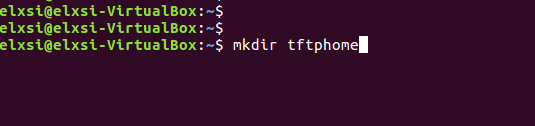
STEP 3:
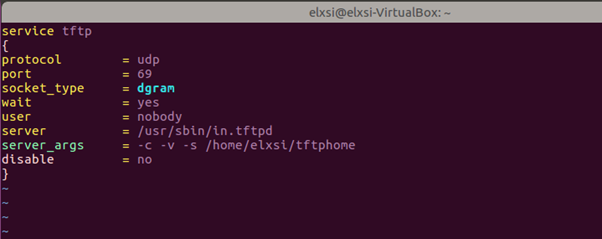
Check tftp file is there or not in /etc/xinetd.d/ directory. if it is not there then create tftp file under this /etc/xinetd.d/ direcotry and add below content.
File : /etc/xinetd.d/tftp
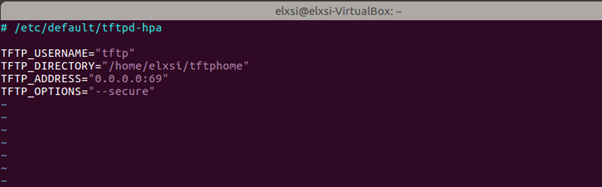
Verify /etc/default/tftpd-hpa file content
vi /etc/default/tftpd-hpa
File: /etc/default/tftpd-hpa
STEP 5: Start tftp server and xinetd server using below commands.
sudo service tftpd-hpa restart
sudo /etc/init.d/xinetd restart
- Procedure for image flashing
- Have 2 different broadband images and copy to the linux machine
- Flash a image to the SD card(SD card Minimum size should be 8GB)
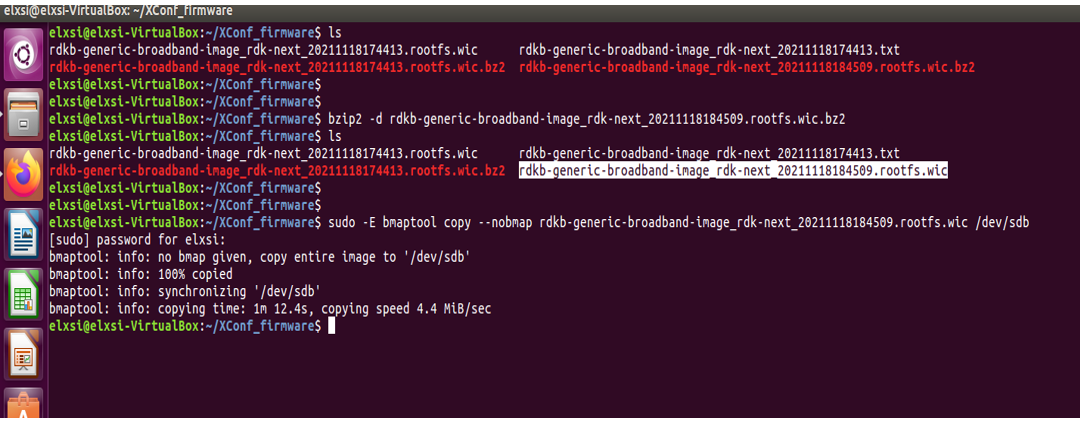
bzip2 -d <image>
sudo -E bmaptool copy --nobmap <image> /dev/sdb
Example:
$ bzip2 -d rdk-generic-broadband-image-raspberrypi-rdk-broadband.wic.bz2
$ sudo -E bmaptool copy --nobmap rdk-generic-broadband-image-raspberrypi-rdk-broadband.wic /dev/sd
- With another image
- Create checksum using the below command
md5sum "<imagefile_name>" > imagefile_name.txt
- Create checksum using the below command
- Copy both (image as well as the checksum) to tftp server
for Ex:
md5sum "rdkb-generic-broadband-image_rdk-next_20251201131409.bin.wic.bz2" > rdkb-generic-broadband-image_rdk-next_20251201131409.bin.wic.bz2.txt
cp -r rdkb-generic-broadband-image_rdk-next_20251201131409.bin.wic.bz2 rdkb-generic-broadband-image_rdk-next_20251201131409.bin.wic.bz2.txt /home/xyz/tftphome
- Copy both (image as well as the checksum) to tftp server
Xconf Server UI Configurations
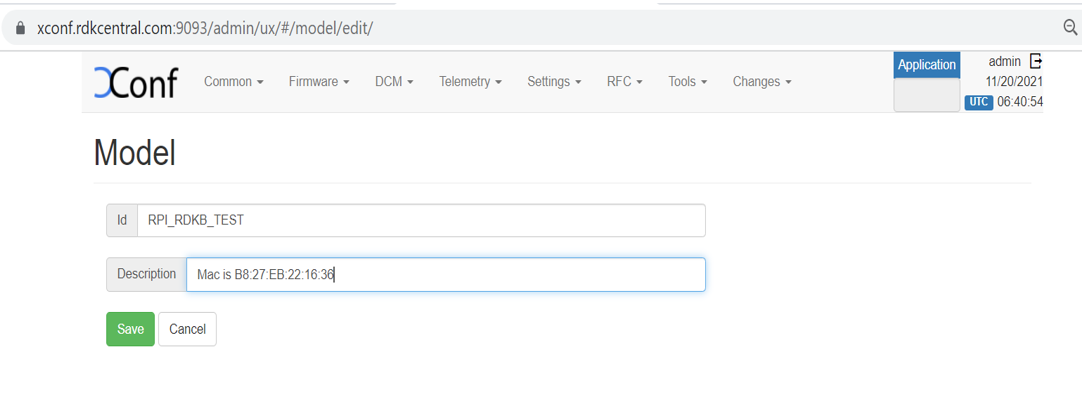
- Create Model
Flow: Xconf-Server ->Common ->Models
Give ID and Description to setup Model for your device and save that details in xconf server.
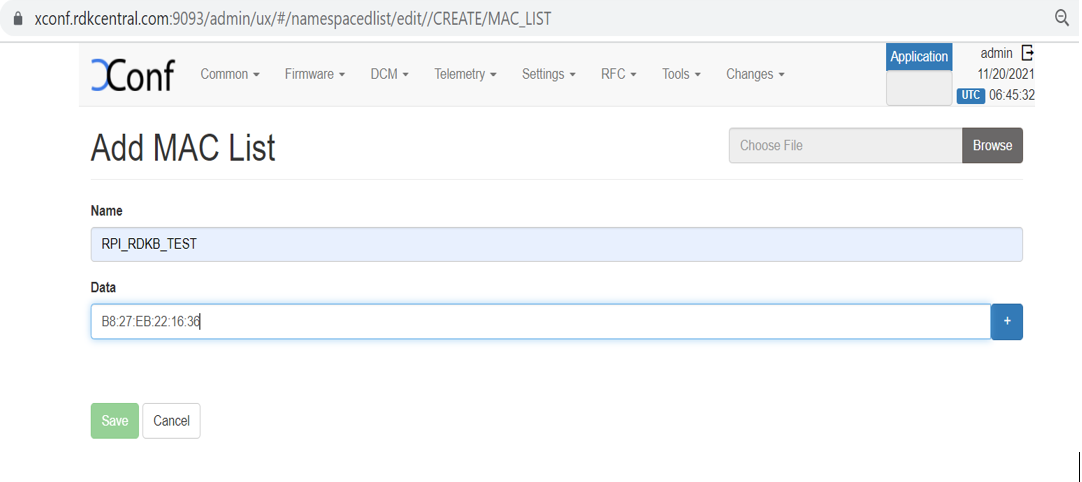
- Create MAC List
Flow: Xconf-Server->Common->MAC Lists
After entered MAC Lists page press create button to add your device MAC detail and save the details.
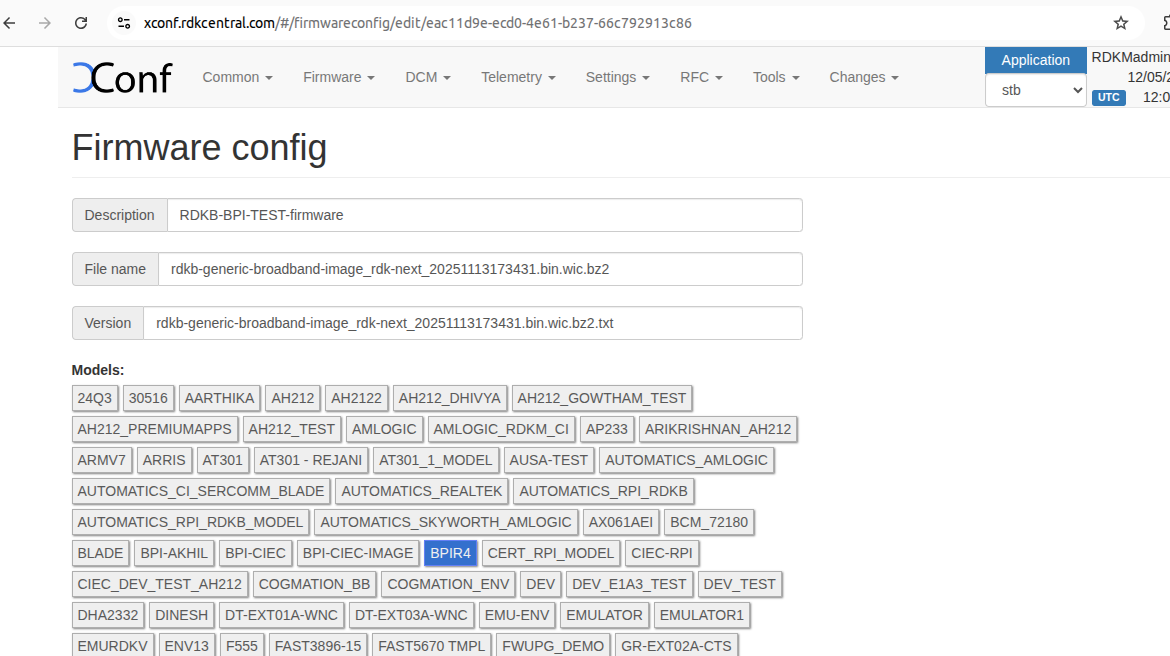
- Create Firmware config
Flow: Xconf-Server->Firmware->Firmware Configs
After entered Firmware Configs page press create button to add your device firmware configuration detail.
Give Description, File name, Version and select your model name and save the details in xconf server.
Description: <unique Identifier>
File Name :<Upgrading image name>
Version: <Upgrading image name>
Model: <Model name configured under Common Tab>
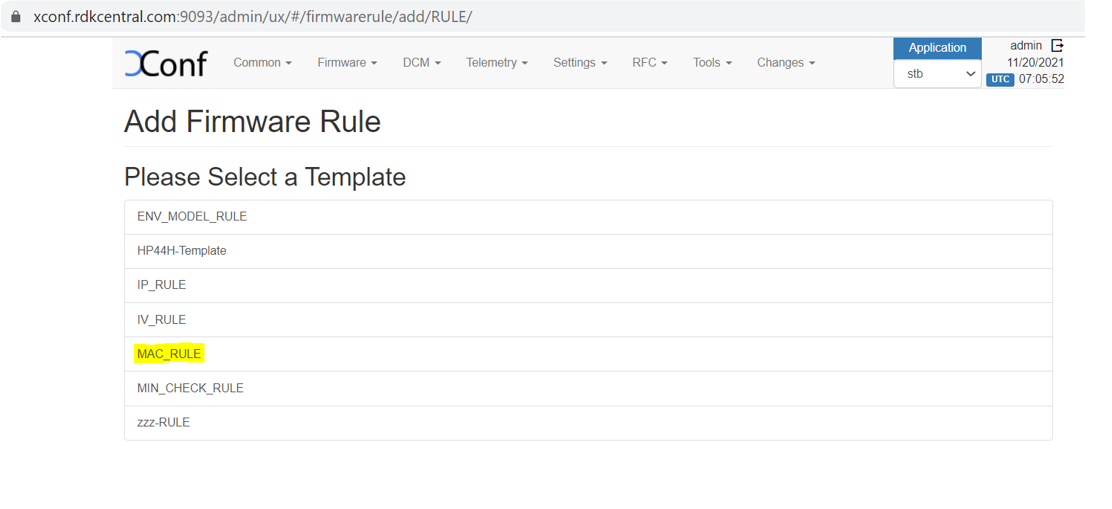
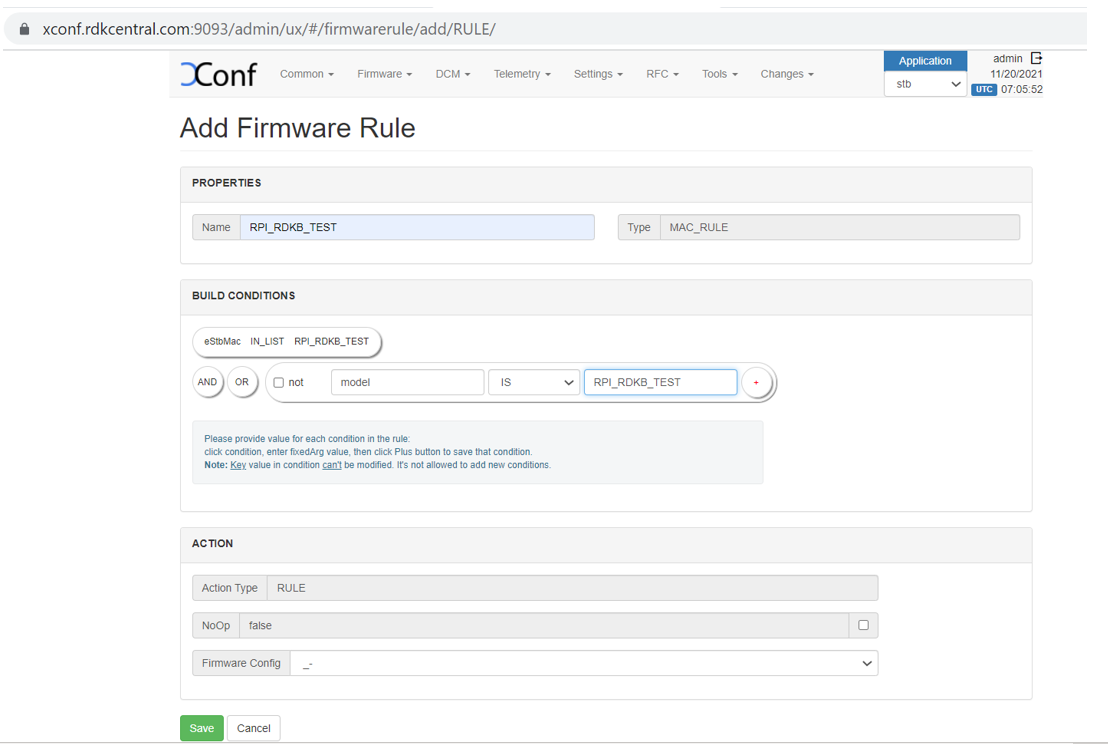
- Create Firmware Rule
Flow: Xconf-Server->Firmware->Firmware Rules
After entered Firmware Rule page press create button to add your device firmware Rule detail.
Please Select a Template : <MAC_RULE>
Name : <Name difined during firmware configs creation>
Type : <MAC_RULE>
Build Conditions:eStbMac IN_LIST <List-Id> AND model is <Model_Name>
Firmware Config:<select the same name defined during configs creation>
- Edit Download Location Round Robin Filter
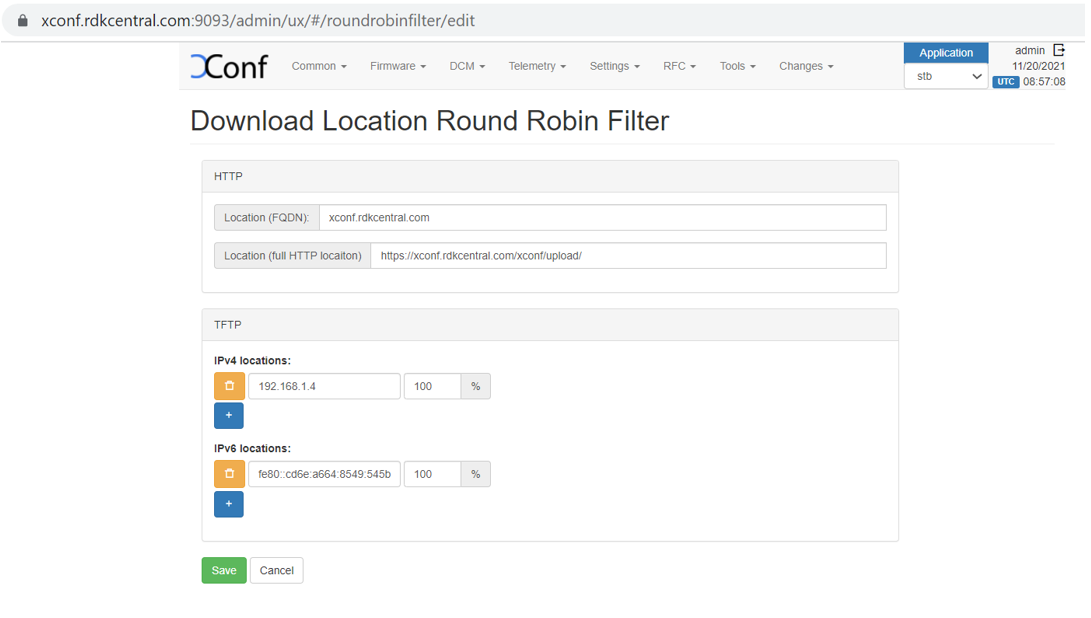
Flow: Xconf-server -> Firmware -> Download Location Filter -> Edit
After entered Download Location Filter page press Edit button to add your Download Location detail.
Location (FQDN) : <xconf.rdkcentral.com>
Location (full HTTP Location) : <https://xconf.rdkcentral.com/xconf/upload/>
TFTP :< Tftp server IPv4 and IPv6 Address>
- Add TFTP location
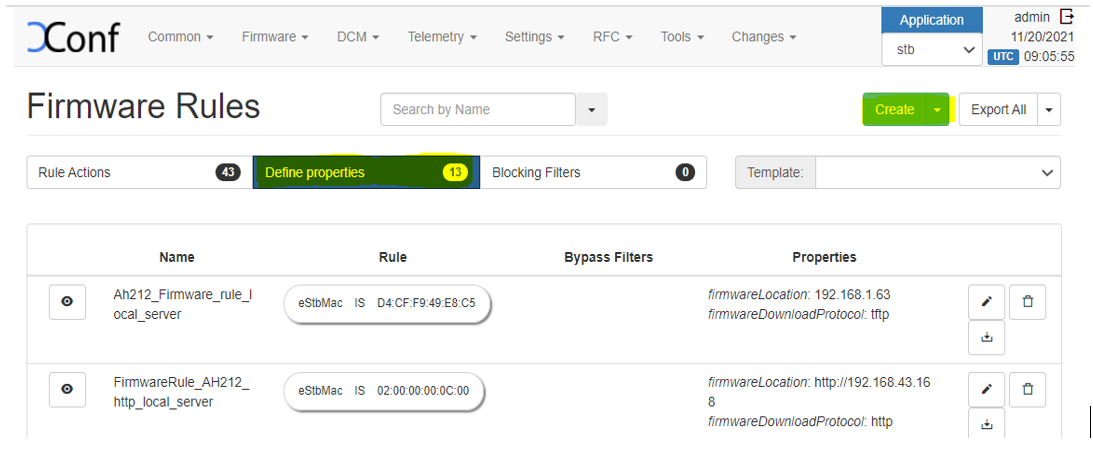
An HTTP location will be returned by default to all devices. To enable tftp(If you have the download location of the firmware as tftp, then only you need to setup this)as download location for a particular set of devices, we need to override it from firmware rules.
Flow : Xconf-server -> Firmware ->Firmware Rules -> Define Properties -> Create
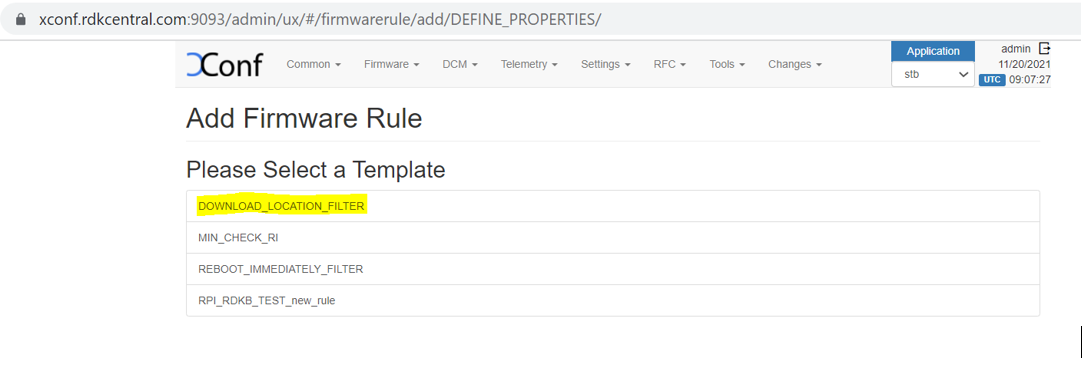
- A page will be displayed with options to select the template. Select ‘DOWNLOAD_LOCATION_FILTER’ from the list.
- In this 'firmware rule’ page with type 'DOWNLOAD_LOCATION_FILTER', we need to specify the ‘Build Conditions’ and ‘Action’ , The build condition should be same as that we used to set rule actions(which will set rules for our intended devices). In ‘Properties’ option under ‘Action’, add ‘firmwareDownloadProtocol’ as ‘tftp’, ‘firmwareLocation’ as ‘your tftp location IPV4 address’. This property will override the default value set from ‘Download Round Robin location filter’.
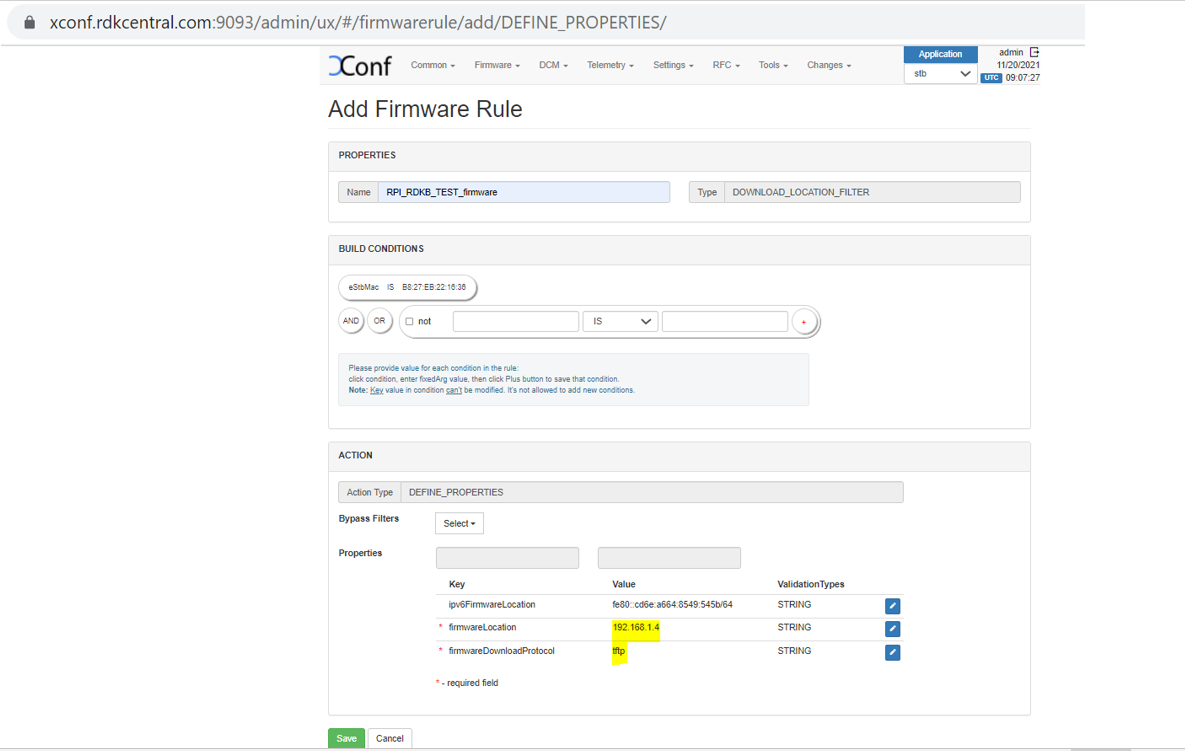
- Note: Setting up IPV4 locations via ‘Download Location Round Robin Filter’ is not supported. This can be set only by the property 'firmwareLocation' from the 'Define Properties' firmware rule page.
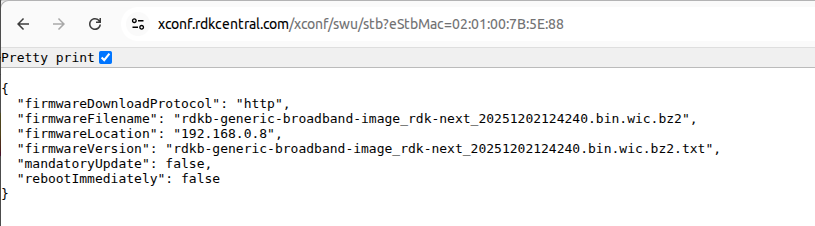
Just like we added tftp location and protocol here, we can also override the default value with http as well. For firmwareDownloadProtocol, add 'http' and for the 'firmwareLocation', add http location. - Response example for https://{xconf-ip}:{port}/xconf/swu/stb?eStbMac={mac}. Here the 'firmwareLocation' and 'firmwareDownloadProtocol' are overrided at 'Define Properties' firmware rule.
- The 'ipv6' addresses will be one of the addresses mentioned in the 'Download Filter' page . If you don't want "ipv6FirmwareLocation", then don't setup it in 'Define Properties' or in the 'Download location filter' pages and you will get only "firmwareLocation" in the response.
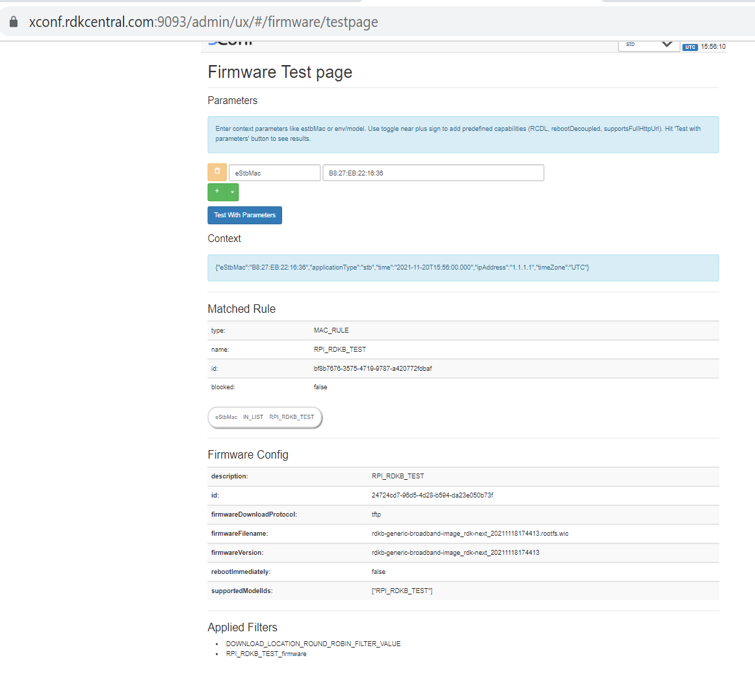
- Verification of Firmware test page
Flow : Xconf-server -> Firmware -> Test Page
Parameters : eStbMac <MAC-Address>
- Client end Configurations and verification (in BPI)
Verify the CLOUDURL URL in /etc/include.properties File
CLOUDURL="https://xconf.rdkcentral.com/xconf/swu/stb?eStbMac="root@Filogic-GW:~# cat /etc/include.properties LOG_PATH=/rdklogs/logs CRON_SPOOL=/var/spool/cron/crontabs CRON_FIFO_FILE=/etc/cron.d/FIFO PERSISTENT_PATH=/nvram RAMDISK_PATH=/tmp TEMP_LOG_PATH=/var/logs UTILITY_PATH=/lib/rdk RDK_PATH=/lib/rdk EROUTER_INTERFACE=erouter0 TELEMETRY_JSON_RESPONSE=/nvram/rtl_json.txt CLOUDURL="https://xconf.rdkcentral.com/xconf/swu/stb?eStbMac="
- Verify the contents of /etc/dcm.properties
root@Filogic-GW:~# cat /etc/dcm.properties
LOG_SERVER=xconf.rdkcentral.com
DCM_LOG_SERVER=https://xconf.rdkcentral.com/xconf/logupload.php
DCM_LOG_SERVER_URL=https://xconf.rdkcentral.com/loguploader/getSettings
DCM_SCP_SERVER=xconf.rdkcentral.com
HTTP_UPLOAD_LINK=https://xconf.rdkcentral.com/xconf/telemetry_upload.php
DCA_UPLOAD_URL=xconf.rdkcentral.com

DCM_HTTP_SERVER_URL=https://xconf.rdkcentral.com/xconf/telemetry_upload.php
DCM_LA_SERVER_URL=https://xconf.rdkcentral.com/xconf/logupload.php
- Check the current image version using “cat /version.txt”
root@Filogic-GW:~# cat /version.txt
imagename:rdkb-generic-broadband-image_rdk-next_20251204071936
BRANCH=rdk-next
YOCTO_VERSION=kirkstone
VERSION=6.1.12.04.25
SPIN=0
BUILD_TIME="2025-12-04 07:19:36"
JENKINS_JOB=Default
JENKINS_BUILD_NUMBER=0
Generated on Thu Dec 04  07:19:36 UTC 2025
- Verify if Firmware job is available using the command "crontab -l | grep fwupgrade" as shown below
root@Filogic-GW:~# crontab -l | grep fwupgrade
*/15 * * * * /usr/bin/fwupgrade >> /var/log/fwupgrade_cron.log 2>&1
- Automatically the Firmware upgrade job will be triggered every 15mins of current system time.
- Once the Firmware Upgrade job is started, verify the log file - /var/log/fwupgrade.log
cat /var/log/fwupgrade_cron.log cloudFWFile : rdkb-generic-broadband-image_rdk-next_20251103090407.bin.wic.bz2 cloudFWLocation : 192.168.0.7 cloudFWVersion : rdkb-generic-broadband-image_rdk-next_20251103090407.bin.wic.bz2.txt cloudProto : http Active root partition: /dev/mmcblk0p4 downloading image using curl -fgLo /tmp/rdkb-generic-broadband-image_rdk-next_20251103090407.bin.wic.bz2.txt http://192.168.0.7/rdkb-generic-broadband-image_rdk-next_20251103090407.bin.wic.bz2.txt % Total % Received % Xferd Average Speed Time Time Time Current Dload Upload Total Spent Left Speed 100 99 100 99 0 0 42471 0 --:--:-- --:--:-- --:--:-- 49500 Xconf-server Version: rdkb-generic-broadband-image_rdk-next_20251103090407 Current Partition Version: rdkb-generic-broadband-image_rdk-next_20251103110434 Passive Partition device: /dev/mmcblk0p8 Mount successful and version.txt found at /mnt/passiveroot/version.txt Passive Partition Version: rdkb-generic-broadband-image_rdk-next_20251103110434 Passive partition does not contain version.txt yet. Neither active nor passive have the required version. Proceeding with upgrade... Opened /tmp/xconf_flag for writing Successfully wrote to /tmp/xconf_flag the value of Xconf upgarde flag is 1CR component name is: eRT.com.cisco.spvtg.ccsp.CR subsystem_prefix eRT. Execution succeed.CR component name is: eRT.com.cisco.spvtg.ccsp.CR subsystem_prefix eRT. Execution succeed.CR component name is: eRT.com.cisco.spvtg.ccsp.CR subsystem_prefix eRT. Execution succeed.CR component name is: eRT.com.cisco.spvtg.ccsp.CR subsystem_prefix eRT. Execution succeed.[INFO] Firmware upgrade is in progress..... - Verify the tftp/http download is happening by noticing the change of file size using below command:
ls /mnt/bootpart/ -sh (use this command frequently to verify the file size change)root@Filogic-GW:~# ls /mnt/bootpart/ -sh total 203M 16K lost+found 203M rdkb-generic-broadband-image_rdk-next_20250916120622.bin.wic.bz2 root@Filogic-GW:~# ls /mnt/bootpart/ -sh total 205M 16K lost+found 205M rdkb-generic-broadband-image_rdk-next_20250916120622.bin.wic.bz2 root@Filogic-GW:~# ls /mnt/bootpart/ -sh total 207M 16K lost+found 207M rdkb-generic-broadband-image_rdk-next_20250916120622.bin.wic.bz2 root@Filogic-GW:~# ls /mnt/bootpart/ -sh total 209M
- Once image download completed, the BPI board will auto reboot and come up with downloaded image.
- Once the board comes up, check the image loaded in the box using “cat /version.txt” command .It will be upgraded with the image from xconf-server.
root@Filogic-GW:~# cat /version.txt
imagename:rdkb-generic-broadband-image_rdk-next_20250916120622
BRANCH=rdk-next
YOCTO_VERSION=kirkstone
VERSION=6.1.09.16.25
SPIN=0
BUILD_TIME="2025-09-16 12:06:22"
JENKINS_JOB=Default
JENKINS_BUILD_NUMBER=0
Generated on Tue Sep 16  12:06:22 UTC 2025
NOTE : Every time need to flash the different images . Because, here they are using the bank switching approach where the images will be stored in the cloud.
So for the next time, when you try to flash the same image to SD card , the firmware upgrade will not happen . The reason is, it will check in the bank (cloud – active and passive banks). If the image is already available in any one of the bank, then it will not go for image upgrade.
If you want recover previous image, execute the below command and the device will boot up with the passive bank image.
root@Filogic-GW:~# /usr/bin/fwupgrade recover
[INFO] Running recovery process...
recovering base image has startedbl2 and fip 2 are ready to swapping
All done. Rebooting...
Connection to 192.168.2.15 closed by remote host.
Connection to 192.168.2.15 closed.
chtsl00601@chtsl00601-Latitude-3420:~$
Direct Firmware Upgrade using dmcli (Quick Testing)
For development, debugging, or quick validation purposes, firmware upgrades can be triggered directly on the device using the dmcli command without relying on the XConf server.
dmcli Commands
dmcli eRT setv Device.DeviceInfo.X_RDKCENTRAL-COM_FirmwareDownloadProtocol string <PROTOCOL>
dmcli eRT setv Device.DeviceInfo.X_RDKCENTRAL-COM_FirmwareDownloadURL string <server_IP:Port_num>
dmcli eRT setv Device.DeviceInfo.X_RDKCENTRAL-COM_FirmwareToDownload string <Image_name>
dmcli eRT setv Device.DeviceInfo.X_RDKCENTRAL-COM_FirmwareDownloadAndFactoryReset int 1
Example:
Example
# Using HTTP server.
dmcli eRT setv Device.DeviceInfo.X_RDKCENTRAL-COM_FirmwareDownloadProtocol string HTTP
dmcli eRT setv Device.DeviceInfo.X_RDKCENTRAL-COM_FirmwareDownloadURL string http://192.168.2.122:8080
dmcli eRT setv Device.DeviceInfo.X_RDKCENTRAL-COM_FirmwareToDownload string rdkb-generic-broadband-image_rdk-next_20250904115114.bin.wic.bz2
dmcli eRT setv Device.DeviceInfo.X_RDKCENTRAL-COM_FirmwareDownloadAndFactoryReset int 1

# Using TFTP server.
dmcli eRT setv Device.DeviceInfo.X_RDKCENTRAL-COM_FirmwareDownloadProtocol string TFTP
dmcli eRT setv Device.DeviceInfo.X_RDKCENTRAL-COM_FirmwareDownloadURL string tftp://192.168.2.246:69
dmcli eRT setv Device.DeviceInfo.X_RDKCENTRAL-COM_FirmwareToDownload string aug_04.wic.bz2
dmcli eRT setv Device.DeviceInfo.X_RDKCENTRAL-COM_FirmwareDownloadAndFactoryReset int 1
Runtime persistence storage creation
//-----------Service file
cat > /lib/systemd/system/mount-data.service << 'EOF'

[Unit]

Description=Mount data partition

After=mount-nvram.service

Requires=mount-nvram.service


[Service]

Type=oneshot

ExecStartPre=/bin/sh -c 'until mountpoint -q /nvram; do sleep 1; done'

ExecStart=/bin/sh /nvram/mount_data.sh

RemainAfterExit=yes


[Install]

WantedBy=multi-user.target

EOF
//---------script file
cat > /nvram/mount_data.sh << 'EOF'
#!/bin/sh
mkdir -p /data
blkid_output=$(blkid /dev/mmcblk0p14 | grep 'TYPE="ext4"')
if [ -n "$blkid_output" ]; then
    mount /dev/mmcblk0p14 /data
    echo "Data partition mounted successfully" >> /tmp/mount-data.log
else
    echo "Data partition not found or not ext4" >> /tmp/mount-data.log
fi
EOF
chmod +x /nvram/mount_data.sh

//----creating partition
sgdisk -e /dev/mmcblk0

sgdisk -F /dev/mmcblk0   # first free sector

sgdisk -E /dev/mmcblk0   # last free sector

sgdisk -p /dev/mmcblk0   # full partition table view

ic-GW:~# sgdisk -l /dev/mmcblk0

root@Filogic-GW:~#

root@Filogic-GW:~# sgdisk -F /dev/mmcblk0

4453342

root@Filogic-GW:~#

root@Filogic-GW:~# sgdisk -E /dev/mmcblk0

15523806

root@Filogic-GW:~# sgdisk -p /dev/mmcblk0

Disk /dev/mmcblk0: 15523840 sectors, 7.4 GiB

Sector size (logical/physical): 512/512 bytes

Disk identifier (GUID): A74876B1-0039-4930-8C95-B43075F2726C

Partition table holds up to 128 entries

Main partition table begins at sector 2 and ends at sector 33

First usable sector is 34, last usable sector is 15523806

Partitions will be aligned on 2-sector boundaries

Total free space is 11075585 sectors (5.3 GiB)


Number  Start (sector)    End (sector)  Size       Code  Name

   1              34            8191   4.0 MiB     8300  bl2

   2           13312           17407   2.0 MiB     8300  fip

   3           17408           50175   16.0 MiB    8300  boot_a

   4           50176         2147327   1024.0 MiB  8300  rootfs_a

   5         2147328         2155485   4.0 MiB     8300  bl2_b

   6         2155486         2159581   2.0 MiB     8300  fip_b

   7         2159582         2192349   16.0 MiB    8300  boot_b

   8         2192350         4289501   1024.0 MiB  8300  rootfs_b

   9         4289502         4322269   16.0 MiB    8300  nvram

  10         4322270         4338653   8.0 MiB     8300  crash_a

  11         4338654         4355037   8.0 MiB     8300  crash_b

  12         4355038         4387805   16.0 MiB    8300  reserved

  13         4387806         4453341   32.0 MiB    8300  dac

root@Filogic-GW:~#


//---------reboot device
~# mkfs.ext4 /dev/mmcblk0p14

mke2fs 1.46.5 (30-Dec-2021)

Discarding device blocks: done

Creating filesystem with 1383808 4k blocks and 346064 inodes

Filesystem UUID: d66a633e-151c-482e-83f2-c892a185985e

Superblock backups stored on blocks:

32768, 98304, 163840, 229376, 294912, 819200, 884736


Allocating group tables: done

Writing inode tables: done

Creating journal (16384 blocks):

done

Writing superblocks and filesystem accounting information: done


root@Filogic-GW:~#

root@Filogic-GW:~# mkdir -p /data

root@Filogic-GW:~# mount /dev/mmcblk0p14 /data

root@Filogic-GW:~# df -h /data

Filesystem            Size  Used Avail Use% Mounted on

/dev/mmcblk0p14       5.2G   24K  4.9G   1% /data

root@Filogic-GW:~#

root@Filogic-GW:~#
Overview
Community Forums
Content Tools
Tasks
9 Comments
Pavlo Uvarov
Dec 11, 2025Can't access https://xconf.rdkcentral.com:9093/admin/
Shilpa S N
Dec 11, 2025Pavlo Uvarov Pls use the new URL for xconf - https://xconf.rdkcentral.com/admin/
Pavlo Uvarov
Dec 11, 2025How do I get credentials for logging in there?
Shilpa S N
Dec 11, 2025Xconf GO Reference Setup Credentials - Credentials are available here
Pavlo Uvarov
Dec 11, 2025What model should one select for Banana Pi when creating FW config? BPIR4? RDKB-BPI-TEST?
Pavlo Uvarov
Dec 12, 2025When I try to save FW rule I get an error: <FW_rule_name>: model, do(es) not belong to template MAC_RULE
I created MAC_AND_MODEL template, but I can't select it during rule creation.
I made MAC_AND_MODEL rule editable and now it can be selected during rule creation.
Pavlo Uvarov
Dec 12, 2025ipv6FirmwareLocation in FW rule for properties definition can not be skipped even though it's optional.
Created separate template that does not include IPv6.
Pavlo Uvarov
Dec 12, 2025I tried to configure everything according to this page and still get 404.
Lakshmipriya P
Dec 15, 2025Hi Pavlo Uvarov
Could you please try accessing this URL https://xconf.rdkcentral.com/ and credentials refer this Xconf GO Reference Setup Credentials . Follow this firmware configuration section Xconf Golang Server - User guide for configuration and feature validation#FeatureValidation(Firmwareupdate). For model and mac configuration refer this Xconf Golang Server - User guide for configuration and feature validation#AdminUICommonConfiguration.